
Chapter 2
2. Getting started
Goal: install XenData for Iconik, enter its settings, and complete one test archive.
Time: about 20 minutes, after you have collected the values below.
2.1 Before you start
You need:
- The XenData server. Install XenData for Iconik on the same Windows computer as XenData.
- An administrator account on the XenData server.
- The XenData for Iconik
.msiinstaller from North Shore Automation. - Internet access from the XenData server to Iconik and AWS.
Collect these values before you install. Each value goes into one field under Settings.
| Value | Get it from |
|---|---|
XenData Workflow API port, if it is not 3466 |
XenData administrator |
| XenData file group for Iconik archives | XenData administrator |
A free TCP port for XenData updates, if 54321 is in use |
XenData administrator |
| Iconik storage ID for disk storage (ISG) | Iconik administrator |
| Iconik storage ID for archive storage | Iconik administrator |
| Iconik application ID and application token | Iconik administrator |
Iconik address, if it is not https://app.iconik.io |
Iconik administrator |
| AWS region, SQS queue URL, access key ID, and secret access key | North Shore Automation |
ISG means the Iconik Storage Gateway, the disk storage that Iconik manages on your network.
2.2 Install
- Double-click the
.msiinstaller file. - If Windows Defender SmartScreen shows a warning, select More info.
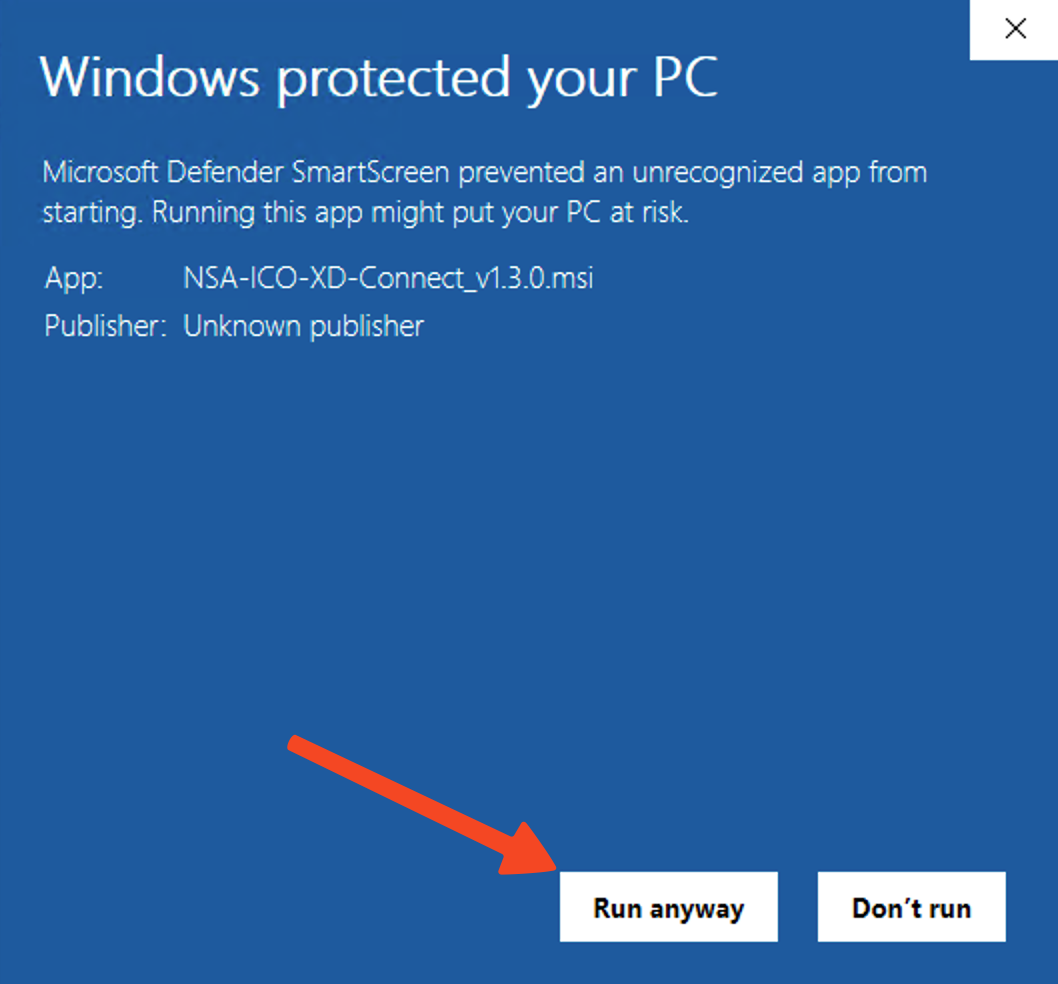
- Select Run anyway.
- Follow the installer prompts.
The installer is not digitally signed. A SmartScreen warning is therefore expected. If Windows blocks the installer completely, ask your system administrator to check your security policy.
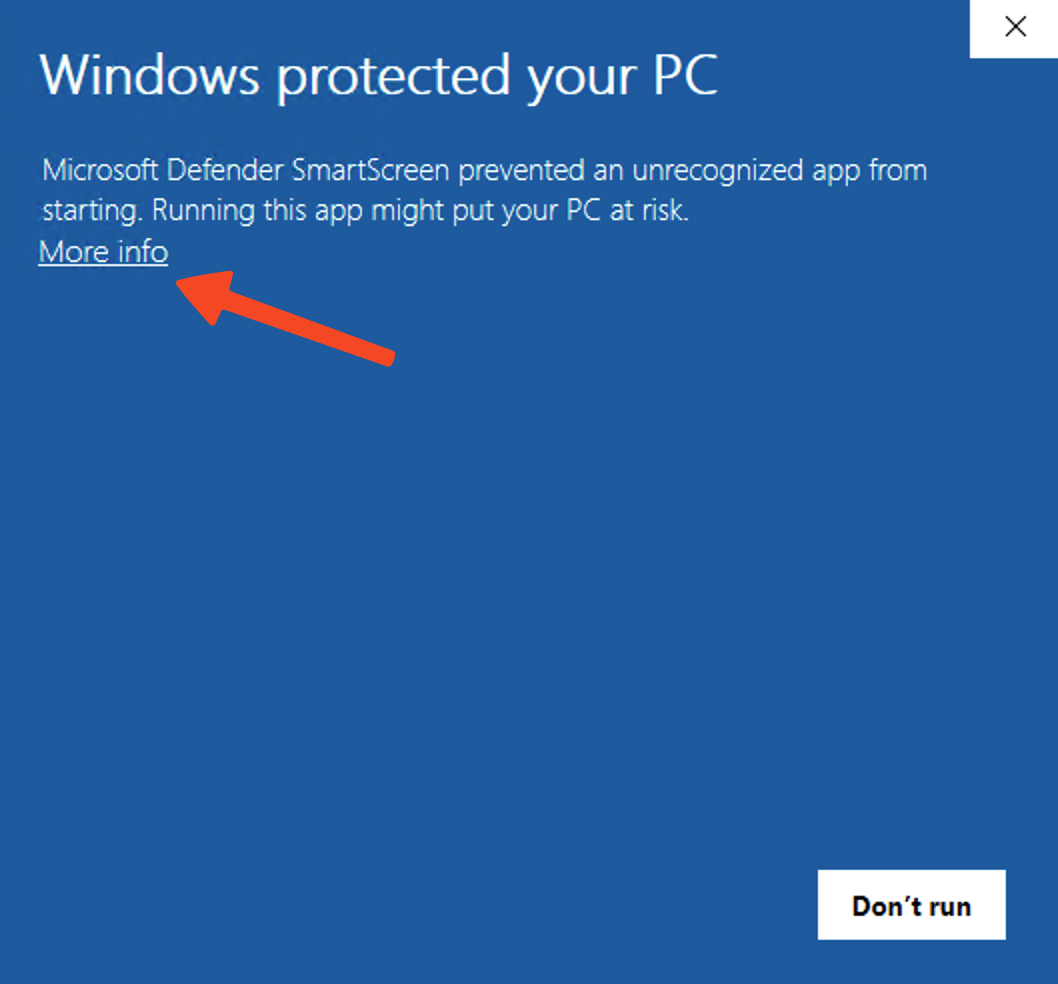
Select More info to show the Run anyway button.
2.3 Open XenData for Iconik
- Open the Start menu.
- Open the North Shore Automation folder.
- Select NSA ICO-XD Connect.
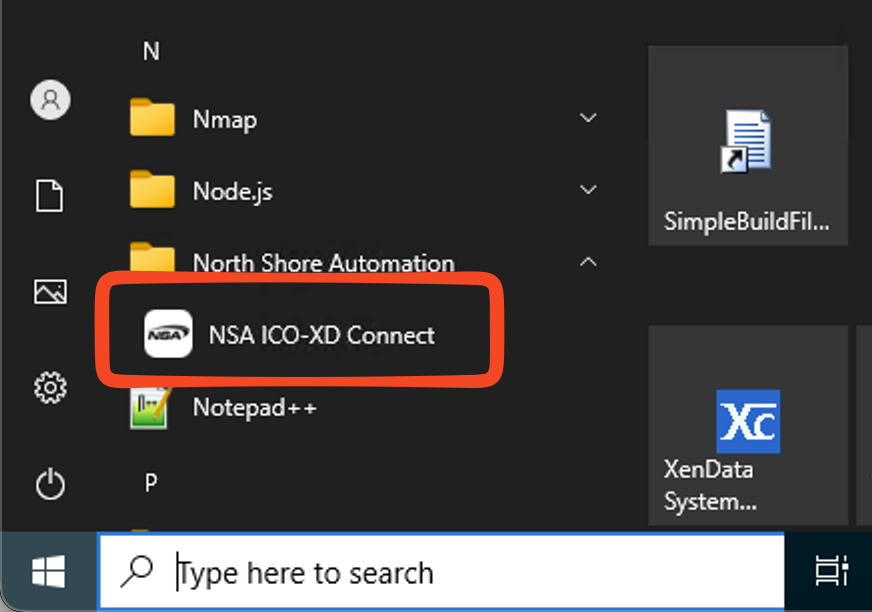
On first launch, the Status tab shows Configuration Required.
2.4 Enter your settings
- Select Configure Settings.
- Under Xendata Configuration, keep Host and Callback Host set to
localhost. - Fill in the other fields in Xendata Configuration, iconik Configuration, and SQS Configuration.
- Under File Group, select Load to read the file groups from XenData. Then choose one.
- Select Save.
Save stays unavailable until every required field has a valid value. Fields marked with an asterisk (*) are required. See Settings for the meaning of each field.
2.5 Check the connections
After you save, the Status tab shows two panels.
| Panel | Value | Expected |
|---|---|---|
| System Status | State | Complete, in green |
| System Status | Archive Status | OnLine, in green |
| SQS Queue Status | State | Connected, in green |
If a value is red or a panel shows Error, see Troubleshooting.
2.6 Run a test archive
- In Iconik, find one small test asset that is on ISG storage.
- Run the Archive custom action on that asset.
- Open Iconik Jobs and find the new job.
- Wait for the job to show FINISHED.
- Open the asset and check that it now shows a copy on the archive storage.
The custom action name can differ on your Iconik system. Ask your Iconik administrator which action to use.
If no job appears in Iconik, open the Logs tab in XenData for Iconik. Then see A job does not appear in Iconik.
Previous: What XenData for Iconik is · Contents · Next: Archiving and restoring