
Chapter 7
7. Updates
Goal: replace the installed version with a new version and keep your settings.
Time: about 5 minutes.
You need: the new .msi installer from North Shore Automation and an administrator account.
XenData for Iconik does not update itself. Install each new version by hand.
7.1 Before you update
- In Iconik Jobs, check that no archive or restore job shows STARTED.
- Ask users not to start new archive or restore actions during the update.
Requests made during the update wait in the queue. XenData for Iconik collects them when it starts again.
7.2 Quit the application
- Open the XenData for Iconik window.
- Select File > Exit.
You can also right-click the tray icon and select Quit. Closing the window with the X button does not quit.
7.3 Uninstall the current version
- Open Settings > Apps > Installed apps in Windows.
- Search for
nsa. - Select NSA ICO-XD Connect, then select Uninstall.
- Follow the prompts.
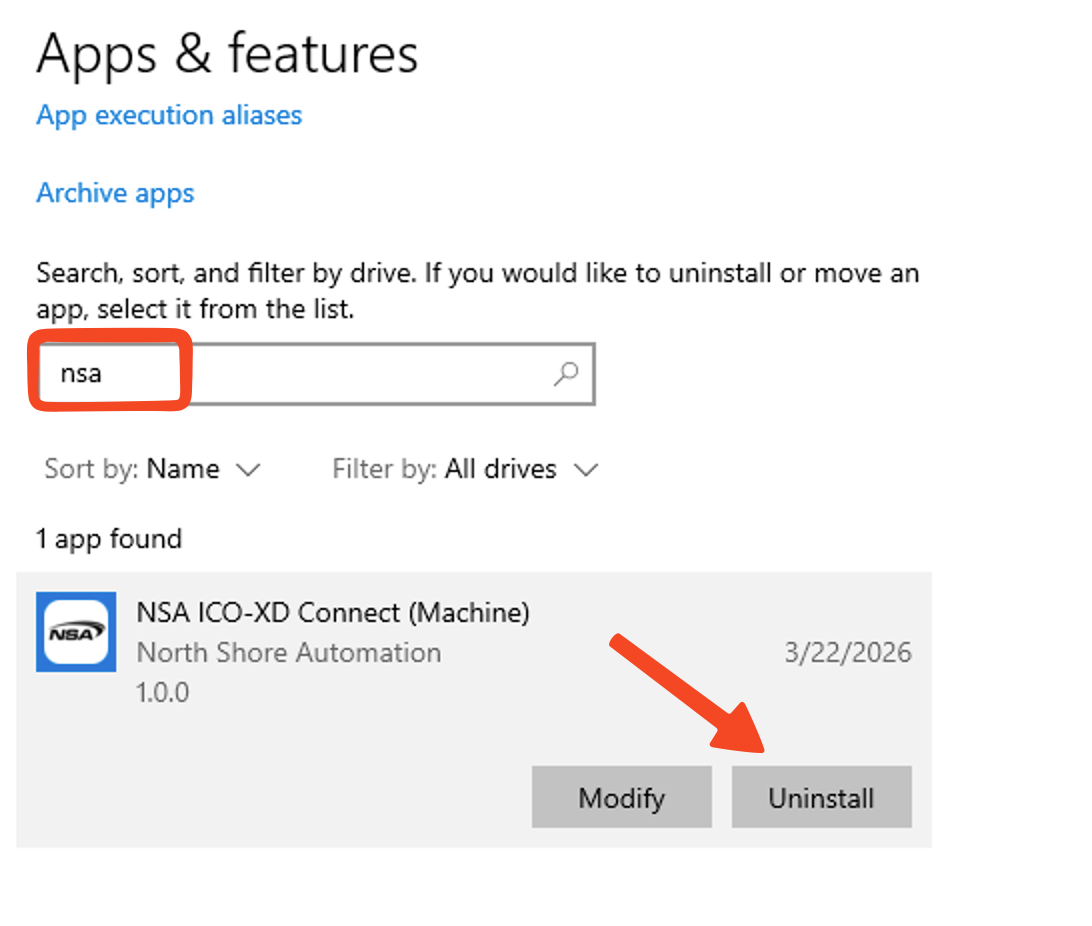
Uninstall keeps your settings and log files. You do not need to enter your settings again.
7.4 Install the new version
- Double-click the new
.msifile. - If SmartScreen shows a warning, select More info, then Run anyway.
- Follow the installer prompts.
See Install for screenshots.
7.5 Check the update
- Open NSA ICO-XD Connect from the Start menu.
- On the Status tab, check the version on the NSA ICO-XD Connect line.
- Check that State is Complete, Archive Status is OnLine, and the queue is Connected.
- Run one test archive. See Run a test archive.
If the application shows NSA ICO-XD Connect could not start, do not install again. Copy the full message and contact support. See The application does not start.
Previous: Status, logs, and support · Contents · Next: Troubleshooting