
Chapter 3
3. Backups and syncing
The first backup copies accessible Iconik records into your chosen folder. Start it manually, or leave automatic syncing enabled for the next scheduled check to start it after setup. Later syncs copy changes and check for deleted records. An asset deleted in Iconik keeps its existing local record.
3.1 Read Home
Before any backup completes, Home focuses on the first-backup progress card. It shows the current step, copied count, and available action. Progress stays visible when a run pauses, reconnects, or fails.
Preparation checks collections and storage information before asset copying. During a resumed backup, saved asset progress remains visible while those checks run again.
After a backup completes, Home shows:
| Fact | Meaning |
|---|---|
| Assets in your copy | Assets held in the local library |
| Collections | Collections held in the local library |
| Last completed sync | The latest completed backup or sync |
| Next Iconik check | The next scheduled check, or why checks are on hold |
| Connection and storage | The connected tenant, backup folder, and license |
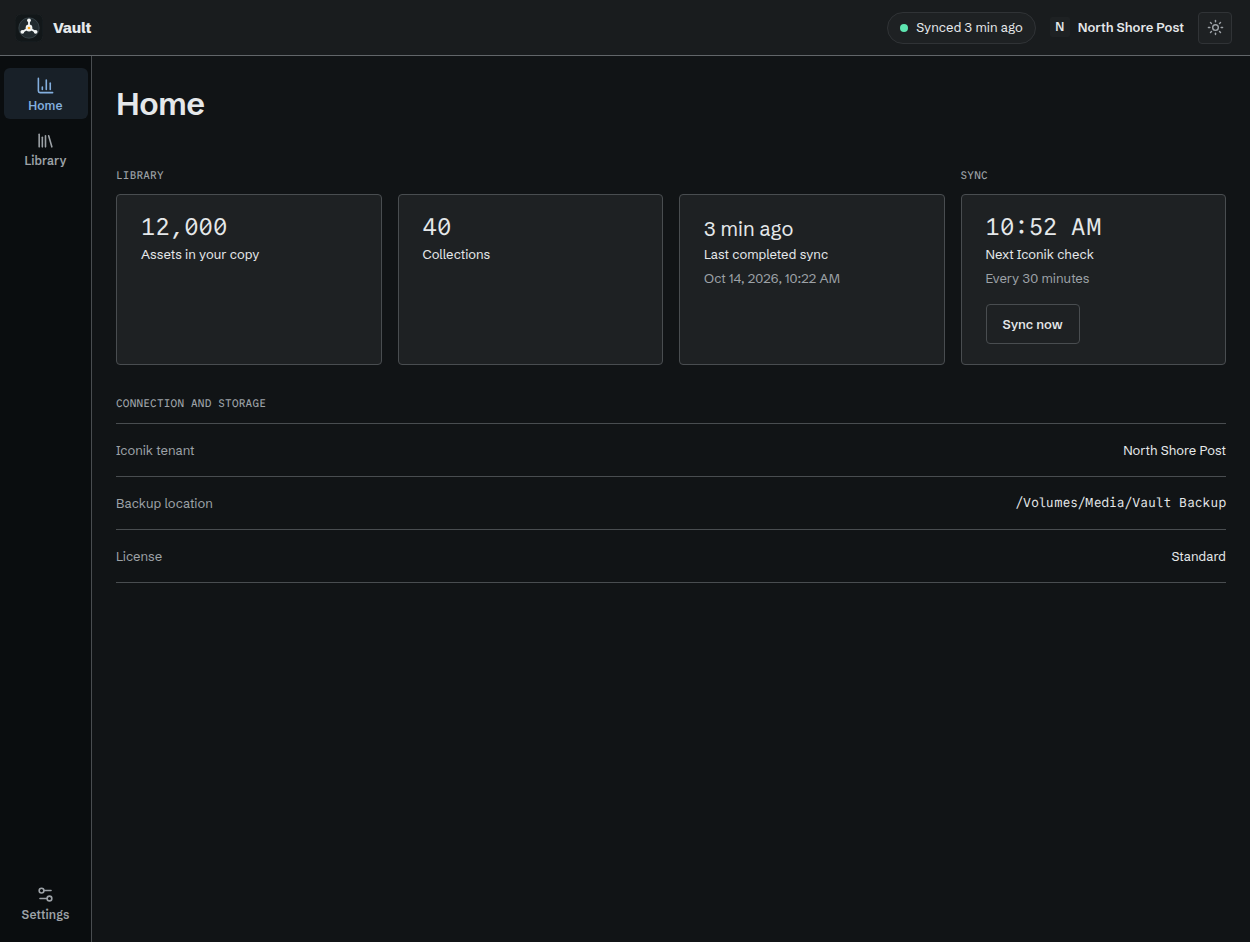
Home after a completed backup, with sample data.
The header status stays visible as you use other pages.
| Status | What to do |
|---|---|
| Ready to back up | Start the first backup |
| Syncing | Let copying continue, or select Pause on Home |
| Checking for deleted assets | Let the check finish; existing deleted records are kept locally |
| Synced | Use Library or check the next scheduled time on Home |
| Sync paused | Select Resume when ready |
| Reconnecting | Vault is retrying automatically; check the connection if this persists |
| Sync failed | Read the Home message and select Try again after resolving the cause |
| Needs attention | Open Home for the account, storage, or license action |
Preparation can show a more specific collection or storage status. Use the accompanying detail to see which step is active.
3.2 Set automatic checks
- Open Settings > Connection.
- Under Syncing, select Enable automatic syncing.
- Set Check Iconik to the required interval.
The standard choices range from every 15 minutes to once a day. The setting applies when changed. The next-check message shows when an automatic check is scheduled.
Vault runs checks only while its window is open. It does not replay every missed check after being closed. Later syncs use saved progress to find changes since the previous work.
3.3 Run a check now
Select Sync now on Home or under Settings > Connection > Syncing. Vault starts a check when the connection, folder, and license permit it. It does not start a second run while another is active.
A manual check does not turn on automatic syncing. Use Pause and Resume when work is manually paused.
3.4 Pause and Resume
Select Pause on Home during the first backup, a later sync, or automatic recovery. Vault saves progress and stops current work safely. Already copied records remain available in Library.
A manual pause also holds future automatic runs. The pause survives closing and reopening Vault. Reconnecting Iconik does not clear it.
Select Resume on Home to continue. Resume needs a usable Iconik connection, backup folder, and license. It starts one run and leaves Enable automatic syncing unchanged.
3.5 Recover from an interruption
Vault retries temporary connection failures and resumes from saved progress. Reconnecting means that automatic recovery is in progress. You can keep browsing records already copied.
If Iconik rejects the saved connection, Vault requests reconnection. Open Settings > Connection and complete browser approval again. Use the same tenant and user to keep the existing backup. See Settings.
If the backup drive disappears, reconnect it before trying again. Choosing a different folder changes where Vault reads and writes. It does not move the previous folder's files.