
Chapter 4
4. Library
Library searches the copy in your backup folder. You can use it during a backup and without an internet connection. Only records and previews already copied are available.
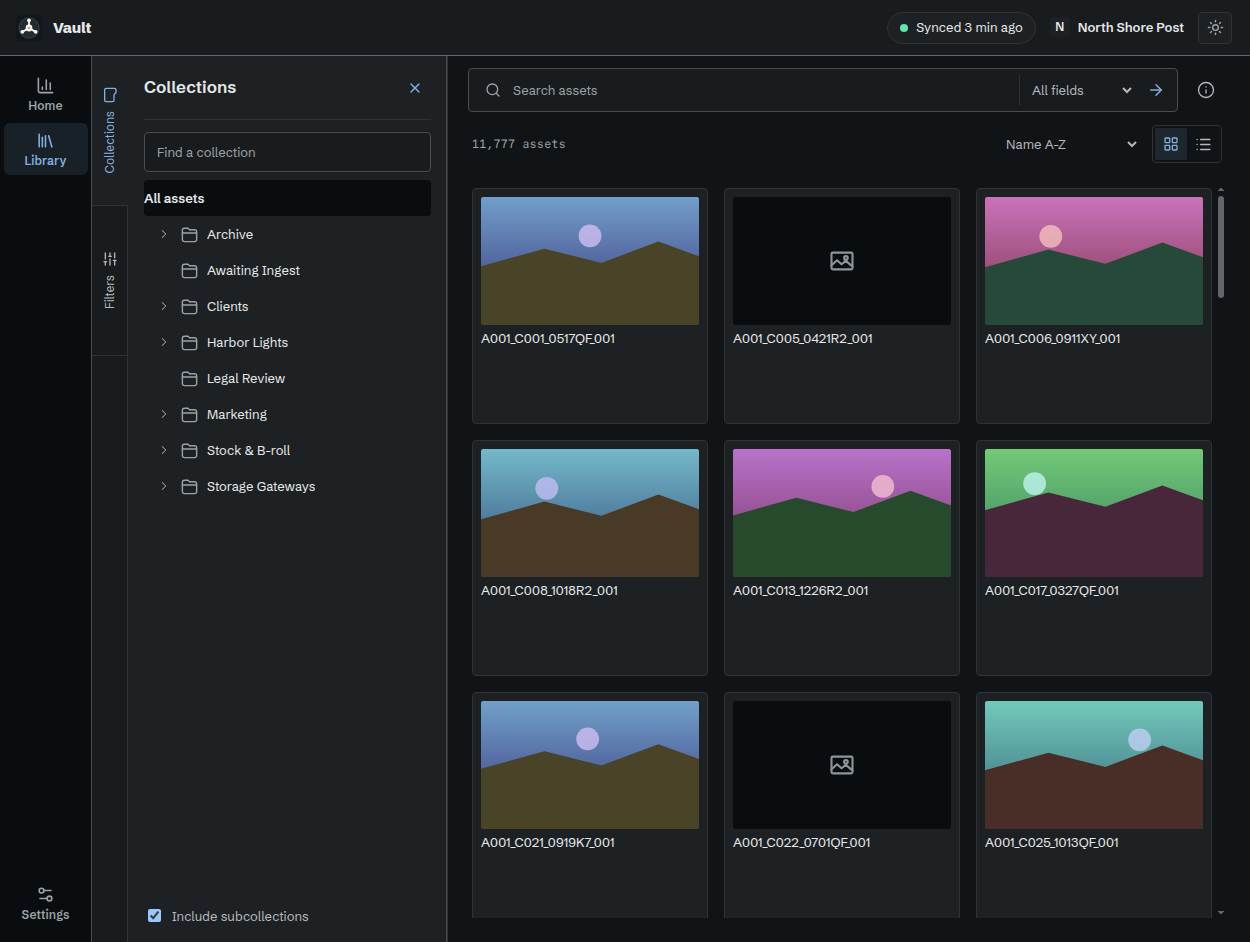
Library with sample collections, assets, and preview images.
4.1 Search for an asset
- Open Library.
- Enter text in Search assets.
- Leave the scope at All fields, or select Name, Filename, or Metadata.
- Select a result to read its details.
Normal searches update as you type. Broad wildcard patterns wait for Enter or the arrow button. Open Search help beside the search field for syntax examples.
| Enter | Finds |
|---|---|
"harbor interview" |
The phrase harbor interview |
*final* |
Text containing final |
*.mov with Filename selected |
Filenames ending in .mov |
clip?.mov with Filename selected |
Filenames such as clip1.mov |
\* |
A literal asterisk |
* matches any text. ? matches one character.
Put a backslash before a wildcard to match that character literally.
Close each quoted phrase and complete any trailing backslash before searching.
If broader search is being prepared, Library shows its progress.
You can still browse or choose Name and enter a prefix such as titles*.
4.2 Browse a collection
- Open the Collections tab at the left edge.
- Expand the collection tree and select a collection.
- Keep Include subcollections selected to include its child collections.
- Clear that option to search only the selected collection.
The active collection appears above results. Remove that scope to search the wider library again. The Clear all button beside the collection tag clears search text, filters, collection scope, and the deleted-assets option. Collection scope combines with your search text and filters.
4.3 Add filters
- Open the Filters tab.
- Select Add filter.
- Choose a custom metadata field, Type, Status, or Modified date.
- Select Compare to change the comparison when needed.
- Enter or choose the value, then select Done to collapse the editor.
Complete filters apply as you edit. Incomplete drafts remain available until you finish or remove them. Select a collapsed filter summary to edit it again.
Text comparisons include is, is not, contains, starts with, ends with, and matches pattern. Use has a value or has no value to check whether a field is populated. Modified dates use on or after or on or before.
Each filter can hold several values. A positive comparison matches any of that row's values. is not excludes all listed values. Separate filter rows must all match. You can use up to ten filters, with up to twenty values per filter.
For example, use a project field to select a production. Add Status to narrow that production to the required asset state.
Use a row's remove control to remove it. Clear filters removes the filter rows and the deleted-assets option. It leaves the search text and collection scope in place.
4.4 Sort and inspect results
Choose Name A-Z, Name Z-A, Newest modified, or Oldest modified above the results. Switch between grid and list views there. The list shows title, filename, created date, and modified date.
The matching total can finish calculating after the first results appear. Keep browsing while it counts. Use the retry control if counting fails. Scroll to browse more results. Select Load more when you need the next group of results.
Vault remembers browsing controls and position. When a sync changes the copy, select Refresh updated copy to refresh the current results.
Collections and Filters drawers can stay open together in a wide window. In a narrower window, switch between them. Drag a drawer's edge to change its width.
4.5 Read asset details
Select an asset in either view to open its detail panel. It can show the cached preview, asset identifier, dates, collections, formats, files, and custom metadata. Available details depend on the copied record.
File information describes where Iconik recorded media and its representations. Vault does not hold those original media files.
For a current asset, select Open asset in Iconik to open its live page in your browser. That action needs online access and your Iconik permissions. Select Close to return to the results.
4.6 Find deleted assets
Deleted assets are hidden from normal results. Open Filters and select Include deleted assets to include their saved records. The results mark them No longer in Iconik.
Their details explain that Vault kept the local copy. The online asset link is unavailable for deleted records. This preserves information for reference; it does not restore the asset to Iconik.