
Chapter 2
2. Getting started
Goal: install Vault, connect Iconik, and complete your first metadata backup.
You need: Control Room, a Vault license, internet access, and a writable backup folder. Your Iconik user needs access to the intended assets and permission to create an application.
Setup time depends on your connection and library size. A large library can take much longer than a small test library.
2.1 Install and open Vault
- Open Control Room on your Mac or Windows computer.
- Find Vault in the application catalog.
- Follow Control Room's installation and license prompts.
- Open Vault when installation completes.
Control Room downloads the signed installer for your computer. If Vault is unavailable in the catalog, update Control Room first. Ask your administrator or supplier for a Vault license if you do not have one.
The first window shows Set up Vault. You can choose the folder and connect Iconik in either order. Select Start the first backup to begin immediately once setup is complete. Automatic syncing can also start the first backup at the next scheduled check while Vault stays open. To wait, close Vault or clear Enable automatic syncing under Settings > Connection > Syncing.
2.2 Choose a backup folder
Create a dedicated folder on this computer or a connected drive before selecting it. For network storage, connect the share in your file browser first. Vault does not connect shares or store network-storage passwords.
- Under Backup location, select Browse.
- Choose the existing folder for your metadata copy.
- Check that the location shows Ready.
You can also paste the folder's full path into Folder and select Use this folder.
Use an absolute path, not an smb:// or nfs:// address.
On Windows, a reachable network path can be used when Windows already has access.
The backup folder must be separate from Vault's application data folder. Do not select the application data folder or a folder within it.
If Vault reports a sharing limitation, other accounts on this computer may not reach this folder. Choose a shared location if those people need the same backup.
2.3 Connect Iconik
- Under Iconik account, select Connect iconik.
- In your browser, sign in as the Iconik user whose accessible library Vault should copy.
- Approve Vault's requested access.
- Return to Vault and check Iconik tenant and Signed in as.
- Select Connect this account only when both identify the intended account.
- Wait for Vault to finish its connection checks.
A tenant is your organization's Iconik environment. You do not need to paste an application identifier or access token into Vault.
Vault verifies required asset access, including markers. Approval alone does not mean the connection has passed those checks. If setup fails, follow the message or use Connection problems.
2.4 Start the first backup
- Check that the folder is Ready and Iconik is Connected.
- Select Start the first backup.
- Leave the Vault window open while it copies.
Home shows preparation and then asset progress. Vault checks collections and storage information before copying assets. Large collection trees can take several minutes before asset copying begins.
Open Library to inspect assets as they arrive. Use Pause on Home if you need to stop the work. Use Resume to continue later from saved progress.
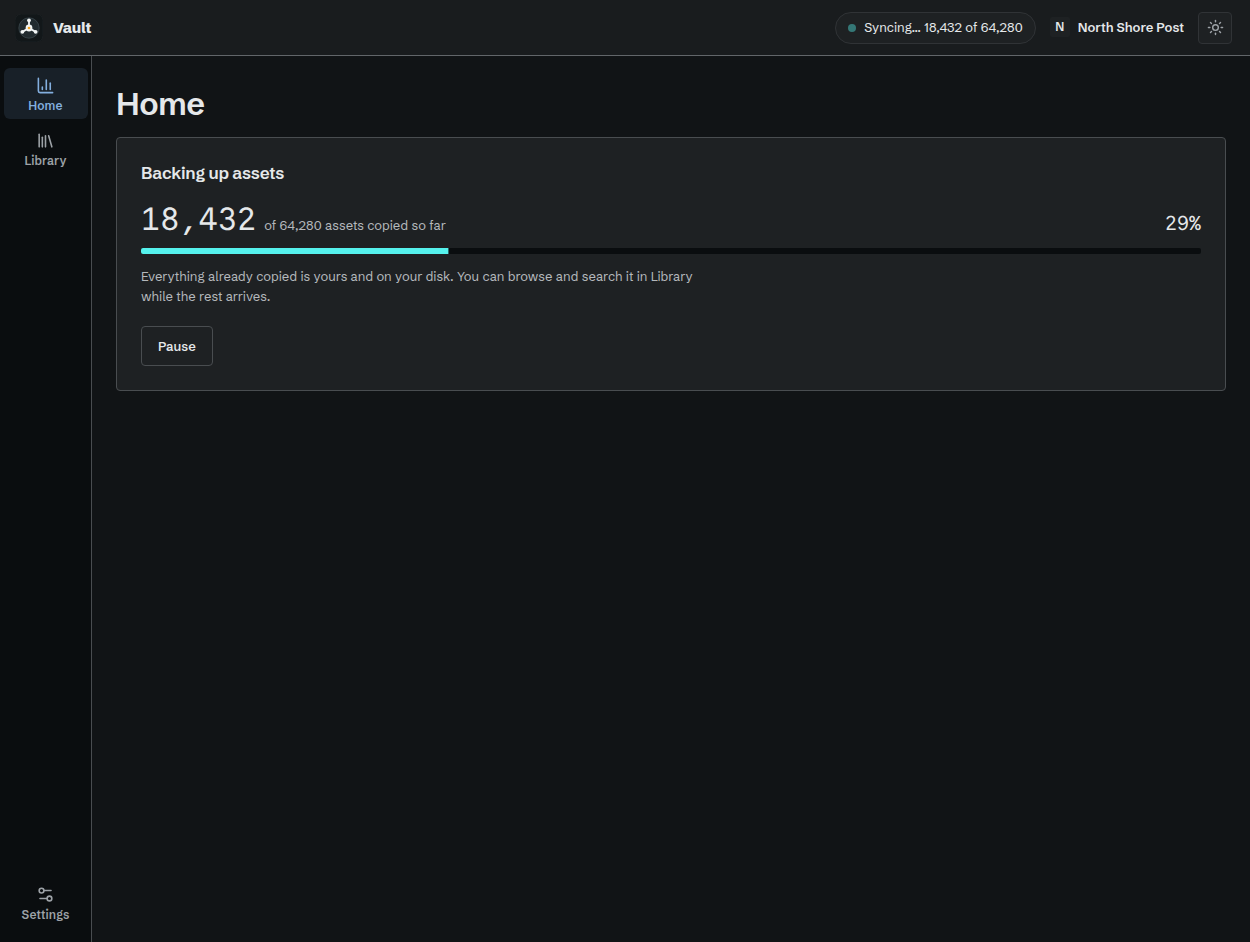
The first backup in progress with sample data. Library remains available as records arrive.
2.5 Check the result
After the first backup completes, Home shows the library counts and Last completed sync. Open Library, find a known asset, and check its details. Compare the expected account and backup location on Home.
Set your preferred check interval under Settings > Connection > Syncing. Automatic syncing requires the Vault window to stay open. See Backups and syncing.