
Chapter 10 / Operating Relay
10. Credentials
Credentials hold the secrets actions need: S3 keys, SSH passwords or private keys, Iconik tokens, and CatDV passwords. The secret is stored encrypted on the node and is never shown again.
10.1 Types
| Type | Fields | Used by |
|---|---|---|
| Amazon S3 | Access key ID *, Secret access key * | S3 Transfer |
| Amazon SQS | Access key ID *, Secret access key *, and one or more queue connections: Queue name, Queue URL *, Iconik System ID *, Duplicate message window | SQS Queue trigger (10.11) |
| SSH | Username *, Password, Private key (PEM), Key passphrase | SCP transfer. Password or private key is required. |
| Iconik | App ID *, Auth token * (Relay stores the Base URL https://app.iconik.io/API) |
Workflow-level Iconik connections; existing saved HTTP Request actions with Iconik authentication |
| CatDV | Server address *, API path *, Username *, Password * | Workflow-level CatDV connections: CatDV Get Clip and CatDV Update Clip (10.7) |
| Token | Token * | Reserved; no shipped action uses it yet |
| Basic auth | Username *, Password * | HTTP Request with Basic authentication |
With the managed Iconik connection (internal managed Iconik release), Add credential does not offer the Iconik type (10.10).
10.2 Adding a credential
Credentials in the rail → Add credential. Give it a Name that is unique on this node, pick the Type, fill the fields, and click Save. Relay assigns an immutable credential ID when it creates the credential. Secret fields are masked password inputs, with one exception: an SSH Private key is a multi-line box that shows what you paste, because a key has to be checked by eye. Treat that screen accordingly. Validation names the field that is wrong, never the value.
Credentials are per node. A workflow on a remote node uses that node's credentials; nothing is copied between machines.
For S3 multipart uploads, the credential needs s3:PutObject, s3:AbortMultipartUpload, and s3:ListMultipartUploadParts on the destination objects. Every upload also uses s3:GetObject to report the stored size and storage class; without it, the upload succeeds and those outputs are empty. On a versioned bucket, Relay reads back the exact version it uploaded, so it also needs s3:GetObjectVersion. Keep any permissions needed for the bucket picker and bucket encryption. Relay uses abort and list-parts permissions to remove and verify unfinished uploads after failure. Normal recovery uses recorded upload IDs and does not require listing all unfinished uploads in the bucket. See Set up S3 multipart uploads.
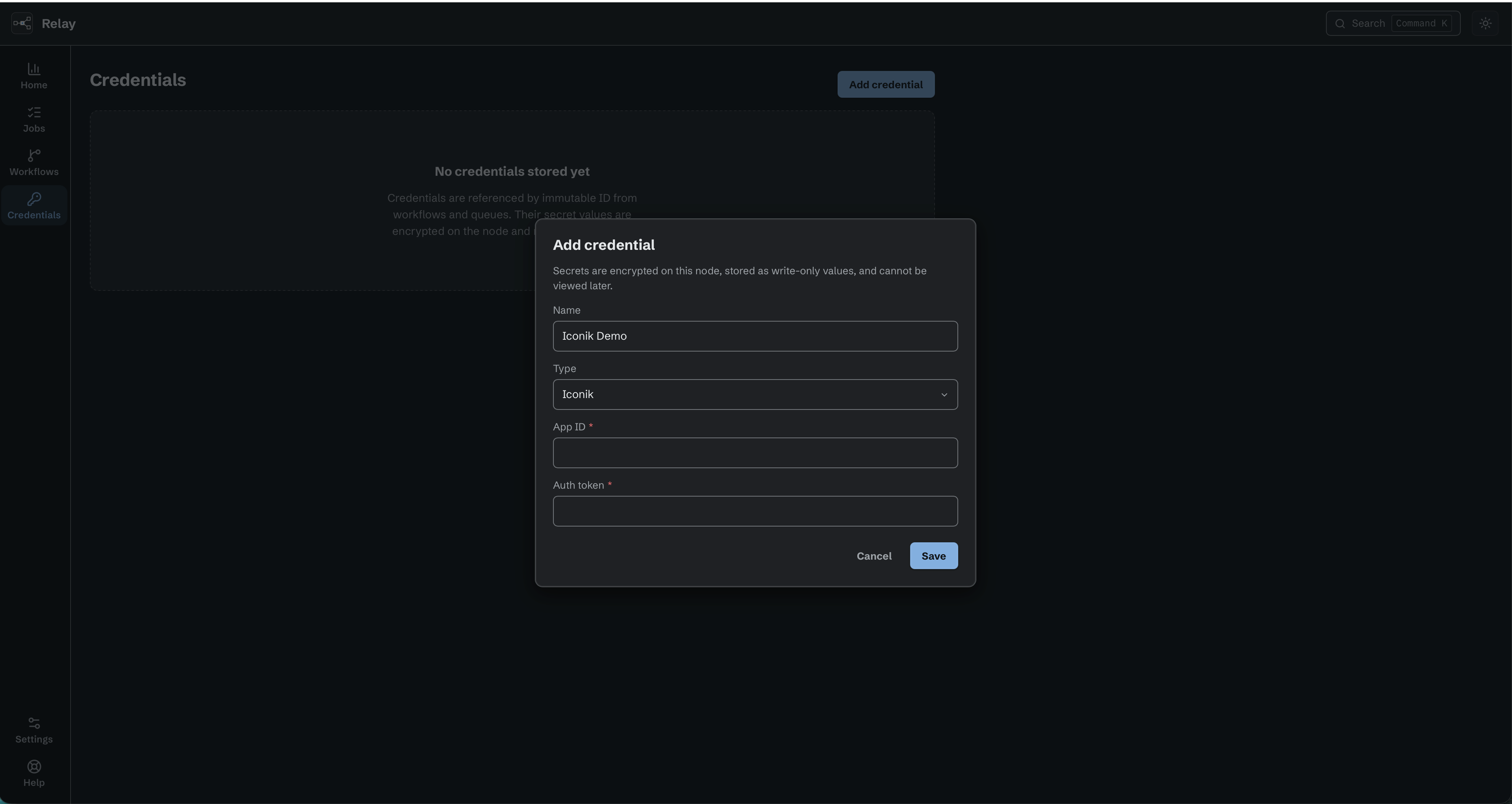
Add an Iconik credential before selecting it in a workflow.
10.3 Editing (rotating secrets)
Each credential card has icon buttons: Edit (pencil) and Delete (trash can), plus Test (plug) on CatDV, Iconik, and Amazon SQS credentials (10.8 and 10.11). Hover over an icon to see its name. Edit opens the credential with its name and type fixed. Saved public identifiers, such as a username or Iconik App ID, are shown and editable; secrets are empty: Identifiers can be edited. Enter a new write-only secret to replace the stored value. For an Amazon SQS credential, the hint reads: Edit queue settings here. Leave the secret access key blank to keep the stored keys. If you change the access key ID, enter its matching secret. For an S3 credential, enter the access key ID again because Relay does not prefill it. Save, and the next job that uses the credential picks up the new values.
Pending S3 cleanup also uses the current secrets from its saved credential reference. If that credential was deleted, Relay uses the step's current credential instead. Keep that credential and its cleanup permissions available until the unfinished upload is removed. Changing a workflow to another credential does not change the credential saved for earlier cleanup.
10.4 Renaming and deleting
The pencil beside the name renames it. Rename changes only the display label. Workflows, workflow-level Iconik and CatDV connections, and queue connections keep using the immutable credential ID, so their references and verified queue settings do not change.
Delete refuses while anything references the credential and lists the references: This credential is referenced by: each workflow and action, or External queue: <URL>. Remove those references first.
An Amazon SQS credential's own queue connections do not block Delete. Deleting the credential also removes them, and the dialog says so: Deleting this credential also removes its <N> queue connection(s). A workflow that uses one of those queue connections still blocks it: A workflow uses this queue connection. Disable or reconfigure the workflow before deleting it.
10.5 Where secrets live and where they do not
Secrets are sealed in credentials.sealed inside the Relay data directory with AES-256-GCM. On macOS and Ubuntu, the encryption key is stored in credstore.key in that directory. On Windows, Relay protects the key with Windows Data Protection API in credstore.dpapi under the Relay service account. The Windows data folder restricts access to that account, SYSTEM, and administrators. Relay protects stored credential values in job history, logs, exports, backups, diagnostic bundles and validation messages. Workflow Test shows ordinary Script output even after an action uses a credential, while removing matching stored values (chapter 4.6). Keep credentials in the credential store and use the action's credential field. Do not copy secrets into Script source, variables or console output. External responses and author-supplied data can contain secrets Relay does not know. Masking cannot reliably detect transformed or partial values and does not make arbitrary output safe to share. A backup lists credentials by name and type only. Before import, create one local credential with the same type and display name for each credential reference in the archive (chapter 12).
On Windows, change the service account password with its current password, then update the Relay service's saved logon password. An administrator password reset can make the protected key unreadable even when the account name stays the same. See chapter 15.12 before resetting that account or moving the Relay data directory.
A Script connection selects a Basic, token, or Iconik credential by its saved credential reference. Source receives public connection parts and protected handles for the secret parts. A handle can authenticate the matching Script HTTP request. Logging or converting it shows a protected-value marker; returning it is refused. Basic uses username and password; token uses a bearer token; Iconik uses its public Base URL and App ID with a separate protected Auth token. The request and redirects must remain on that credential's approved scheme, host, and port. See the Script API connections guide for the authoring procedure.
Relay refuses a workflow save when a field contains a pasted stored secret. Support-bundle collection also fails closed: if Relay cannot prove that a section is safe to include, that section is omitted or the bundle fails instead of exposing the value.
Webhook secrets (chapter 5.4) follow the same rule: a newly generated value can be revealed and copied before saving; the saved secret is stored as a digest, cannot be shown again, and is redacted on export.
10.6 Credential identity and Iconik URLs
Every credential receives an immutable ID beginning with cred_ when Relay creates it. The ID is fixed for the life of the credential. Workflows, queues, backups, retained editor selections, and requests store this ID instead of the display name. Renaming changes only the label operators see; it does not break a workflow or invalidate a verified queue. A credential that is in use still cannot be deleted.
In older installers and evaluation builds, an Iconik credential needs only the App ID and write-only Auth token. Iconik serves every customer from one address, so Relay stores https://app.iconik.io/API as the credential's Base URL for you. The workflow-level Iconik connection selects only the credential. Native Iconik actions inherit its URL, App ID, and token as one set. The internal managed Iconik release replaces this choice with the node's managed connection (10.10).
Relay can keep a verified Iconik token ID beside its token in the encrypted credential file. The token ID identifies that one token; it does not grant access. A new managed connection uses https://app.iconik.io/API. In the internal managed Iconik release, use Settings > Iconik (12.10) to connect. Its key does not appear on the Credentials page. Older installers and evaluation builds keep the hand-entered credential form, which does not check tenant, account, or Custom Action rights.
A managed connection also needs a local installation ID and a binding to its credential. Relay stores these in local node settings. Customer backups and support bundles do not carry that identity or binding. Restoring a backup on another node therefore requires a new managed connection. Relay does not infer a working connection from a saved token alone.
The guided setup checks include a disabled Asset Custom Action test. It creates one test action, checks its saved fields, removes it, and confirms removal. It never runs the action. A local recovery record prevents another create after an interrupted request. Unclear ownership or incomplete removal keeps the permission result unresolved. The record stays on this node and is excluded from customer backups and support bundles. A successful permission check alone does not establish a connected tenant. Complete the guided connection and confirm the account and tenant shown (12.10).
Relay sends Iconik authentication only to the selected credential's exact origin. It refuses HTTP, alternate ports, credentials embedded in a URL, lookalike hosts, and redirects or destinations on another origin before sending authentication.
Credential IDs are local to one node. During archive import, Relay maps a credential reference to one local credential with the same type and display name. A missing or ambiguous match makes that one workflow unusable and it is reported in the review with its reason; the other workflows in the archive can still be imported. Secret material is never imported.
10.7 The CatDV credential
A CatDV credential names one CatDV server and one CatDV user account. Every CatDV action in a workflow uses it through the workflow's CatDV connection (CatDV connection and shared behavior).
| Field | Notes |
|---|---|
| Server address * | The address of your CatDV Server, for example https://catdv.example.com, or https://catdv.example.com:8443 if your server answers on its own port number. It must start with http:// or https:// and name a host. A query, a fragment, or a user name and password inside the address is refused. |
| API path * | The part of the address that reaches the CatDV API, appended to the server address. New credentials are prefilled with catdv/api/9, which is where a standard CatDV install serves it. It must be a relative path. |
| Username * | The CatDV user Relay signs in as. |
| Password * | Write-only. Relay stores it encrypted and never shows it again. |
Relay joins the two address parts for you. https://catdv.example.com plus catdv/api/9 becomes https://catdv.example.com/catdv/api/9.
On a standard install you only type the server address. If your CatDV is mounted
somewhere else, or exposes a different API version, change the API path to match
and leave the rest of the address in the field above. The address you see in
your browser is a good guide. The server address is the front of it: https://,
the host name, and the port number if the address carries one. Everything after
that is the API path.
Relay does what this user can do. Relay never asks for more rights than the CatDV account has, and it never works around a refusal. If the account cannot read or change a clip, the step fails and says the CatDV user in the stored credential does not have permission. Give the account the rights it needs in CatDV, or point the credential at an account that has them.
Plain http addresses are accepted, with a warning. Some CatDV installs offer only http. Relay accepts one and shows this while you edit the credential: This address is not encrypted. Anyone who can watch this network can copy the CatDV password and reuse it. Use an https address if the server offers one. CatDV encrypts the password before it sends it, but that encrypted form can be captured and replayed, so the warning is real. Use https where the server offers it. Changing the address to https clears the warning.
10.8 Testing a CatDV, Iconik, or Amazon SQS credential
A saved CatDV, Iconik, or Amazon SQS credential has a Test button on its card. For Amazon SQS, Test checks every queue connection on that credential (10.11). For CatDV, Test signs in to the server and signs straight out again, so it holds a license seat for a moment and changes nothing. The button shows that it is busy while the test runs. The result appears on the credential's card, under its type, and fades out after a few seconds.
A test that fails signs out as well. So pressing Test again and again on a server that is not answering does not use up your CatDV seats. If the server will not accept the sign-out either, Relay keeps asking for that seat in the background until it comes back. You get your result straight away and wait for none of this. The same applies to the CatDV field picker in the editor.
| Result | Means |
|---|---|
| Relay signed in to the server. | The address, the API path, the user name and the password all work. |
| The server refused the user name or password. | Relay reached CatDV. The account details are wrong. |
| The address is wrong. Relay reached a server, but it did not answer as expected. | Something answered, but it is not the CatDV API. Check the server address and the API path. |
| Relay could not reach the server. Check the address and the network. | Nothing answered. Check the address, the network, and whether CatDV is running. |
| The server has no free seats. Try again when someone signs out. | CatDV is running and the details are fine. Every license seat is in use. |
| The test did not give a clear answer. Try again. | Relay could not classify the answer. |
| The test could not be run. Check that the node is running and try again. | The editor could not reach the Relay service on that node. |
Relay writes every one of these sentences itself. CatDV's own error text, the server address, and the session are never shown, logged, or exported.
Testing an Iconik credential. Test asks Iconik once whether the stored Auth token is valid for the stored App ID. It changes nothing in Iconik.
| Result | Means |
|---|---|
| Relay signed in to Iconik. | The App ID and Auth token work. |
| Iconik refused the App ID or Auth token. | Relay reached Iconik. The App ID or the Auth token is wrong, expired, or revoked. Edit the credential and enter a new token. |
| Relay could not reach Iconik. Check the network. | Nothing answered. Check this computer's network and internet access. |
| The test did not give a clear answer. Try again. | Iconik answered in a way Relay could not classify, for example during an Iconik outage. |
Iconik's own error text and the token are never shown, logged, or exported.
Deleting a CatDV credential. A workflow's CatDV connection counts as a reference, exactly like an action's credential field. Delete lists the workflows that use the credential and refuses until you remove the connection from each of them.
10.9 Managed connection node credentials
Available in the internal managed Iconik release. Older installers and evaluation builds do not offer this feature.
When this node connects to the managed Iconik service, the service issues the node its own credentials. Relay uses them to prove which node is calling. They belong to the node, not to an operator, so they do not appear in Credentials, cannot be edited or deleted there, and cannot be selected in a workflow.
Relay seals them in credentials.sealed with the same encryption key as your other credentials (10.5). They are never shown, logged, or written to job history. Customer backups, workflow exports, and support bundles never carry them. A backup names no credential for them, and their values are removed from anything a support bundle copies. If Relay cannot read the sealed file, a support bundle leaves out the sections that could hold them instead of copying those sections unchecked.
Relay saves these credentials once per connection. It does not replace them with different values.
Going back to an older Relay. While the node is connected, an older Relay that does not know about these credentials refuses to open the credential file. It stops with a newer Relay wrote this credential file, run that version of Relay against this data directory. This prevents the older version from silently dropping the node credentials. A node that was never connected can still go back to an older Relay.
Restoring an older copy of the data directory. If the node settings say the node is connected but the sealed file holds no matching node credentials, for example after you restore a credential file saved before the connection existed, Relay does not connect and does not try to connect again on its own. It reports that the connection needs recovery.
10.10 Iconik credentials with the managed connection
Available in the internal managed Iconik release. Older installers and evaluation builds do not offer this feature.
With the managed Iconik connection, one Relay works with one Iconik tenant. The managed connection is the only Iconik credential on the node. You set it up on Settings > Iconik (12.10), not on this page.
- No Iconik type. Add credential does not offer the Iconik type. A request from another client to create one is refused with Iconik credentials are no longer entered by hand.
- Stored ones are removed. At each start, Relay removes every Iconik credential that was entered by hand. It does not ask first, and it removes a credential also when a workflow uses it. It keeps the managed connection's key and every credential of another type.
- No credential choice in workflows. A workflow does not select an Iconik credential. Every native Iconik step and Iconik picker uses the managed connection (Iconik actions).
- HTTP Request and Script do not change. They cannot select the managed connection. A step that names a removed Iconik credential fails. Change the step (15.20).
- Exports name no Iconik credential. A workflow export or backup from this node names no Iconik credential. Before an import, you do not create an Iconik credential for it. After the import, refresh the Iconik selections in each workflow (15.20).
Older installers and evaluation builds keep the Iconik type and the workflow-level Iconik connection described in 10.6. Before installing the internal managed Iconik release, review workflows that use hand-entered Iconik credentials. Those credentials are removed at the next service start, including credentials used by HTTP Request and Script.
10.11 SQS connections
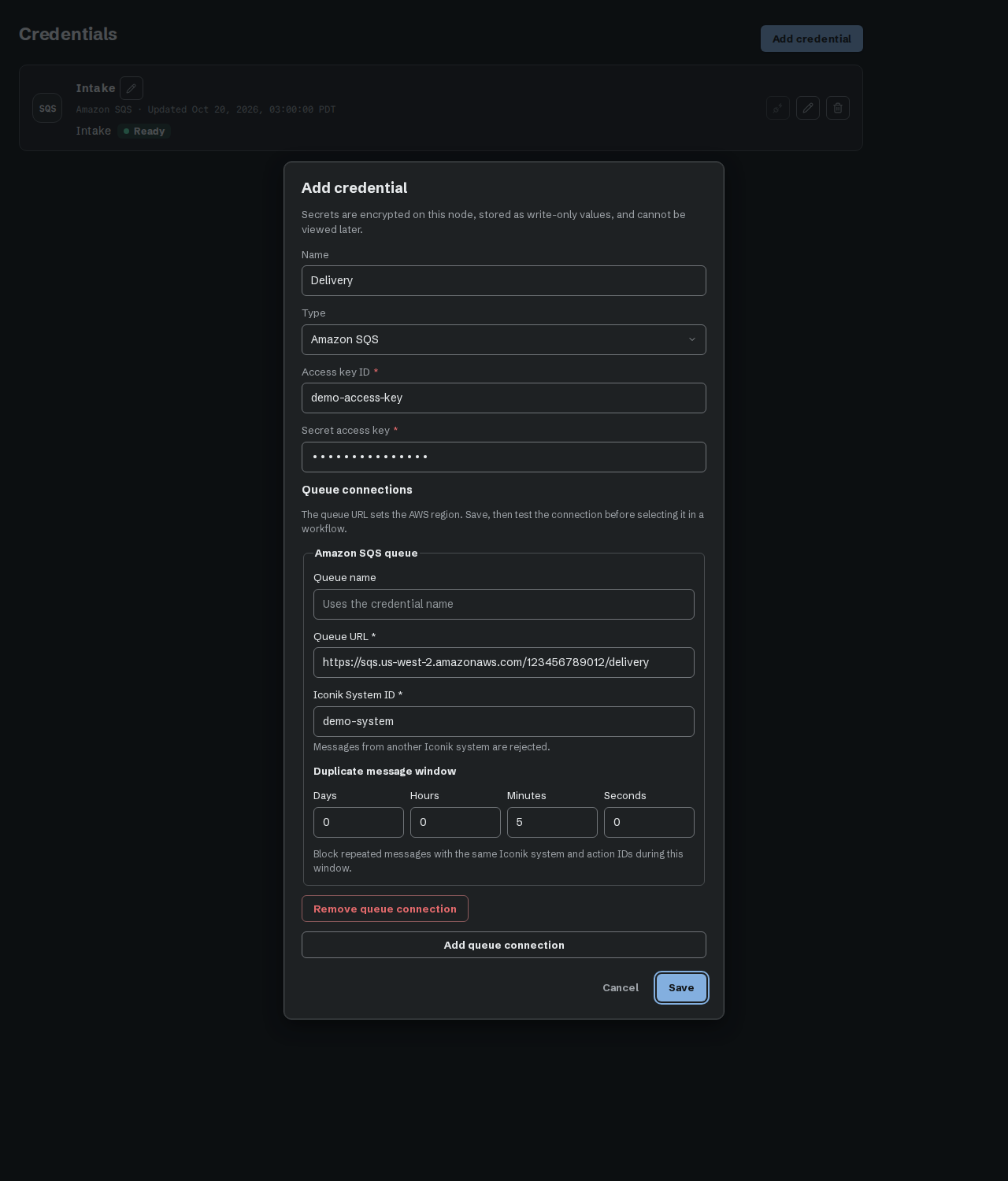
An SQS connection is an Amazon SQS queue this node polls for work. It is how Iconik sends jobs to the node (chapter 5.5). An Amazon SQS credential holds its keys and its queue connections in one form. Open Credentials, select Add credential, and choose Amazon SQS.
- Enter Name, Access key ID, and Secret access key.
- Under Queue connections, enter Queue URL. Relay uses it to set the AWS region. Only standard AWS SQS HTTPS addresses are accepted. FIFO queues are unsupported.
- Enter Iconik System ID. Relay rejects messages from a different system.
- Set Duplicate message window with Days, Hours, Minutes, and Seconds. The default is five minutes. A repeated Iconik action inside the window is recorded as a Blocked job. All zeros processes every incoming request without the duplicate guard: Process every incoming request. No duplicate-job guard is applied.
- Queue name is optional. When it is blank, a new connection uses the credential name. If that name is taken, Relay adds a number, such as
Intake (2). The SQS Queue trigger's picker shows this name. - Select Save, then Test on the credential card. Every queue connection must show Ready before a workflow can use it.
A new Amazon SQS credential needs at least one queue connection. Without one, Save is refused: Add a queue connection. A saved credential with no queue connection shows No queue connection. Edit to complete setup. on its card.
Queue names. Queue names are unique on the node and compared exactly, so Jobs and jobs are different names. A name already in use is refused: an external queue named "<name>" already exists. Changing the name changes only the label. Workflows keep using the queue URL.
Testing. Test on the card checks every queue connection on that credential. Each connection then shows Ready, Problem, or Not verified.
| Result | Means |
|---|---|
| Ready. Relay can access the queue connections. | Every queue connection on the credential is Ready. |
| Connection problem. Check the queue settings, keys, and AWS permissions. | At least one queue connection did not pass. Check its queue URL, the keys, and the AWS permissions. |
| Add a queue connection before testing. | The credential has no queue connection. Select Edit and add one. |
| The test could not be run. Check that the node is running and try again. | The editor could not reach the Relay service on that node. |
Edit opens the keys and connection settings together. Leave Secret access key blank to keep the saved keys. If you change Access key ID, enter its matching secret. A settings-only edit does not rotate them. Changing keys makes every connection using them unverified. Test again after a change.
A credential can serve several queue connections. Existing connections appear together. Add queue connection adds another with the same keys. With one connection, its heading is Amazon SQS queue and its button is Remove queue connection. With several, the headings are Queue 1, Queue 2, and so on, and each button is Remove queue 1, Remove queue 2, and so on. A remove button marks that connection for removal when you save; Keep queue connection cancels that removal.
While a workflow owns a queue, its settings are read-only. Disable or reconfigure that workflow before editing or removing the connection. You can still rename or test it, or rotate its keys.
Delete on the credential card also removes its queue connections after confirmation (10.4). A workflow reference or an owned queue blocks deletion.
If saving keys succeeds but saving a queue fails, the form stays open. Correct the queue and save again. Relay keeps the saved credential ID, so retry does not create another credential.
Queues from earlier versions. Queue connections and SQS Queue triggers saved by Relay 0.70.0 or earlier keep working. Each queue connection appears under its Amazon SQS credential. You do not need to do anything.
The AWS side, with the queue, its dead-letter queue, the API Gateway endpoint, and the permissions for the credential, is described in the external SQS ingress deployment runbook.