
Chapter 9 / Building workflows
9. Error handling
When an action fails, Relay decides what happens next from two things: the action's error policy and the workflow's Error handling canvas.
9.1 The Error handling canvas
Every workflow has an Error handling tab beside Editor. It holds one Workflow errors source connected to one Complete. Both are required and cannot be deleted; a new workflow ships with them already connected, which is a valid - if empty - handler.
Any action can be placed between them: send a notification with HTTP Request, write a line with Log message, move the file to a quarantine folder with Move file, or start a clean-up workflow with Start Workflow. Switch and Error terminals are not offered on this canvas, and a trigger cannot be placed there. Connections cannot cross between the two canvases.
An eligible native Iconik or HTTP Request action inside Error handling can use automatic recovery first. If its final result is still a failure, the workflow stops immediately and Error handling does not restart.
Select Workflow errors to see the first handler action and Actions by failure setting: how many of the workflow's actions use each policy. These counts are status only; to change a policy, open that action in the Editor tab. A Workflow Test uses these same routes. Error handling shows evidence from the latest Test that reached a failure, including a Test that recovered through an Error output. A later successful Test does not hide that failure evidence.
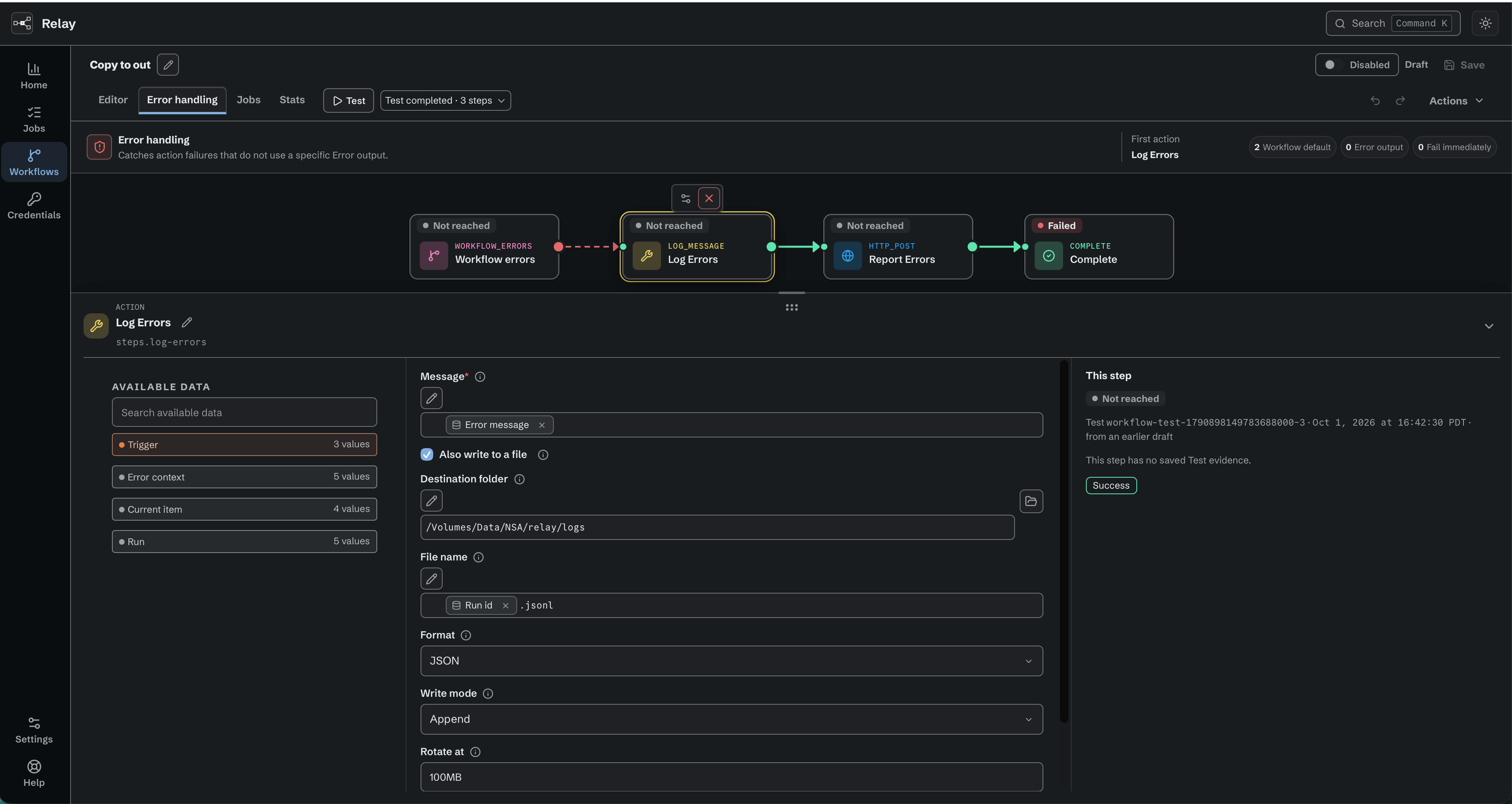
Configure the Error handling path to log or report failures before Complete.
9.2 The three policies
Each action's Errors disclosure in the node bench offers:
| Policy | Consequence (as shown in the bench) |
|---|---|
| Use workflow default | On failure, this action enters Error handling. The workflow run remains Failed. |
| Use error output | Uses its Error output instead of Error handling. |
| Fail immediately, skip Error handling | On failure, the workflow stops immediately. Error handling does not run. |
Use error output adds an Error port to the node in the Editor. It must be connected before the workflow can be enabled or run (Connect Error output). This is the policy for failures you expect and can handle inline - a non-2xx response, a file that already exists, a non-zero exit code.
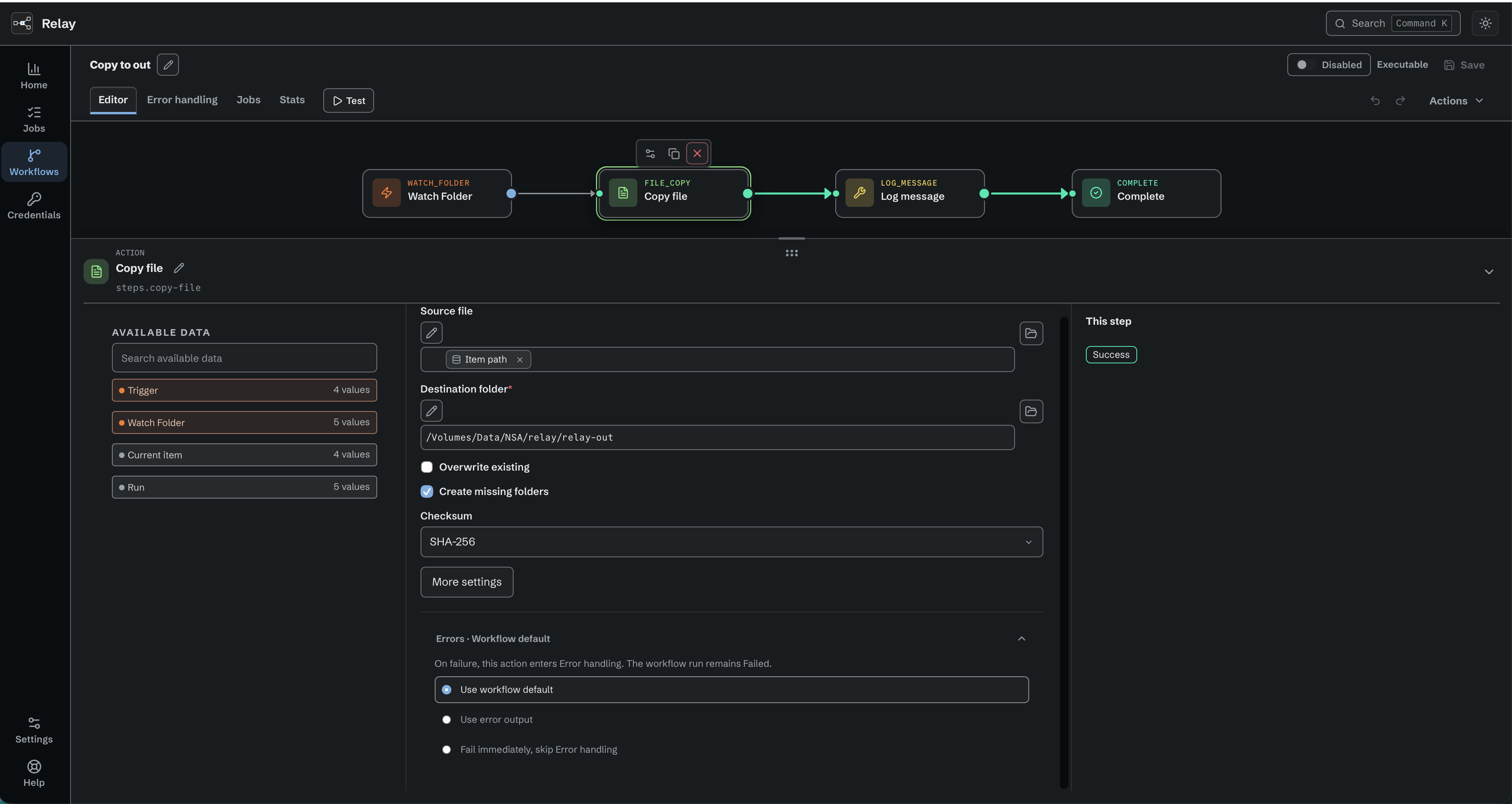
Choose how this action responds to a failure.
9.3 Outcomes
| What happened | Job status | Shown as |
|---|---|---|
| Main path reached Complete | Succeeded | Succeeded |
| Main path reached Complete after a For Each loop had both succeeded and failed items | Completed with warnings | Completed with warnings, in amber |
| Main path reached Complete after every item in a non-empty For Each loop failed | Failed | Failed, with the loop as the source |
| An Error output branch reached Complete | Succeeded | Succeeded after handled error |
| An Error output branch reached Error, or failed again | Failed | Failed · Error branch failure |
| Workflow default: handler ran to its Complete | Failed | Failed · Error handling completed |
| Workflow default: handler itself failed | Failed | Failed · Error handling failed - The workflow first failed at X. Error handling then failed at Y. |
| Fail immediately | Failed | Failed; Error handling did not run |
The rule to remember: Error handling never turns a failed job into a succeeded one. Only an explicit Error output branch can do that, and only by ending in Complete.
For native Iconik actions, CatDV actions, and HTTP Request, eligible temporary failures use automatic recovery before any error route runs. A successful recovery continues through the action's success output and keeps its intermediate attempts in the job record. The configured Error output or Error handling runs once, only when recovery is exhausted, the retry window ends, or repeating the request is unsafe. An unknown result from a sent write is not treated as a normal retryable failure. A CatDV update that Relay sent, and whose answer never arrived, is one of those: Relay stops and says it cannot tell whether the clip changed, instead of writing it again (How a CatDV step fails).
Some failures are not routed at all. A job that is cancelled, interrupted by a restart, blocked before dispatch, or whose outcome could not be verified ends immediately with that status (chapter 11). Error handling is for ordinary action failures.
9.4 Errors inside For Each
An unhandled action failure on a For Each repeated path fails that item, skips its remaining actions, and starts the next item. Relay keeps the item's original array position, failed action, and error. Completed work from the failed item and earlier items is not undone. Item failures do not start the workflow-wide Error handling canvas.
Use error output can recover an item inside the repeated path. If the authored recovery path succeeds and reaches Return, Relay treats the item as succeeded and keeps the original error in its step history. If an action or control on that recovery path fails without handling the failure, Relay records the item as failed and continues with the next item.
Failures that stop the loop from proceeding are not item failures. For example, missing or non-array For Each input fails with Expected an array. before an item starts and follows the applicable workflow-level error policy. A failure after Done also uses its normal action policy. Cancellation, interrupted execution, and failures to record execution evidence still stop the job immediately.
When all item attempts finish, Done publishes total, succeeded, failed, and an ordered outcomes list. Each outcome identifies the original array position and whether it succeeded or failed. A failed outcome also identifies the action, exact repeated step number, and bounded error. Later actions can use these values even when every item failed.
The final job status combines every completed loop with the path after Done. A mixed loop produces Completed with warnings when the final path reaches Complete. A non-empty loop where every item failed produces Failed. An empty loop does not count as all failed. With multiple loops, Failed is most serious, then Completed with warnings, then Succeeded. A later successful loop does not erase an earlier result, and a normal final-path failure still makes the job Failed.
Relay reserves space for the next item outcome before it starts that item. If accumulated outcomes reach the configured limit, Relay stops starting items, skips Done, keeps the outcomes already recorded, and fails the job with an incomplete-progress explanation. No outcome is silently removed to make the job look successful.
9.5 Error context
Steps that can only run after a failure receive Error context in Available data: ${error.message}, ${error.action_name}, ${error.action_id}, ${error.action_type}, ${error.failed_at}. On a direct Error output branch Relay can also guarantee the action's own details - ${error.kind}, ${error.http.status}, ${error.http.body}, ${error.shell.exit_code}, ${error.shell.stderr}, ${error.s3.bucket}, ${error.s3.key}, ${error.catdv.kind}, ${error.catdv.outcome} and so on (chapter 6). A step reachable from both a normal path and an error path gets no Error context: Error context is unavailable because this step can also run from a normal path. A failed step sets none of its own outputs, so Available data does not offer ${steps.<id>.…} values of a step on its own Error branch.
9.6 Patterns
Notify on any failure. Error handling: Workflow errors → HTTP Request (POST to a chat webhook with a Custom body using ${error.action_name|json} and ${error.message|json}, which write each text value as a quoted JSON string) → Complete. Leave every action on Use workflow default.
Quarantine the file. Error handling: Workflow errors → Move file (Destination folder /Volumes/media/quarantine) → Complete. The carried file is still ${item.path} inside the handler.
Treat "already exists" as fine. On a Copy file node set Use error output and connect Error → Complete. Collisions now end as Succeeded after handled error. Be deliberate: every other failure of that copy - permission denied, disk full - takes the same route.
Retry by hand. Automatic recovery applies only to eligible native Iconik and HTTP Request operations. Script requests, file actions, permanent failures, and unsafe or exhausted requests do not gain a partial-step retry control. A failed watch-folder job can be run again by removing and re-adding the file; a webhook or queue caller re-sends. For a Workflow Test, open Test and choose a retained Replay input. Replay runs the whole current draft, not only the failed request, and completed side effects can happen again. Check any unknown external outcome first.
9.7 Iconik Job clicks that do not start
Available in the internal managed Iconik release. Older installers and evaluation builds do not offer this feature.
A click on an Iconik Job action (chapter 5.8) that cannot run becomes one Failed job that never started. Error handling does not run, because no step ran, and Relay never runs a fallback workflow. Relay checks in a fixed order, so one click always gets the same error:
| Order | Cause | Error, exact |
|---|---|---|
| 1 | The request body is larger than 256 KiB | NOT_STARTED (Unsupported payload size) |
| 2 | The Iconik Job is being deleted | NOT_STARTED (Iconik Job deleted) |
| 3 | The Iconik Job is disabled | NOT_STARTED (Iconik Job disabled) |
| 4 | No workflow is attached | NOT_STARTED (No workflow attached) |
| 5 | The workflow is not eligible or not ready | NOT_STARTED (Workflow not runnable): <detail> |
The <detail> is one of: workflow does not exist, workflow must contain exactly one Iconik Job trigger; found N, workflow contains a Start Workflow trigger, workflow is a draft; save it as executable, workflow is disabled; enable it, workflow is not executable: <problem>, or, for a queued click only, workflow is no longer attached to this Iconik Job (chapter 11.7). Chapter 15.15 gives the fix for each.
A click from the managed Iconik connection can also end as NOT_STARTED (Unknown Iconik Job), NOT_STARTED (Request rejected): <reason>, NOT_STARTED (Relay busy), or NOT_STARTED (Click not confirmed in time), or as a Blocked job with SKIPPED (Duplicate click): same click as job <first job>. Chapter 11.7 explains when, and chapter 15.15 gives the fix. Error handling does not run for these jobs either.
A job that did not start keeps the Iconik Job name, the context, the Iconik action ID, the reason, and the time. It can also keep a short summary of a recognized selection: an asset or collection ID and any supplied title, or the number of selected items. It keeps no payload and no steps.