
Chapter 4 / Building workflows
4. The editor
The Editor is where a workflow is built. This chapter is a tour of its parts; chapters 5–9 cover what you put on the canvas.
4.1 The workspace
Open a workflow from Workflows and it opens in a workspace whose header has two compact rows.
Top row: what this workflow is. The workflow name (click the pencil to rename; renaming is blocked while there are unsaved edits), the workflow's Iconik connection when it has one, its CatDV connection when it has a CatDV step (CatDV connection and shared behavior), an Enabled / Disabled toggle, a readiness label, a save-state label, and Save.
With the managed Iconik connection. Available in the internal managed Iconik release. Older installers and evaluation builds do not offer this feature. You do not choose an Iconik credential, and the header has no Iconik credential choice. Every Iconik step and Iconik picker uses the node's managed connection (Iconik actions). The header shows an Iconik control only as Iconik: Needs attention, for an older Find Asset step saved with Match any. It holds Match any is no longer supported. Review the criteria and confirm AND. and Confirm AND. If the editor cannot read the node's Iconik connection, the Iconik pickers are not available, and enabling the workflow says Relay could not read its Iconik connection. Reopen the workflow to try again. After a new Iconik connection, or after you import a workflow, refresh its Iconik selections (15.20).
Three separate facts sit side by side here, and it is worth keeping them apart:
| Label | Answers |
|---|---|
| Enabled / Disabled | Is the trigger armed? |
| Draft / Executable / Blocked | Would this workflow pass validation? |
| Unsaved changes / Saving | Is what you see stored yet? |
The save-state label appears only while there is something to say. A workflow with nothing unsaved shows no label at all, and the Save button stands out only when there are changes to save.
Second row: what you are doing. The four mode tabs, the Test controls, Undo and Redo, Discard (shown only when there are unsaved edits), and an Actions menu.
| Tab | Purpose |
|---|---|
| Editor | The main canvas: trigger, actions, control nodes, terminals. |
| Error handling | A second canvas for what happens when a step fails. Chapter 9. |
| Jobs | This workflow's job history. Chapter 11. |
| Stats | This workflow's counts, error rate, and attention items. Chapter 11. |
The Actions menu collects the canvas commands: Add Action, Undo, Redo, Discard changes, Zoom in, Zoom out, Fit workflow, Clean up, and Keyboard shortcuts.
During a Test the toggle reads Disabled and the test area says Disabled for testing. Test changes to Stop while Relay waits for input and Cancel after a run starts. When a Test cannot start, a warning button reading Test needs attention appears beside Test. Click it to open Test details, which gives the node's reason, such as a required parameter that is empty. A Why? disclosure explains more where Relay has it.
Leaving a workflow with unsaved edits shows Unsaved changes on <machine> with Stay here, Discard changes, and Save and leave.
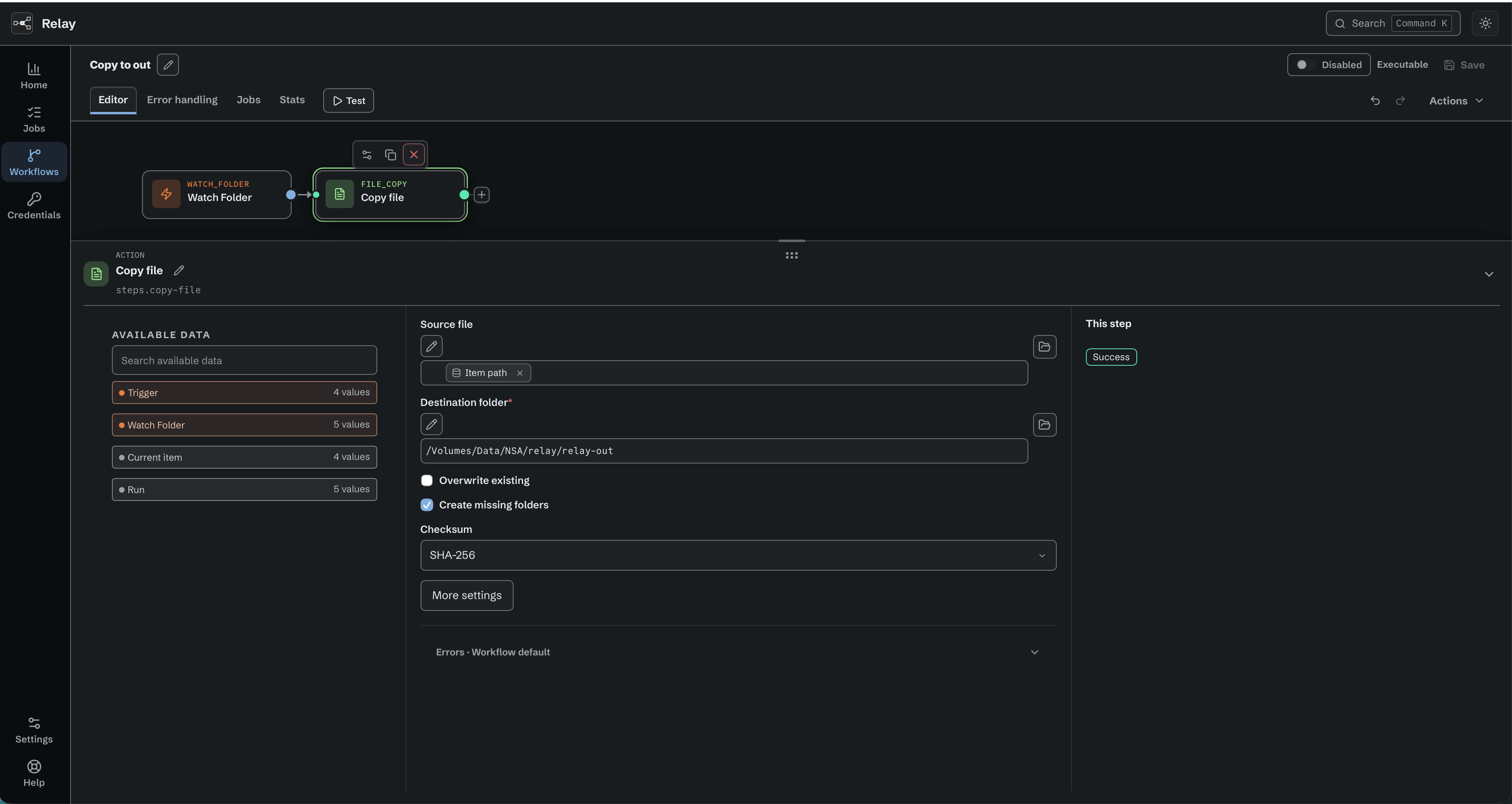
The Copy file bench shows available data, copy settings, and This step.
4.2 The canvas
Drag on empty space, or hold Space and drag, to pan; scroll to zoom. Shift-drag draws a selection box. Delete removes the selection. Esc closes one open menu, panel, or selection at a time. There is no canvas toolbar and no minimap: Fit workflow, Clean Up, and zoom live in the Actions menu and in the canvas right-click menu, which offers Add Action, Zoom in, Zoom out, Fit workflow, Clean Up, and Keyboard shortcuts.
Relay keeps the selected node or connection visible above the node bench. Opening or enlarging the bench moves or scales the canvas only as much as needed. Clean Up, Fit workflow, initial load, and the first node use automatic framing, and an automatic fit includes the + buttons beside unconnected outputs, the trigger's included. Manual zoom normally stops at 0.5x, although Relay can fit a large graph or tall node below that scale. Closing or shrinking the bench keeps the view where you left it.
Nodes. Hovering a node shows its tools: Configure action, Duplicate action, and Delete action. The Complete terminal can show Needs attention when Relay cannot determine one clear completion path. Other focused badges include Connect Error output when a node's Error port is on but unconnected, and Choose a first action when the Workflow errors source has nothing to run. Missing or invalid parameters appear in the bench and during validation. Run now is a production control for an enabled, saved workflow. Test is in the workflow header.
When a Switch is too small to work with after zooming out, its Step actions menu offers full-size Duplicate, named-route Add, and Delete controls beside its settings.
Enable or disable an action. Use the action's power button or its Step actions menu to select Disable action or Enable action. A disabled action keeps its settings, connections, and position. Undo and Redo restore this change, and duplicating the action keeps its state. Triggers, Switch, For Each, and terminals have no action disable control. An older node that does not support disabled actions has no usable control for this change.
A disabled action passes its input unchanged to the next step through Success. It does no work and creates no outputs or variables. Its settings can remain incomplete, but connections must still be valid. Fix any enabled step that uses values the disabled action would have created before you Test or enable the workflow. Save the change for production runs. An already running job keeps the action states it started with.
Ports and connections. Most outputs are on the right of a node, and most inputs are on the left. Drag from an output to an input to connect, or click the + on an unconnected output to add a node already connected. Port names are the node's outcomes: Success / Error for file actions, one port per rule plus Unmatched for Switch, and Each item / Done for For Each. For Each uses all four sides so its paths stay distinct: Input is on the left, Each item is on the right, Return is on top, and Done is on the bottom. 2xx response / Failure / non-2xx belong to HTTP Request. An Error port appears only when the action's error policy is Use error output (4.4). Hover a connection for Insert action and Delete connection; click it for a Connection panel with Remove connection. Insert action moves the reachable downstream cards aside to show the new gap. Closing the action picker restores their exact positions. Adding an action keeps the new layout as one Undo step.
Rules the canvas enforces. A workflow can have several triggers. Each trigger must connect to an executable branch entry, and several triggers can feed the same entry. A trigger cannot be duplicated or inserted between steps; add another from the action palette. Connections cannot cross between the Editor and Error handling canvases. Within a For Each path, every normal branch must connect to Return on the same For Each. Complete stays after Done, not inside the repeated path. For Each cannot contain another For Each.
4.3 Adding actions
The full-size Add Action palette opens from the Actions menu, the canvas right-click menu, Command-Shift-K, any port's +, or a connection's Insert action control. Relay moves the following cards aside to show where an inserted action will go. The cards return if you close the palette without choosing an action. Every opening method uses the same centered palette with a visible title, named result groups, and a scrolling results list.
Type in Search actions... or filter by All, Triggers, Actions, Control. Nodes are listed under Triggers, File, Transfer, CatDV, Iconik, Utilities, System, Control, and Terminals with a one-line description each. Start Workflow appears under Control, and the CatDV actions appear together under CatDV. Up and Down move, Enter adds, Esc closes and returns to the control that opened the palette. A search with no hits says No actions match "...". If the palette reports that the engine is unavailable, the Relay service is not reachable (chapter 15); if a node reports no capabilities at all, it says so.
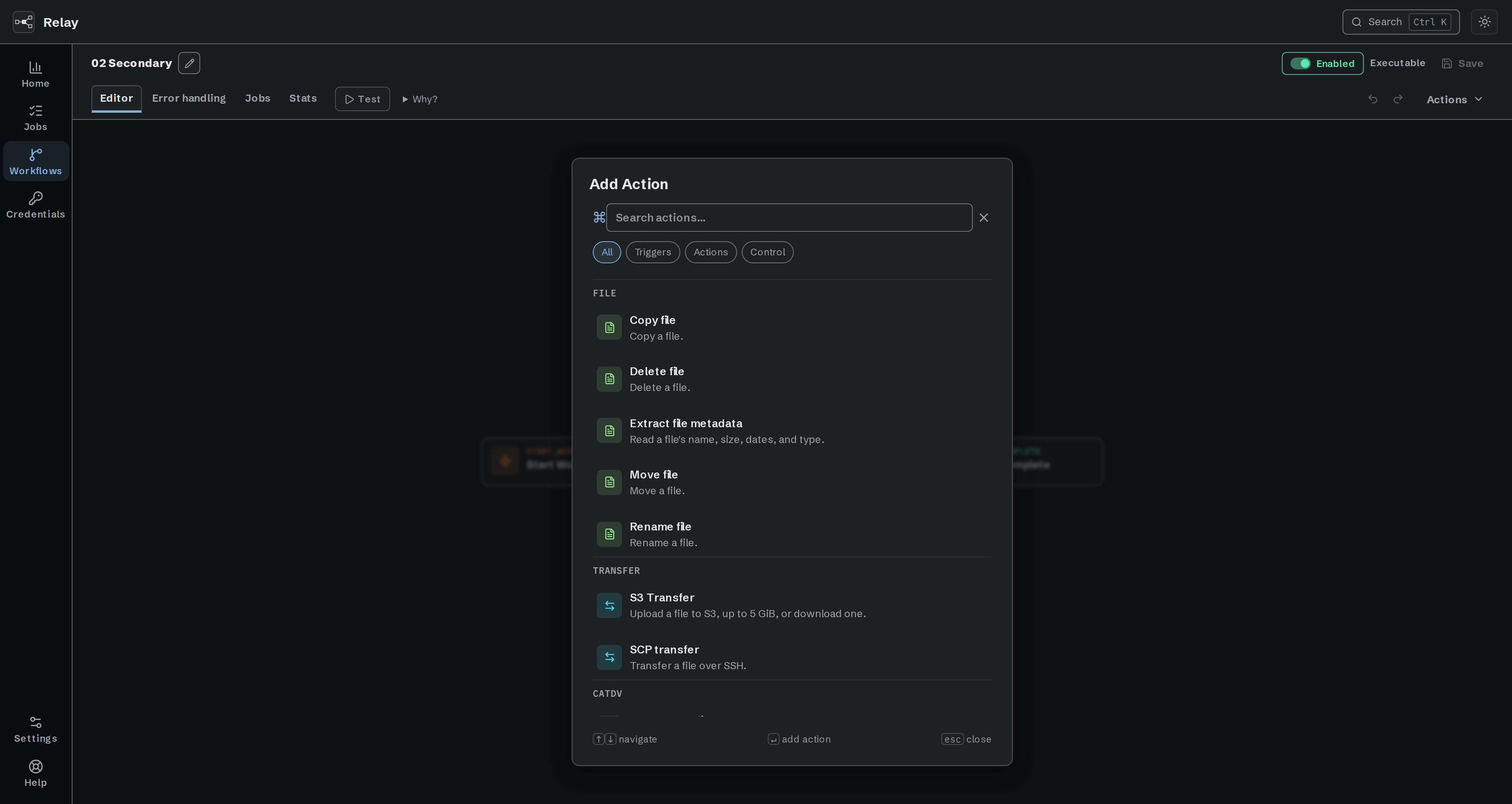
Search or browse the Add Action palette to choose the next step.
4.4 The node bench
Selecting a node opens the bench below the canvas: the node's kind (such as Trigger or Action), its step name, Rename step, Remove action, and three columns: Available data, the node's fields, and This step. A trigger's bench has no Available data column, because a trigger takes no data in: nothing runs before it, and its settings do not accept inserted values. Drag the divider (or use Up and Down on it) to resize.
Step name. Every step has a name and a slug shown as steps.<slug>. The slug is how later steps refer to this one's outputs (${steps.copy_file.path}). A name needs at least one letter or number and must not collide with another step's slug.
The node's fields. The middle column has no heading. Required fields end in *. A field with help has an information button beside its label: select it to read the help, and press Esc or select elsewhere to close it. Screen readers announce the help with the field. A checkbox sits before its label, and selecting the label changes it. Fields with a generator have a button named for the field, such as Generate secret on a webhook.
Optional fields that most workflows leave alone sit behind a More settings disclosure, which opens by itself when one of them is filled in or has a problem. File name is there on Copy file, Move file, and S3 Transfer when it downloads; Headers is there on HTTP Request.
An Errors disclosure sets the error policy and shows the current one in its own label, as Errors - Workflow default, Error output, Fail immediately, or Needs attention. The three policies are Use workflow default, Use error output (adds an Error port you must connect), and Fail immediately, skip Error handling. Chapter 9.
Script settings. A Script node shows its source, Connections, Timeout seconds, and Response limit bytes in both its node bench and full-window editor. Select Add connection to give the script a named saved credential, then use Insert request example for a safe starting request. The timeout defaults to 30 seconds and accepts 1 to 600. The response limit defaults to 10 MiB and accepts 1 KiB to 32 MiB. A legacy Script shows Adopt v2; it changes the profile and preserves the source. Connection changes refresh Script validation and the data available to the source. See Script and the Script API connections guide.
Picking CatDV fields. A CatDV Update Clip node lists the fields it writes, each with the value to write, under Other fields on the clip are left unchanged. Add a CatDV field reads the custom clip fields from the CatDV server named by the workflow's CatDV connection. The list is read once per editing session and kept, so the picker costs one CatDV sign-in however often you open it. Two things make the editor read it again: Refresh, and saving the credential itself. A credential that has been deleted says so instead of showing a list. Without a connection the picker says Choose a CatDV credential first. and both controls are unavailable. See CatDV Update Clip.
Picking paths. Path fields have a folder button that opens Choose folder / Choose file, browsing the Relay service's filesystem - the same machine for a local node, the remote machine for an enrolled node.
- Filter narrows the open folder to the items whose name contains what you type. Case does not matter. The filter clears when you open another folder.
- New Folder creates a folder on that node and enters it, ready to select. It becomes available once the path in the field is the folder you last browsed to, so you cannot create a folder against a path you have only typed. A name must be one plain name: no path separators, no
.or.., not blank. If creation fails - the name is taken, the parent is gone, the service account cannot write there - the reason appears in the form and your location and typed name are left alone. - A path field with a value opens at that value. An empty one opens at the folder you last confirmed anywhere in this workflow, so a second and third path field start where you just were. That memory is only written by confirming a selection, never by browsing or cancelling, and it is dropped when you leave the workflow, change node, or close the app.
- Keyboard focus stays inside the picker and returns to the button that opened it. A failed read keeps the path you attempted on screen, and a fresh read cannot hand back the previous folder.
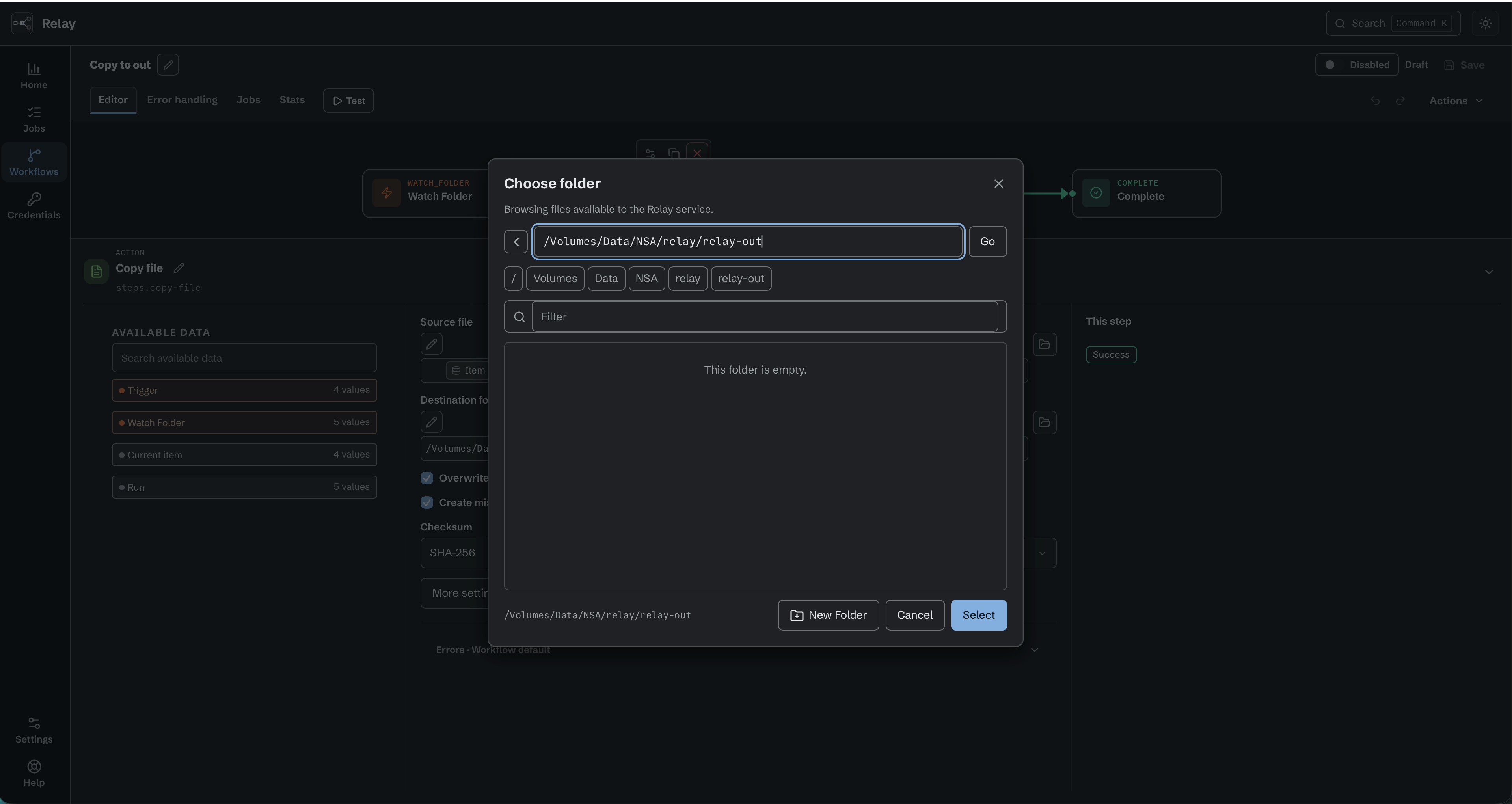
Choose folder browses the filesystem of the selected Relay node.
Available data. Everything this step can use: the trigger's facts, earlier steps' outputs, variables, and run facts. Click a field, then click, drag, or press Enter on an item to insert it as a ${…} token. The panel has a search (Search available data) and a Recently used list, and shows an Example value for each item. Groups start closed. A JSON value, such as a Script result, a response body, a webhook payload after a Test, or the For Each Current item, shows its fields as a tree: open an item with its arrow to see the fields inside it. A list shows its first entry only, as [0], with the fields found in any entry. Search lists every matching field by its full name.
Tokens appear in fields as chips. Chips and the text between them form one value. Relay adds no spaces between them. Type any spaces or path separators you need. Click blank space in the field to place the caret at the nearest text position. Tab enters the field at its saved caret position. Use the arrow keys to move between text and chips. Click the chip for its transform menu. What the menu offers depends on the value:
- An object, array, or null: Stringify only. It writes the whole value as JSON text.
- A path: Path Extraction (Full path, One folder, Part of path, with direction and count), the path parts Folder, File name, Extension, and Name without extension, Treat as filename, and Stringify.
- Other text: Treat as path, with File path or Folder path, Treat as filename, and Stringify. Treat as filename exposes File name, Name without extension, and Extension without looking for a file.
Text values also offer Regex, including text produced by earlier processing. Enter a pattern or substitution in its single field. Inline edits update the chip as you type and are included when you save. The flask below it opens Test regex, beside collapsed Syntax and examples. Paste test input, edit the rule, and press Test to see its output on the selected node. Use regex applies the rule only. Cancel or Escape discards modal edits. Testing never runs workflow actions or replaces source data. Chapter 8.3 gives examples, filename rules, errors, and tester limits.
Every text value also has a collapsed Text formatting section: Lowercase, Uppercase, Trimmed, Padded, and Date. Date lists example results for the current time to choose from, and Custom for your own pattern, with a Result: preview and a warning for YYYY-style letters (chapter 8.3). Shell fields add Unquoted beside Stringify. A chip saved with an older transform still shows it by name, and you can remove it from the menu. When you insert a whole object or array from Available data into an ordinary text field, the chip arrives with Stringify applied. Use different data swaps the token, and the menu's remove entry names the token it will take out. Each chip also carries a small x for removing it without opening the menu. Chapter 8 gives the text form of every transform.
This step. Before a Test records evidence, this column is empty. After a Test reaches the selected node, it shows the recorded status, duration, Received, Produced, and any error. On the trigger, Produced shows the event the Test received as the trigger.* values later steps read. For a Webhook this is the request body as trigger.payload and each body and query field as trigger.payload.<name>, and Received shows the request method, path, and headers. A header that can carry a secret, such as Authorization or Cookie, is never shown and is listed as omitted (chapter 5.4). On a For Each, Received shows a sample of the items the loop walked through: the first 10, one row per item with its outcome. Open a row to see that item as the loop.item values the repeated steps read. Long values open under a disclosure and scroll with the column. If you edit the draft, existing evidence stays visible and is marked as coming from an earlier draft until Relay confirms that it still matches.
After a Test, Available data labels observed values as values from test with the Test time. Values that were not observed remain examples. When a step has no Test sample yet, an i button shows next to the Available data heading. Run a Test to see sample data.
4.5 Saving, drafts, and enabling
Opening a workflow does not show a problem banner. The readiness label in the header tells you whether the workflow is a draft. If you press Enabled / Disabled to enable a workflow that has a blocking problem, Relay does not enable it. The toast in the bottom-left corner says Fix these issues before enabling the workflow. and lists the problems. When there are more than three, Show N more lists the rest. The toast fades out after five seconds, but stays while you point at it or move keyboard focus into it. Save (Command-S) validates the workflow again and stores it. A workflow with problems, such as an empty required field or an unconnected port, is still stored, as a draft. No toast appears, and the readiness label reads Draft. Relay refuses a save only when it cannot store the workflow at all: a Script that fails source screening, a credential reference it cannot accept, an invalid expression or trigger, or an unsupported schema version. Then nothing is stored, and the toast says The workflow was not saved. with the reason and lists any other problems. Common validator messages:
| Message | Fix |
|---|---|
| action "…" missing required param "…" | Fill the starred field. |
| workflow has no actions | Add at least one action after the trigger. |
| action "…" uses an explicit Error output that must be connected before enable or run | Connect the Error port or change the error policy. |
| Workflow errors must reach the designated Complete action before enable or run | Reconnect the Error handling canvas to its Complete. |
| For Each "…" has no Each path | Connect Each item to the first action that should repeat. |
| For Each "…" has no Done path | Connect Done to the action that should run after every item returns. |
| For Each "…" repeated path ends at action "…" without Return | Connect that branch to Return on the same For Each. You can save the unfinished workflow as a draft, but it cannot be enabled. |
| For Each "…" repeated path can succeed at action "…" without Return | Connect the action's normal output to Return on the same For Each. An Error-only connection does not finish a successful item. |
| For Each "…" repeated path can leave Switch "…" through unwired "…" output | Connect every rule exit and Unmatched to paths that reach Return on the same For Each. |
| For Each "…" Done path re-enters its repeated path at action "…" | Connect Done to an action outside the repeated path. |
| For Each "…" repeated path action "…" is entered from outside by action "…" output "…" | Remove the outside connection. Enter the repeated path only through Each item. |
| For Each "…" path returns from action "…" to different For Each "…" | Reconnect the branch to its owning For Each. |
| For Each "…" Return from action "…" is outside its repeated path | Remove that Return connection. Only actions reached from this loop's Each item output can connect to its Return input. |
| For Each "…" path reaches its left input from action "…"; connect that path to Return | Reconnect that branch to the top Return input. The left Input starts a new loop and cannot finish an item. |
| For Each "…" repeated path reaches Complete "…" before Return | Remove that Complete and connect the branch to Return. Put Complete after Done if the workflow should end there. |
| For Each "…" repeated path reaches nested For Each "…" | Move the second For Each outside the first loop. Nested loops are not supported. |
A draft cannot be enabled or run in production. The enable switch is refused with save it as executable before enabling. Saving a workflow as a draft also turns it off. A Workflow Test can run an unsaved draft and stops with a recorded problem when it reaches an incomplete node.
Current workflows are stored as schema version 3. An older Relay build that does not support version 3 refuses them instead of opening and silently discarding fields it does not understand. Update the target node before moving a current workflow to it.
Undo and Redo work on canvas and parameter edits, and saving does not end them: you can still step back through edits you have already saved. Discard returns to the last saved state and clears that history, as does closing and reopening the workflow.
4.6 Workflow Tests
Test runs the current workflow draft once on the selected Relay node with the same runner used for production. It runs the whole connected workflow, not one selected step. File changes, network calls, shell commands, Iconik writes, and Error handling are real. Relay does not undo a completed side effect when you cancel. You are responsible for choosing test inputs, files, accounts, and Iconik records whose real changes are acceptable.
CatDV is the one exception to that rule. A Test signs in to CatDV and reads a clip for real, and it takes a license seat while it runs, but CatDV Update Clip writes nothing during a Test. It confirms the credential, the clip, and the picked fields, and reports checked (CatDV Update Clip).
With one connected trigger and no retained inputs, Test starts straight away. Otherwise choose a connected Manual, Schedule, Watch folder, Webhook, SQS Queue, or Iconik Job trigger. Manual and Schedule start now. Watch folder waits for one new file, Webhook waits for one request, SQS Queue takes one message, and Iconik Job waits for one click. The header shows the time left while waiting, and a wait ends after ten minutes. A Start Workflow trigger cannot start a Test. A busy node refuses the Test instead of queueing it: Node is busy. Try again.
Iconik Job Test. Available in the internal managed Iconik release. Older installers and evaluation builds do not offer this feature. An Iconik Job Test waits for one click on the custom action of an enabled Iconik Job that uses this workflow (5.8). The click feeds the Test only: it starts no normal job. Relay keeps a protected copy of the click as a Test input named Iconik click, so you can Replay it without a new click. A Replay does real work and can write to Iconik again. It is not an Iconik job and does not ask Iconik for the user's name: trigger.iconik.user_name comes from the Test that kept the input, or is the Iconik user ID when that value is not available. Because the Test turns the workflow off, a click that arrives after the Test ends gets NOT_STARTED (Workflow not runnable): workflow is disabled; enable it until you turn the workflow on again. The first step starts after Relay's request to remove the click from the cloud queue has returned, also when the request was refused or timed out. If Relay could not send that request, or lost the click before it sent it, the Test ends as Interrupted with The Iconik click could not be confirmed. Press Test again. and no step runs. If the Test cannot take your click, it ends with the reason, for example Node is busy. Try again., This node's license does not allow workflow execution., or The Test could not start. No job was created. The click then becomes a Failed job with NOT_STARTED (Workflow not runnable): workflow is disabled; enable it, because the Test turned the workflow off. Do not enable the workflow for this: press Test and click again.
A Watch folder Test does not mark the file as seen by production. If that file is still in the folder when you enable the workflow, production processes it again.
Starting a Test disables the saved workflow without saving over the draft. The workflow stays disabled after the Test ends; save or discard your edits, then use the toggle to put it back in production. Switching views or selecting another node does not stop a Test or move it. Closing the editor ends a Test that is still waiting, but an accepted Test carries on the node without it. Stop ends a trigger wait and creates no Job. After input is accepted, Cancel asks the current step to stop and prevents later steps after cancellation is accepted. Completed work remains.
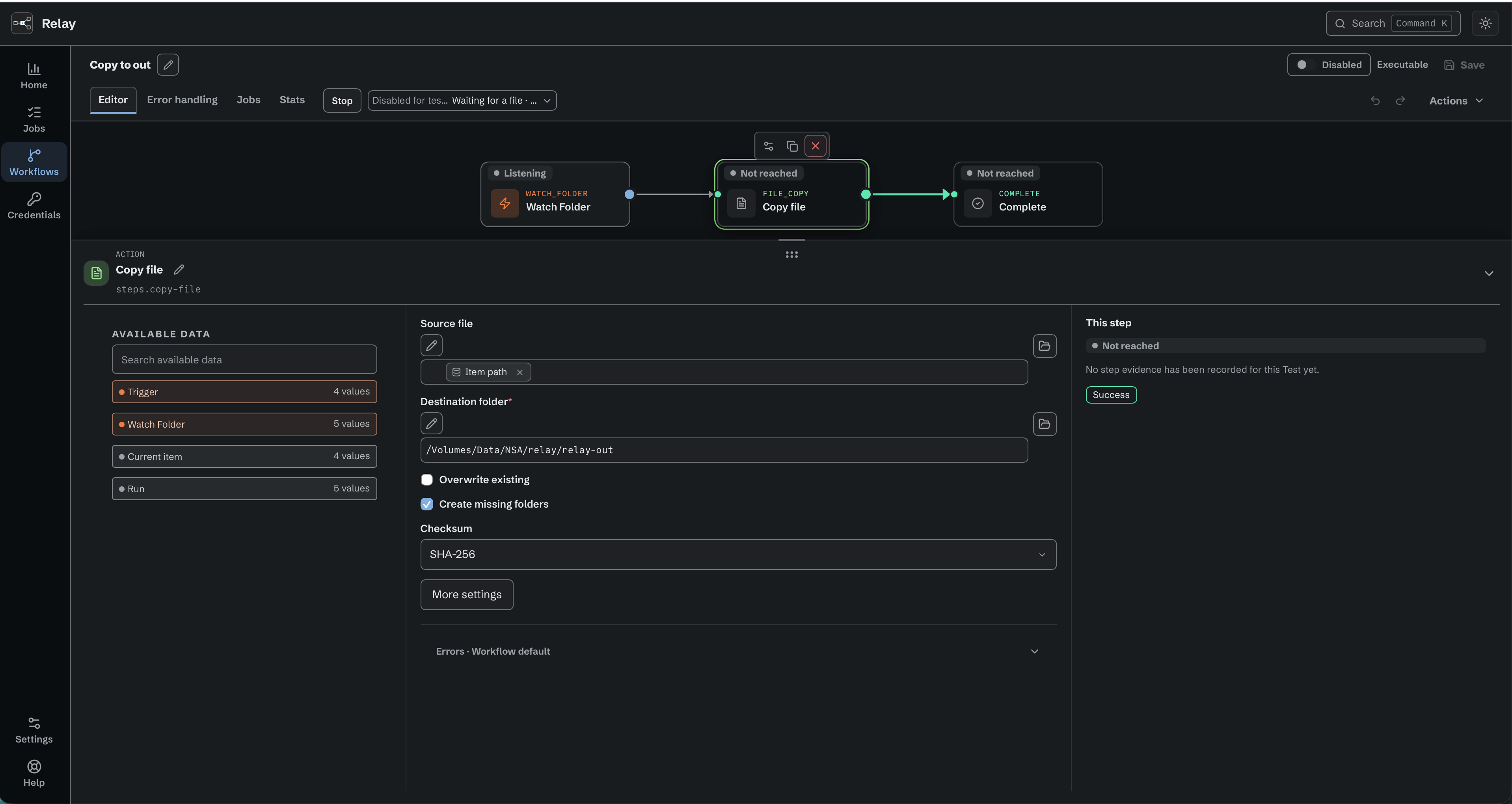
A Watch folder Test waits for one new file while production stays disabled.
The Test menu keeps the five newest protected trigger inputs for this workflow on this node. An Iconik Job Test keeps its click as an input too. Replay runs the whole current draft with one retained input. A missing file is not restored. If a trigger changed, the input remains listed with the reason it cannot be replayed. Deleting an input does not delete evidence already stored in a Test Job.
Accepted Tests appear in Jobs with a Test badge. They keep the tested draft graph and protected step evidence even if the workflow later changes or is deleted. Job detail and downloaded logs load the first 500 recorded action executions. If a large Test has more steps, Relay reports that the step history is truncated instead of presenting the first 500 as the complete run. The job outcome and For Each totals still describe the complete result. Tests do not count in production Stats or node activity summaries. Workflow Test is the editor's only authoring test surface, and its per-step panels are evidence from that whole run.
Disabled actions in a Test. Test and Replay use the action states in your current draft. A reached disabled action shows Skipped: disabled and passes its input unchanged through Success. It makes no external request, changes no files, runs no command, and creates no outputs. An action on a path the Test did not visit stays Not reached, even when disabled. The accepted Test keeps its captured action states for its whole run.
What a Test shows and what it hides. A Test shows ordinary Script results, console output and downstream values, including after an action uses a credential. A credential attached to a step, mixed data sources or an unstructured response do not by themselves hide output.
Relay still removes stored credential values and protects explicit secret fields and recognized credential formats. When evidence is omitted, the step shows the reason. A field name that holds a stored credential is reported by its position in the list. Protection applies when evidence is recorded and when it is read, so a credential added or rotated after a Test can hide a matching recorded value.
Older Tests can still show notices that values were hidden because they might carry Script data and credential data, mixed data or an unreadable response. Relay cannot recover output that it did not record. Run a new Test to inspect output under the current rules. An omitted console is reported as unavailable, not as a console with no output.
Evidence protection does not change the step's outcome or undo work it did. Authors must keep sensitive data out of source and diagnostic output. Matching can remove complete stored credentials, but cannot reliably identify unknown secrets, transformed values or fragments, including text cut by a preview limit or split across console lines. Inspect the output before you share it.
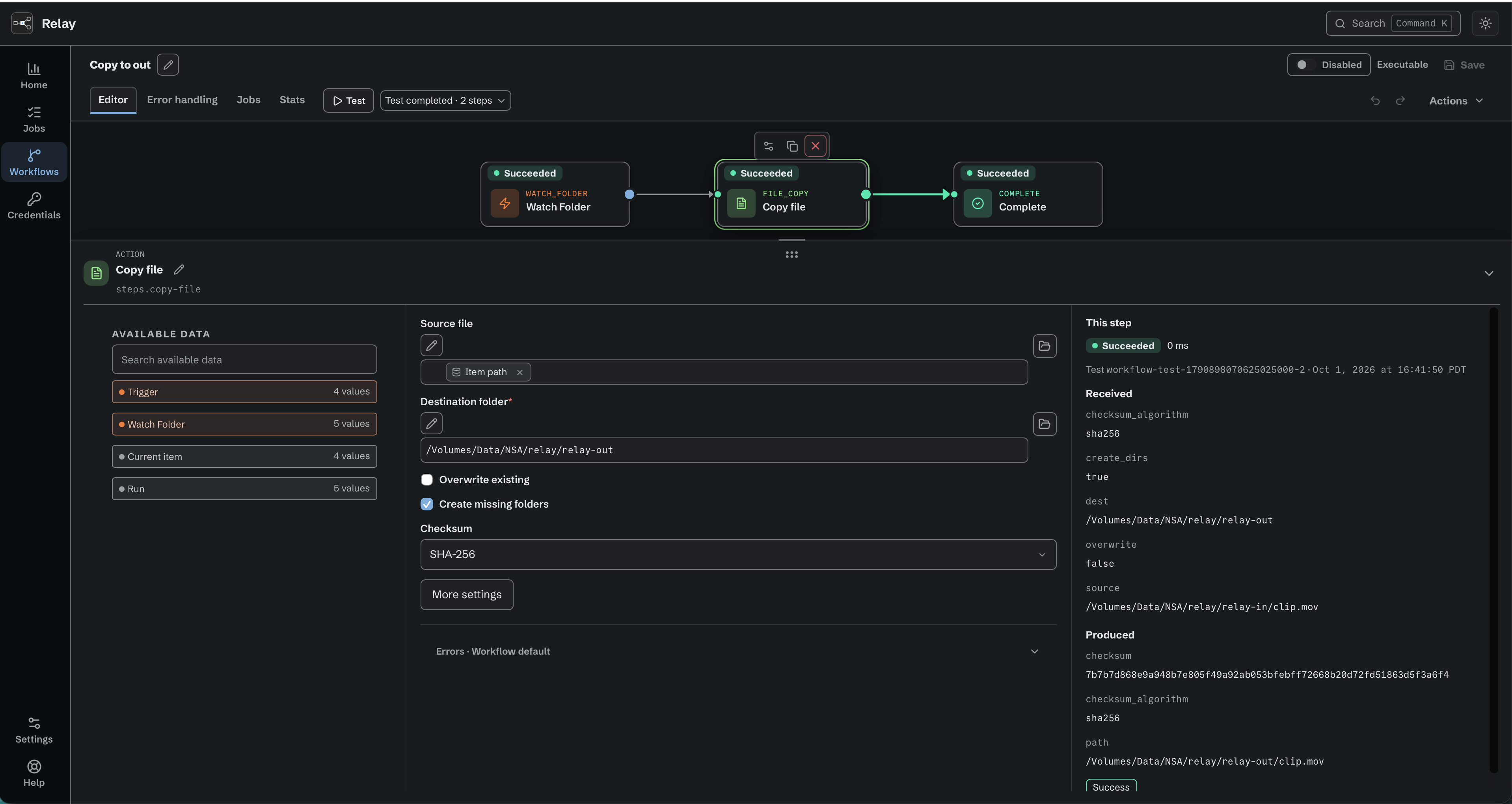
A completed Test shows the selected step's received and produced values.
4.7 Managing workflows in bulk
The Workflows page first opens on All workflows. After that, each console remembers its last location separately for each node. Each workflow has one row, with its name, readiness, Enabled switch, Created and Modified dates, and actions menu. Click a row to open the workflow. Create workflow and Import act on the library. With a folder selected, Create workflow puts the new workflow in that folder. If Relay cannot confirm the move, it says Workflow created. Its folder could not be confirmed. and shows All workflows. An empty folder reads This folder is empty and offers its own Create workflow. On a node with a Limited license, a line above the list shows the active workflow limit, for example Limited license: 2 of 3 active workflows (13.8).
Folders and search
Folders are optional. All workflows at the top of the folder tree shows the node's complete library. A workflow outside every folder sits at the top level. Each subfolder is indented below its parent.
Use New folder (the folder button above the tree) to add a folder inside the selected folder. With All workflows selected, the folder goes to the top level. Type the name in the new row, then press Enter. Press Escape to cancel. Right-click a folder, or press Shift+F10 or the Menu key, for New subfolder, Rename, Move to…, and Delete. On All workflows the menu offers only New folder. Rename edits the name in place; F2 also starts it. Folder names can contain 1 to 255 characters, with no surrounding spaces or control characters. Names in the same parent must differ, ignoring case. Each workflow has one home. Folder changes are shared with every console connected to that node. They do not change triggers, running jobs, or workflow connections.
The folder tree has one keyboard stop. Up and Down move between folders, Right opens a folder or moves to its first subfolder, Left closes it or moves to its parent, Home and End jump to the first and last folder, and Enter or Space selects it. Delete (Cmd+Backspace on macOS) opens the delete confirmation for the focused folder.
Select a folder to see the workflows directly in it. Search all workflows always searches workflow names in every folder, and the results show each workflow's Folder. Clear the search to return to the selected folder. Use All, Enabled, or Disabled to filter by the workflow's switch. Clear resets the search and the filter.
To move workflows, drag them onto a folder. The folder lights up while the drop will land there, and a closed folder opens if you hold the drag over it. Drop onto All workflows to move workflows to the top level. Drag a folder onto another folder to nest it. For a keyboard alternative, use Move to folder in a workflow's actions menu or, for several selected rows, in the selection toolbar. Choose Folder, then select Move workflows. Choose Top level to take a workflow out of its folder. To move a folder from the keyboard, open its menu and choose Move to…. Choose Folder, then select Move folder. The list leaves out the folder itself and its subfolders. Choose Top level to take a folder out of its parent.
Delete removes only that folder. Its workflows and subfolders move up to its parent folder, or to the top level. The confirmation states what moves and where. If a subfolder has the same name as a folder at the new level, Relay deletes nothing and names the folder to rename first. Deleting a folder never deletes workflow definitions or job history, and it leaves each workflow enabled or disabled as before.
Sorting and dates
Select the Name, Created, or Modified column heading to sort by it. Select it again to reverse the order. An arrow shows the sorted column and its direction. Names sort A to Z first; dates sort newest first. Workflows with an Unknown date stay after dated ones in both directions. Each console remembers its sort separately for each node.
Dates show as digits in local time, for example 2026-10-23 14:05. Point at
a date to see the seconds and the time zone.
Created is when the workflow record was created on this node.
Modified is the latest saved definition edit, including a rename.
Enabling, disabling, or moving a workflow does not change these dates. An
unchanged save does not change Modified. Older workflows without recorded
dates show Unknown. A later edit supplies Modified without inventing
Created.
Workflow archives and backups do not carry the folder tree or these dates. Imported workflows, including copies made during import, go into the selected folder, or to the top level when All workflows is selected. This applies to Import and to archives dropped on the page. They get dates from the destination node. An older node without folder support still offers its workflow list and search; update the node to use folders.
Selection, export, delete, and import
The checkbox at the left of the column headings selects every visible workflow. It appears when you point at the list or when a workflow is selected, and it shows a dash when only some are selected. To select without opening a workflow, use its checkbox, Command-click or Ctrl-click, Shift-click for a range, or Command-A or Ctrl-A. The selection toolbar offers Move to folder, Export, Delete, and Clear selection. A change of folder or filters clears the selection, so hidden workflows are not included in the next bulk action.
To rename a workflow, click the pencil beside its name, type the new name, and press Return. Press Escape to cancel. Rename in the actions menu does the same. Clicking outside an actions menu or pressing Escape closes it.
- Export writes one Relay zip archive containing the selected workflow definitions. It does not include node settings or Test evidence. Relay writes the archive as one complete file. A failure before Relay publishes the file leaves any existing destination untouched; once the new archive has replaced it, a late failure still reports the export as failed but the new archive stays where it is, so check the destination after a failed export that named a folder problem.
- Delete confirms how many workflows are selected and how many are enabled, warns that it cannot be undone, and says that job history is kept and shown as belonging to deleted workflows. A workflow with an active Test cannot be deleted until the Test stops or finishes. Deleting the last workflow returns the keyboard to Create workflow.
- Import accepts one or more Relay archives from the file picker or by dropping them on the Workflows list. Relay reviews every workflow before it changes anything. Existing workflows are never overwritten: choose Skip or Copy for each conflict. Invalid workflows cannot be imported. If a workflow refers to a credential this node does not have, it defaults to Skip. Choose Import, or Copy when the same workflow also conflicts, to store it disabled as a draft with the credential unassigned. Then assign the credential in the editor before you enable it. Imported workflows start disabled, and Relay lists any trigger secrets to restore. An import started here changes workflows only: it never applies node settings an archive happens to carry, which is what the Backup page is for (chapter 12.2).
Only one list operation runs at a time. On a remote node, Export and Import remain unavailable until that node advertises workflow-list transfer support; update the node to enable them.
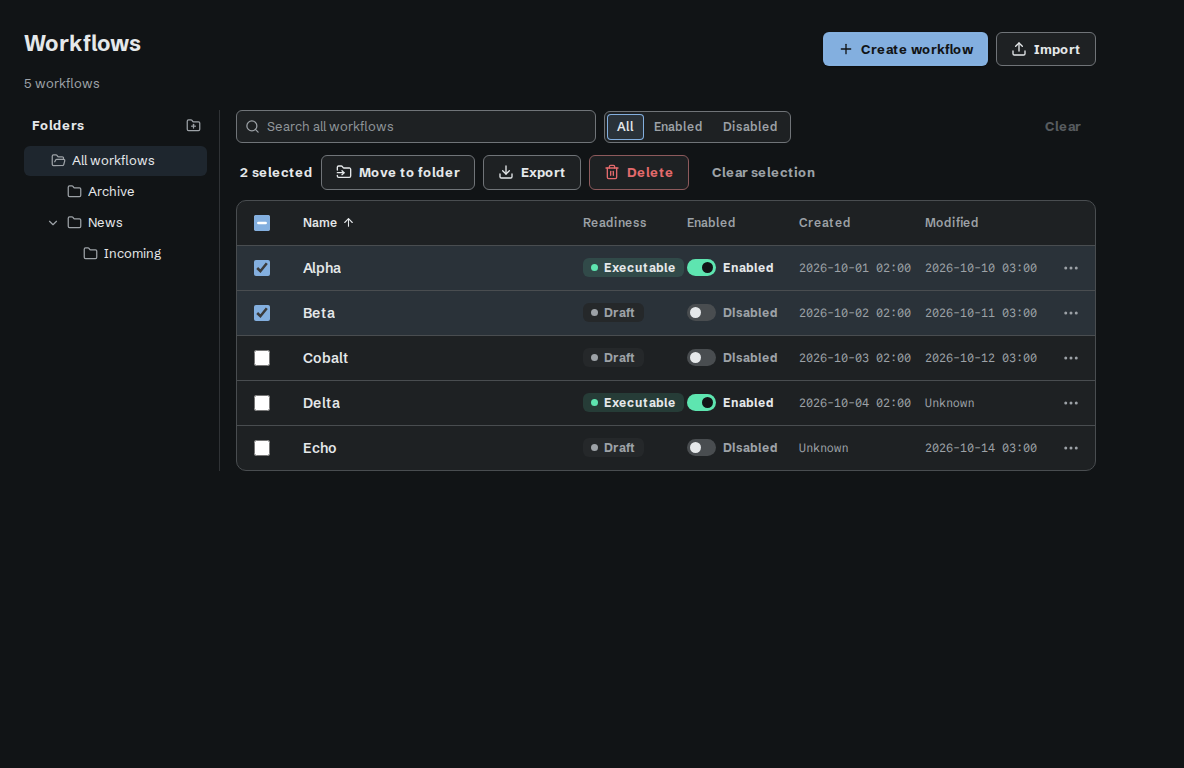
Selecting workflows reveals Move to folder, Export, and Delete.
4.8 Keyboard shortcuts
Press ? on the canvas. The list names your computer's own modifier key, Command on a Mac and Ctrl elsewhere, and groups the shortcuts under Navigation, Editing, and Testing.
| Keys | Action |
|---|---|
| Command-K | Search (Home, Jobs, Workflows, Credentials, Settings, Backups, Help, or any workflow) |
| Command-0 to Command-4 | Select All nodes or a machine |
| ? | Open keyboard shortcuts |
| Command-Shift-K | Open action palette |
| Command-S | Save |
| Drag, middle-drag, or Space-drag | Pan canvas |
| Shift-drag | Select box |
| Delete | Remove selection |
| Esc | Close or deselect |
| Command-Z / Shift-Command-Z | Undo / Redo |
| Up / Down | Resize dock (on its divider) |
Testing has no shortcut: use Test in the workflow header.
Pulldowns. Every pulldown in Relay works the same way. Click it, or press Enter, Space, or Down, to open its list. Use the arrow keys, or type the start of a choice, to highlight a choice. Press Enter, Space, or Tab to choose it. Press Esc to close the list with no change. Esc closes only the list, not the dialog or panel behind it.
4.9 Deleting a workflow used by an Iconik Job
Available in the internal managed Iconik release. Older installers and evaluation builds do not offer this feature.
Deleting a workflow that an Iconik Job uses (chapter 5.8), enabled or disabled, asks for an explicit confirmation that lists every Iconik Job using it. This applies to a single delete and to a bulk delete (4.7). Relay asks it after the normal delete confirmation, and only when Iconik Jobs use the workflow:
- The dialog Delete a workflow that Iconik Jobs use? says <workflow> is used by:, lists each Iconik Job by name, marks a disabled one (disabled), and ends with These Iconik Jobs then need another workflow.
- Select Delete workflow to delete it with exactly that list, or Cancel to keep the workflow. In a bulk delete, a workflow you keep this way shows in the report as not deleted.
The delete goes ahead only when the list you confirmed is still the current list. If an Iconik Job was attached to the workflow in the meantime, Relay deletes nothing and asks again with the new list. The dialog then starts with The list of Iconik Jobs changed. Check it again. The node's own refusal reads, for example:
workflow "<id>" is used by 1 Iconik Job: "Path extract". Confirm the delete with this list of Iconik Jobs to delete the workflow.
If Relay cannot read the current list, it deletes nothing and asks nothing. It shows the refusal, then Relay could not read the Iconik Jobs that use this workflow. and the reason. Delete again to retry.
After the delete, those Iconik Jobs keep their definition and show Action required. A click on an enabled one fails with NOT_STARTED (Workflow not runnable): workflow does not exist; a click on a disabled one fails with NOT_STARTED (Iconik Job disabled). Attach another workflow to clear the problem.
Disabling the workflow or saving it as a draft needs no confirmation. Its Iconik Jobs show Action required until it is ready again. A workflow that no Iconik Job uses deletes exactly as before. Deleting an Iconik Job never changes its workflow.
Which Iconik Jobs use this workflow. Select the Iconik Job trigger on the canvas. Its panel shows Iconik Job with each Iconik Job that targets this saved workflow, or No Iconik Job targets this workflow. Select a job name to open Settings > Iconik with that job's edit dialog (12.10).