
Chapter 15 / Help and reference
15. Troubleshooting
Symptoms are grouped by where you see them. Each entry gives the likely cause and the fix. When an entry does not resolve it, send a diagnostic bundle (15.9).
15.1 Relay will not open or shows a banner
"Relay engine is not available. Start the node service, then retry."
The editor cannot reach the Relay service. Right after install, wait a few seconds and Retry. Otherwise check the service: sudo relay service-status (macOS, Ubuntu) reports its state; sudo relay service-start starts it. On Windows, check the service NorthShoreAutomationRelay in Services. If it stops again at once, look at the service log (15.10).
"Relay is running, but this account can't reach it."
The service runs as a different user account than the one running the editor. Relay's service account is recorded in identity.json in the data directory. Log in as that account, or reinstall Relay selecting the account you use. On Windows this also appears in Control Room as STATUS UNAVAILABLE - sign in as the account that installed Relay.
Editor and engine version mismatch (About): restart Relay after an update. About shows Desktop version and Engine version separately when they differ.
"Job counts are unavailable" with "Relay is taking too long to respond. Retry in a moment." The count request did not finish in time. Choose Retry job counts. A shorter period in Time, or one Workflow, can reduce the work on a busy node. Custom ranges also have counts on supporting nodes. If the node is also Stale immediately after an update, let startup finish first (chapter 13.6). If timeouts continue, send a diagnostic bundle (15.9) with the version information from About. Do not delete job history to restore a count display.
"Update Relay to count jobs for the selected time range." Update the selected node (chapter 13). The job list remains available while exact counts are unavailable.
"No jobs in the last hour". Choose a wider period in Time, or change your other filters. Jobs shows jobs within the selected period. N queued on this node can include jobs outside that period or the selected workflow.
Statistics calculations stop after 10 seconds, including their wait behind another statistics request. Job rows and filters do not wait for those calculations. A failed count is unavailable, not zero. If a statistics error says "Too many statistics requests. Try again.", the node has reached its limit of 32 different requests being calculated or waiting. Let the current reads finish, then use the named retry. Repeated matching requests share the work already in progress.
The service will not start after an update. Relay may have refused to open its stored data. Look in logs/relay.log (15.10): a refusal says whether the data is older than this release can upgrade, or was written by a newer Relay than the one now installed, and what to do about each (chapter 13.6). Do not delete the data directory. It holds your workflows, credentials, and run history, and support can recover from it.
15.2 Workflow never runs
Check, in order:
- The workflow is Enabled, not just saved. A draft cannot be enabled; press the toggle and fix each problem the toast lists.
- For a watch folder: the folder exists (Relay does not create it); the file is not hidden (name starting with
.); File patterns match; the file has stopped changing for the Settle time (ms); on a network share, Detection mode is Network share and the share is mounted for the machine, not just your login session (chapter 5.1). - On macOS, the folder is not under Desktop, Documents, Downloads, iCloud Drive, or
/Volumeswithout Full Disk Access for/usr/local/bin/relay(chapter 2.6). The job or the service log will say access to <folder> was denied. - For a schedule: the node's clock and timezone are what you expect; missed occurrences while the machine slept are not replayed.
- For a webhook: the caller reached the right address -
127.0.0.1:8787accepts only local calls (chapter 12.4) - used POST, sentAuthorization: Bearer <secret>, and got a202. Any other status code names the problem (chapter 5.4). - For an SQS queue: Credentials shows the Amazon SQS connection as Ready; the message has
system_domain_idmatching the Iconik System ID and a non-blankaction_id; a Blocked job means the duplicate guard caught a repeat. - Home does not show Node dispatch paused, Workflow dispatch paused, Queue at capacity, or a license banner.
- Settings → About shows an Active or Grace license. Anything else blocks execution (chapter 13).
Run now is a production action and uses the saved, enabled workflow. A Manual trigger starts with no file attached, so file actions that default to ${item.path} fail unless an earlier step produces a file. To test a Watch folder draft with real input, use Test and wait for one file. Use a retained Replay input to run the whole current draft again (chapter 4.6).
If a For Each workflow stays a draft, inspect every path from Each item. Each normal branch must connect to Return on that same For Each. Move Complete to the Done path, and move any second For Each outside the repeated path. Relay allows an unfinished path to be saved while you build it, but it cannot be enabled or run until the loop is complete.
If For Each reports Expected an array., inspect the selected Array value in the upstream step's Test evidence. Select the complete array or a nested array value. An object, text, number, boolean, null, or missing value is not converted, flattened, or split automatically. Prepare that value in an upstream step, then test the workflow again.
15.3 Job failed
Open the job. The Failing step and its Error say what happened; the Input shows the parameters as resolved, which is where most surprises are.
| Message contains | Cause | Fix |
|---|---|---|
| unresolved variable ${…} | The reference does not exist at that step | Check the slug in the bench (steps.<slug>); use Available data to insert it |
Current item "loop.item" is not available at this step |
The field uses the current For Each item outside that loop's repeated path, including after Done | Move the action into the path from Each item to Return, or choose data that is available at this step. For Script, use input.loop.item only inside that path. |
| already exists (overwrite off) | Name collision | Turn on Overwrite existing, or rename with a pattern |
| does not exist / no target | Source path wrong, or the job has no carried file | Check the path; ensure a file-producing step precedes this one |
source unavailable |
The accepted Watch folder source is missing before its first action | Check the original path and deliver a valid source again. Do not substitute a different file at that path. |
source changed since it was accepted |
The accepted Watch folder source changed, was replaced, or is now a symbolic link or Windows reparse point | Check the original path and deliver a valid source again. Relay does not use a replacement object. |
move incomplete: complete destination <dest> is present; source <src> could not be removed: <cause> |
Move finished the destination but could not remove the source | Check both named locations before retrying. Both can be real files. |
| refusing non-regular | The selected action cannot use this source type | Point at a regular file. Copy and Move also support a symbolic link to a regular file (File sources and destinations). |
same-filesystem relocation is unsupported |
Move with overwrite off cannot safely claim the destination name on this volume: it refuses hard links, a rename that refuses an existing name, and a new file that claims the name | The source is unchanged. Use a filesystem that supports one of these operations. Enable overwrite only if replacing an existing destination is intended. |
staged publication without overwrite is unsupported |
Copy, Move transfer, SCP download, or S3 download cannot safely publish a new name on the destination filesystem with overwrite off. The volume refuses hard links, a rename that refuses an existing name, and a new file that claims the name | Use a filesystem that supports the operation. Enable overwrite only if replacing an existing destination is intended. If cleanup reports a retained temporary file, inspect that path before retrying. |
acquire staged-file identity guard |
Copy or Move could not keep a reference to its temporary file on macOS or Linux, so it stopped before copying content | Read the operating-system cause in the job error. Resolve the reported resource or filesystem problem, then inspect any retained temporary path before retrying. |
close staged-file identity guard |
Copy or Move could not close its extra temporary-file reference; the final destination may already be complete | Check the source, final destination, and any reported temporary path before retrying. A failed step does not mean the destination is absent. |
| permission denied / access to … was denied | Service account cannot read or write | Fix filesystem permissions; on macOS grant Full Disk Access. On Windows, if the message names the Relay data folder while you save a credential, it is not a permissions problem: see 15.11. |
| returned status 4xx/5xx | HTTP endpoint rejected the request | Read ${error.http.body} in the job; check URL, headers, body mode |
request recovery deadline or retry limit exceeded |
An eligible temporary failure did not recover inside the action's attempt or time limit | Open the failed step's Attempt history. Check the last response status, failure category, and Retry-After, then correct the endpoint or raise Retry window only when a longer delay is operationally acceptable. |
The Iconik connection cooldown exceeds this action's retry window. This action sent no request. |
Another job established a shared cooldown that lasts beyond this action's remaining recovery time | No request from this action reached Iconik. Wait for the connection cooldown, or increase Retry window if the workflow can safely wait longer. |
| Outcome unknown | Relay sent a write but could not confirm whether the remote system applied it | Check the target system before doing anything else. Do not blindly resubmit the job. Correct or repeat the operation only after you know its remote state. |
| field and invalid, schema, or value in an Iconik rejection | Iconik changed a field after the workflow saved its field definition, or the saved selection no longer fits | Open the workflow, explicitly refresh Iconik fields, correct the selection or mapping, save, and run a representative Test. Relay does not repair fields during a job. |
cannot be searched in Iconik: the field type "…" is not supported |
A DLR Lookup criterion names a custom metadata field Iconik cannot match exactly | No request reached Iconik and the clip is unchanged. Open the workflow, replace the criterion with a core asset field or a supported custom field (Iconik DLR Lookup), save, and run a Test. The editor marks the row Unsearchable. |
is a core Iconik field, which is unavailable for DLR mappings |
A DLR Lookup mapping names a core asset field as its source or its destination | No request reached Iconik and the clip is unchanged. DLR mappings use custom metadata only (Iconik DLR Lookup). Open the workflow, choose a custom metadata field on that side, save, and run a Test. The editor marks the field Core field. |
this workflow has no CatDV connection |
The workflow holds a CatDV step but no CatDV connection, or the connection names a credential this node no longer has | Open the workflow, open CatDV in the header, and select a CatDV credential (CatDV connection and shared behavior). The workflow cannot be enabled until you do. |
the clip ID must be one whole positive number |
Clip ID is empty, is not a number, or is zero or negative. A ${…} reference that resolved to other text is the usual cause. |
Read the step's Input to see what the ID resolved to, then correct the field or the reference. |
CatDV has no clip with ID <n> |
CatDV holds no such clip, or the CatDV user in the credential cannot see it | Check the ID in CatDV. Check that the account in the credential can see that clip. |
the CatDV user in the stored credential does not have permission |
The CatDV account cannot read or change that clip | Give the account the rights in CatDV, or point the credential at an account that has them (10.7). Relay never works around a refusal. |
Relay cannot tell whether CatDV applied this change |
Relay sent the update and never got an answer | Check the clip in CatDV before anything else. Relay does not send that update again by itself (How a CatDV step fails). |
CatDV has no free licence seat |
Every CatDV license seat was in use for the whole retry window | Wait until a seat frees, or add seats. Each job uses one seat while it runs, so many jobs at once need many seats. |
Relay did not get an answer to the CatDV sign-in |
The sign-in reached CatDV, so it may have taken a seat, and the answer was lost on the way back | Relay signs out of that sign-in at once, so the seat comes back. It stops the job rather than sign in a second time. Check the CatDV server, then run the workflow again. |
The CatDV server broke off the sign-in |
CatDV stopped the sign-in before it could take a seat, which usually means the server was restarting or overloaded | Relay signs in again by itself inside the step's retry window. If the job still fails, check the health of the CatDV server. |
The CatDV server address or API path in the stored credential is not usable |
Something answered the sign-in, but not the way CatDV answers. The address or API path points somewhere else. | Open the credential (10.7) and correct the server address and API path, then test it (10.8). Relay does not try again by itself, because the same address gives the same answer. |
Relay could not complete contact with the CatDV server |
The network or the server failed while Relay was reading | Check the network and that CatDV is running. Test the credential (10.8) to confirm the address. |
| command exited with code N | Shell command failed | Read stderr in the job; remember it ran as the service account with Relay's own fixed PATH (Run shell command), not the service's, so call tools by absolute path |
| time limit … exceeded | Shell command ran too long | Raise Time limit or fix the command |
script protocol: trailing data |
Script communication failed. Older macOS builds can report this incorrectly during completion or cancellation. | Update Relay. Check for completed side effects before retrying. If it persists, send a diagnostic bundle (15.9). |
| does not match the recorded host key | SSH host key changed | Remove the stale known_hosts entry on the node if the change is legitimate |
| credential "cred_..." not found / is type "…", need "…" | Wrong or missing credential reference | Select an available credential of the required type |
| bucket … does not exist / authentication … rejected | S3 configuration | Check endpoint, region, TLS, and the credential's permissions |
| body is not valid JSON / message is not valid JSON | Start Workflow body or Log message JSON format | Send exactly one JSON value; use `${x |
| file … is … bytes, over the … MB file-body cap | HTTP Request file too large | Raise Max file size (MB) or send a link instead |
is missing a Basic credential |
An HTTP Request step uses Basic authentication but selects no credential. The editor reports this when you save or enable the workflow. | Select a Basic auth credential in Basic credential (6.9). |
supplies an Authorization header while Basic authentication is selected |
An HTTP Request step with Basic authentication also sets an Authorization header by hand |
Remove the Authorization row from Headers. Relay builds that header from the credential. |
must use an absolute HTTP or HTTPS URL without user information for Basic authentication, or http_post: Basic authentication requires an absolute HTTP or HTTPS URL without user information |
The URL of a Basic step is not a full http:// or https:// address, or it holds a user name or password |
Enter a full address, such as https://api.example.com/notify, with no user name or password in it. Check what a ${…} reference resolved to in the step's Input. |
http_post: Basic authentication requires a stored credential and no manual Authorization header |
A Basic step reached a job with no credential selected, or with a manual Authorization header |
Select a Basic auth credential and remove any Authorization header (6.9). |
http_post: Basic credential is unavailable |
The selected credential no longer exists, or it is not a Basic auth credential. A step changed from Iconik to Basic keeps the old Iconik credential until you select another. | Select a Basic auth credential in Basic credential (10.1). |
http_post: selected Basic credential is incomplete or invalid |
The Basic auth credential has a blank username or password, a username that contains : or a line break, or a password that contains a line break |
Edit the credential and enter a valid username and password (10.3). |
| For Each input has N items, over the L item limit | The selected array has more items than this node allows per loop | Reduce the upstream array, or raise For Each items per loop in Settings → Performance within the 1–100,000 range |
| For Each selected array is N bytes … over the fixed 1048576-byte input limit | The complete selected array is more than 1 MiB as compact canonical UTF-8 JSON | Reduce or split the array upstream. The fixed input limit cannot be raised |
| For Each outcomes would use N bytes … over the L-byte outcome limit | The next per-item outcome would exceed this run's outcome budget | Review the recorded outcomes and incomplete progress. For new jobs, reduce per-item failure detail or raise For Each outcome storage per loop in Settings → Performance |
Waiting to retry: leave the job in place while Next attempt is in the future. This Iconik connection is cooling down. is a shared pause for that connection; Relay is waiting before the next recovery attempt. is the request's own backoff. Open the step's Attempt history to distinguish a 429 or other HTTP rejection from a connection or response-decoding failure.
Interrupted: Relay restarted during non-resumable work. Before re-running the job, inspect the named source, final destination, and any retained temporary file or destination folder. File-transfer recovery does not remove local files automatically. The next multipart S3 upload to the same destination first removes its recorded abandoned upload IDs. A request that was already durably Waiting to retry can resume after restart before its original deadline; completed actions and its attempt budget are preserved. Then decide whether to re-deliver the file or re-send the request. Indeterminate: Relay could not confirm how a step finished. Check the target system by hand, then decide whether to run the work again. The job keeps this status: there is no control that closes it.
S3 multipart upload problems. Correct Chunk size (MiB) to a whole number from 5 to 5120; start with 64. A destination-busy error means another multipart attempt on this node holds the same destination. Wait for it to finish, or use a distinct object key. Do not delete a lock file to force a transfer.
When an upload reports pending or failed cleanup, check the network and the saved credential's s3:AbortMultipartUpload and s3:ListMultipartUploadParts permissions. The next multipart attempt to that destination retries recorded cleanup before uploading. It fails if cleanup cannot finish. Keep the original credential available with permission to remove its unfinished upload. Relay does not continue sending saved chunks after a restart.
An uncertain start can leave parts that only the bucket cleanup rule removes. An uncertain completion can leave a completed object. Check the destination and its versions before retrying. A retry sends the whole file again and can create another version. Unfinished parts do not appear as completed objects and can still incur storage charges. Follow Set up S3 multipart uploads to verify the cleanup rule and investigate leftovers.
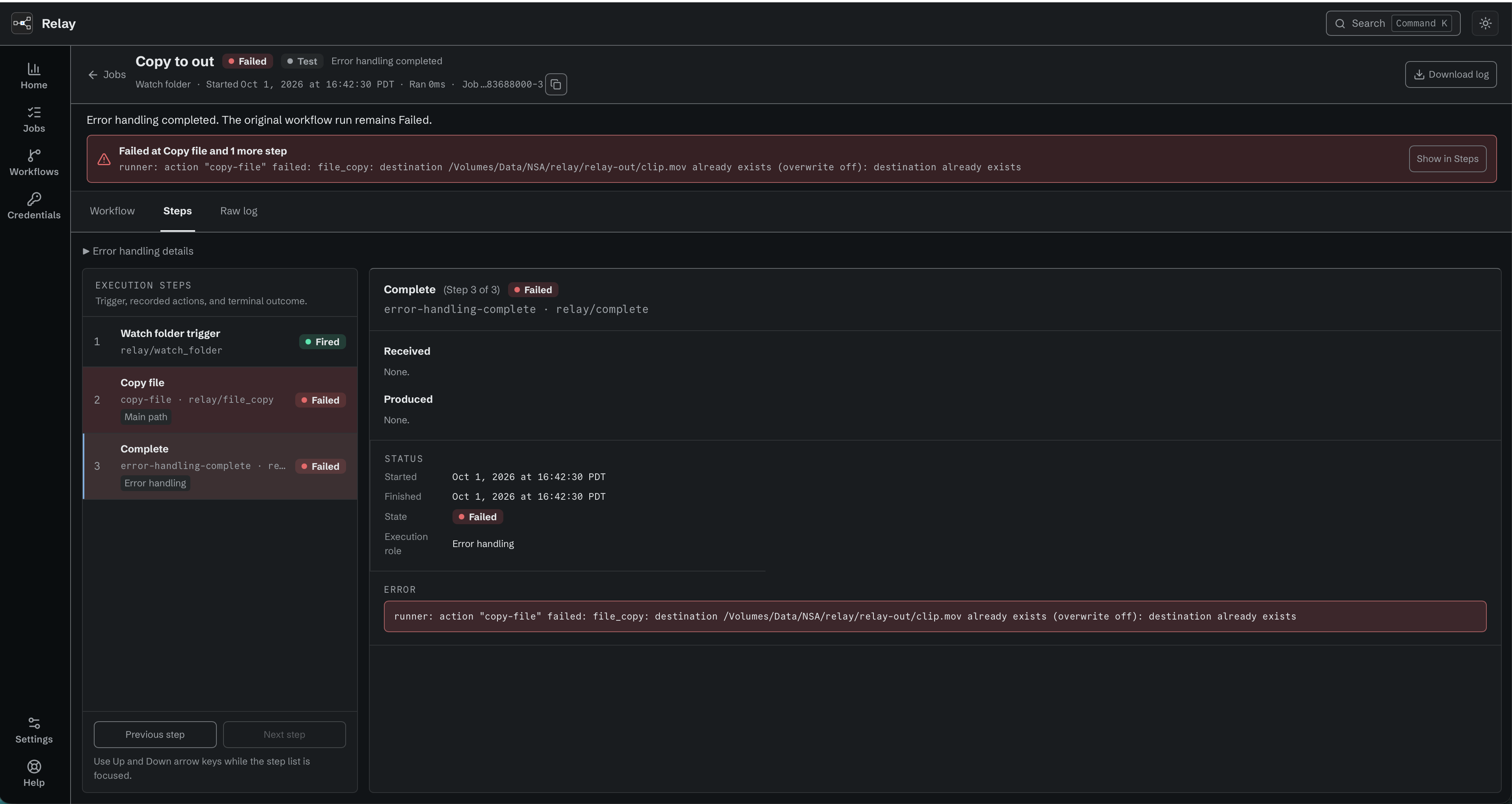
In this example, Copy file failed because the destination file already exists. Error handling completed, but the job remains Failed.
15.4 Files are picked up twice, or not at all, on a share
Set Detection mode to Network share, set Settle time (ms) to at least twice a typical transfer time and never under 30 s, and make sure the share is mounted by the machine (automounter or a mount LaunchDaemon) - a Finder mount disappears when you log out. Verify after a reboot with mount | grep smbfs.
15.5 Queue at capacity
Home shows Queue at capacity - new work is being refused. Either the backlog is real - raise the queued-run limits in Performance (chapter 12.3) or add concurrency - or something upstream is misbehaving. Cancel all on the workflow clears its queue.
15.6 License problems
See the state table in chapter 13.2. A blocking license banner names the selected node and links to its license details. The common problems are: Grace period means the license server is unreachable, so restore internet; Expired after a trial means enter a full code; seat is active on another machine means deactivate there or ask support to release the seat.
The entries below apply to a Limited license, which caps how many workflows can be on at one time (13.8).
"Runs are paused on <node>: this license allows N active workflows and M are on." More workflows are on than the license allows, for example after a backup restore or a change to a lower limit. No run starts on that node, but the workflows stay on. Relay never turns them off for you. Fix: choose Open Workflows, then turn off as many workflows as the banner says. Runs start again when the number on is at or below the limit. A Workflow Test still runs while the node is over its limit.
"Runs are paused on <node>: Relay could not count the active workflows." Relay could not read how many workflows are on, so it pauses every run until it can. Runs are refused with This license limits active workflows, and Relay could not count them. Runs are paused until it can. Fix: restart the Relay service (sudo relay service-restart on macOS and Ubuntu, or the NorthShoreAutomationRelay service on Windows). If the banner comes back, check the service log (15.10) and send a diagnostic bundle (15.9).
A workflow will not switch on: "This license allows N active workflows. Turn off another workflow before you turn this one on." The node is at its limit. Relay refuses the toggle, and refuses a save that switches the workflow on. Your edits are not lost: save the workflow off, or turn off another workflow first. Ask your reseller if you need a higher limit.
License shows Inactive with "The license has an invalid workflow limit. Contact your reseller." The workflow limit on the license is not a whole number of 1 or more, so Relay stops runs rather than run with no limit. Authoring still works. Fix: ask your reseller to correct the license. Relay checks again every hour and resumes on its own after the correction.
15.7 Workflow Test problems
If Test is unavailable, the workflow needs a connected Manual, Schedule, Watch folder, Webhook, or SQS Queue trigger. Start Workflow triggers cannot start a Test. A busy node refuses a Test instead of queueing it: Node is busy. Try again. If no Watch file, Webhook request, or queue message arrives within ten minutes, the wait ends and no Job is created.
An Iconik picker refresh can refuse with The Iconik connection is waiting to retry. Next eligible time: <time>. Another request using that Iconik connection set a shared cooldown. Wait until the displayed time, then refresh the picker again. Do not keep retrying while the connection is cooling down.
A Test performs real work. Cancel prevents later steps only after the current step accepts cancellation; it does not undo files, network requests, Iconik changes, or other completed side effects. A retained Replay input does not restore a missing file. If the trigger or draft changed, Relay keeps the input visible and states why it cannot be replayed.
Test says Interrupted with "The node could not retain the final Test result. Check Jobs." Relay could not save the final result. For a storage failure, it makes up to two attempts, each with a five-second limit. These attempts save the result only; they never repeat workflow actions. Jobs can still show Running if that final update could not be stored. Check the work already done and send a diagnostic bundle with the Job ID (15.9) before deciding whether to Replay. Do not assume that no work occurred or delete the Job to clear the display.
If Relay cannot record a step before it starts, that step does not run. If the node can still save the final result, the Test gets a terminal Job status with unavailable evidence. A failure to measure stored evidence size does not prevent that final status update.
If a step shows fewer values than you expected, read its omission notice (chapter 4.6). Ordinary Script output stays visible after credential use. Actual stored credential values and explicit secret fields remain protected. Do not detach credentials to expose sensitive data. If an older Test says output was hidden because it might carry Script and credential data, run a new Test: Relay cannot restore output that was never recorded. Hiding does not change the step's outcome or undo its work.
15.8 Install and update problems (Control Room)
Control Room names the failed phase and offers Retry; retrying is safe and never creates a second installation. Relay couldn't be downloaded - check internet access and try again. The Relay installer couldn't be verified - the download was corrupted or tampered with; retry, and if it persists contact support. Relay X requires ControlRoom Y or later - download the current Control Room. Repair Relay appears when Control Room finds the installation receipt but not the running service; it reinstalls without touching data.
15.9 Sending a diagnostic bundle
Help in the rail → Generate support bundle. A Bundle contents disclosure and the sensitive-information guidance sit above the button, so you can read what will be collected before you collect it. Relay writes a zip, reveals it, and opens a mail draft to support@northshoreautomation.com. Attach the bundle and describe what you expected and what happened, with the job ID if there is one.
The bundle holds the node manifest (ID, version, OS), the configuration with the license code redacted, settings, workflow definitions with secrets redacted, the newest 2,000 jobs with their steps, and the service logs. A job from an Iconik Job (internal managed Iconik release) is included like any other job; its payload is treated like other trigger data (16.10). Credentials and secrets are never included, and a section Relay cannot read or safely screen is left out instead. With the managed Iconik connection (internal managed Iconik release), the bundle also leaves out the managed Iconik credential reference from workflow definitions and Test evidence. For a job from an Iconik Job, the bundle keeps the Iconik user ID and the name of the person who clicked. On a node that offers Iconik Jobs, Bundle contents says so: The bundle includes the names and Iconik user IDs of the people who started Iconik Jobs. Before it makes a bundle, Relay checks the node again. The saved bundle's result shows the same line, also when Relay could not check. Only a node that offers no Iconik Jobs leaves it out. A Partial bundle notice lists any section that could not be collected. If Relay cannot reveal the file or open the mail draft afterwards, the saved bundle's location stays on screen so you can attach it yourself. From a terminal: sudo relay support-bundle --out relay-support.zip.
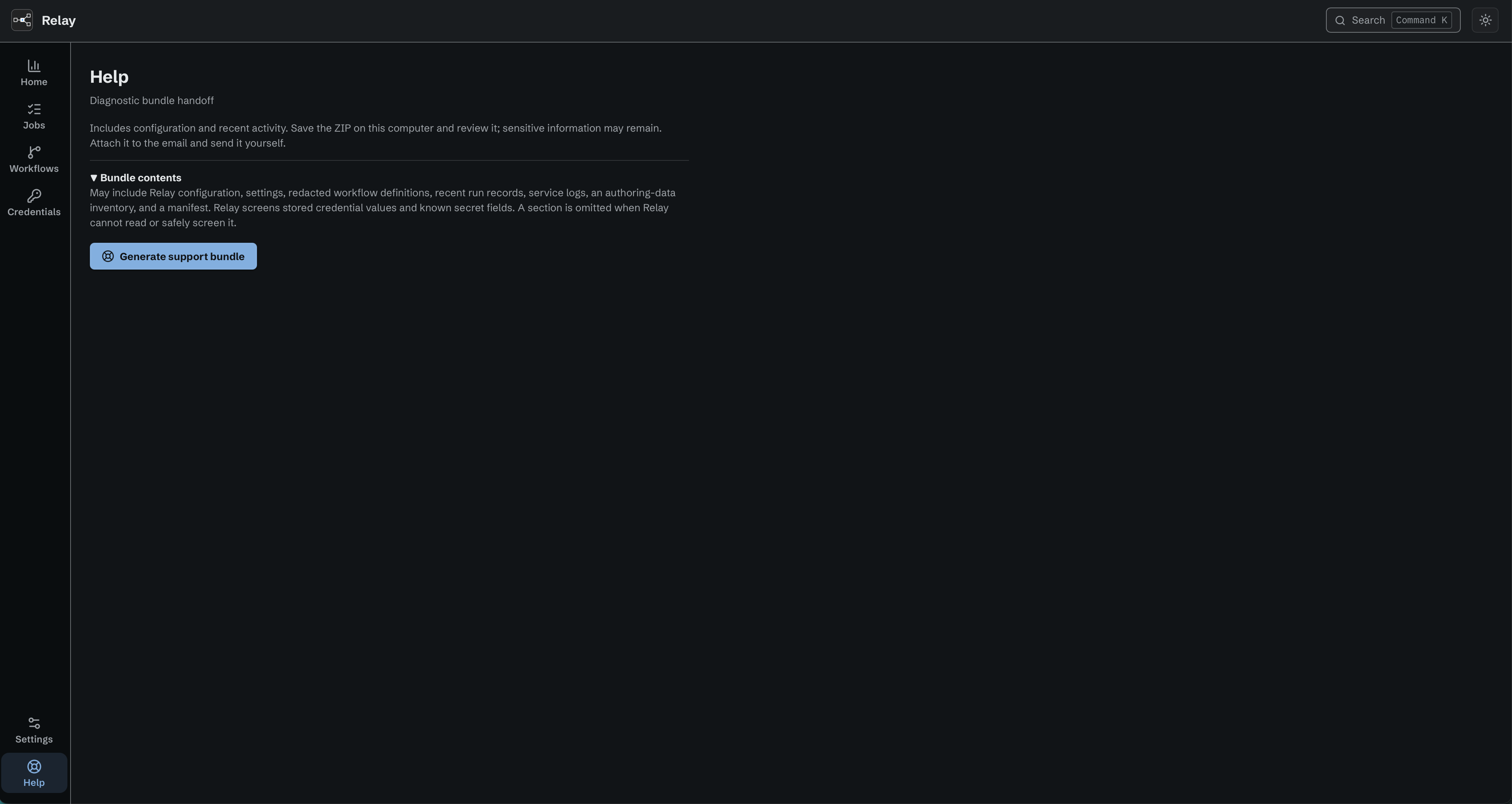
Read the bundle contents before generating a support bundle.
15.10 Logs
The service log is logs/relay.log in the data directory (chapter 2.7), rotated at 5 MiB to relay.log.1. On macOS, launchd's own output for the service goes to relay.log at the top of the data directory. Job-level detail is in the job's Raw log tab and in Download log.
15.11 A credential will not save on Windows
Symptom. You add or edit a credential of any type on a Windows node. Relay refuses to save it and shows a message that ends with the name of the Relay data folder and Access is denied. The credential does not appear in the list.
This is not a permissions problem. Do not change folder permissions, do not run the editor as an administrator, and do not reinstall. No account can make this message go away. It comes from a Windows rule about how a program is allowed to write to disk, and older Relay versions treated that rule as a failure.
The fix is to update the node. Install Relay 0.64.0 or later on that node (chapter 13). Then add the credential again.
Before you update, check the credential list. The failed save can leave the credential on disk while the editor still shows an empty list. After the update, open Credentials and look before you add. If the credential is already there, test it (10.8) instead of adding a second one.
macOS and Ubuntu nodes are not affected.
15.12 Windows credential key cannot be opened
Symptom. The Relay service refuses to start and reports that the protected credential key is unreadable or that the protected and old keys differ.
Keep the Windows service account and the complete Relay data directory together. Do not delete credstore.dpapi, credentials.sealed, or an old credstore.key. Do not reset the key or change folder permissions to make the service start. The key is tied to the Windows account that runs Relay. A normal password change uses the account's current password. After that change, update the Relay service's saved logon password before restarting it. An administrator password reset does not use the current password and can make the protected key unreadable. If the service fails after a reset, stop and contact support with the exact error text. A support bundle does not include either key or sealed credentials.
15.13 Managed Iconik connection setup does not finish
Available in the internal managed Iconik release. Older installers and evaluation builds do not offer this feature.
Setup keeps retrying, then pauses. While the cloud service prepares the connection, or cannot be reached, Relay retries on its own for 10 minutes. It then pauses and shows the reason with a Try again button. A paused setup does not resume on its own: it waits for Try again or for a restart of the Relay service. Both repeat the same setup request, so they can never create a second connection, for 23 hours after the first attempt. After 23 hours, Relay starts setup again from the beginning. When the cloud service says it is switched off, Relay pauses at once instead of retrying for 10 minutes. If the reason says the cloud service could not be reached, check that the node can reach the cloud service (16.3). If it says the clock was refused, correct the system clock. Then use Try again. The Try again button arrives with the setup screens; until then, restart the Relay service.
Setup stops and does not retry. These answers end setup:
- The license cannot use the managed connection. The node runs a trial code, a demo code, or an evaluation build, or the cloud service says the license does not include the managed connection. Use a production Relay build with an active paid license (13.7).
- The license was refused. The cloud service did not accept the license. It may be revoked, suspended, or expired. Check the license state (13.2).
- The license is in use on another Relay. Relay says this license is in use on another Relay; use machine replacement. Another installation already connected with this license activation (13.7).
- The connection needs recovery. An earlier setup finished on the cloud side, but this node did not keep its connection credentials, for example after a crash at the wrong moment or a restore of an older data directory. Relay does not try again on its own. Contact support@northshoreautomation.com.
Relay stopped during setup. When Relay starts again it continues the same setup request. If Relay had already saved the connection credentials, it confirms the connection with the cloud service without sending the license again. If the cloud service had already finished setup before the restart, the new start must wait for the cloud service to release the job queue held for the earlier start. Relay shows Waiting for the cloud to hand over the job queue with the time left. This wait can last up to about 16.5 minutes. It needs no action (15.14).
15.14 Managed Iconik connection is paused or waiting
Available in the internal managed Iconik release. Older installers and evaluation builds do not offer this feature.
While the managed Iconik connection is set up, Relay takes Iconik custom action clicks from the cloud service's job queue. In each case below except the last one, Relay resumes on its own. Do not restart Relay, re-enter credentials, or set up the connection again.
Waiting for the cloud to hand over the job queue. Relay shows Waiting for the cloud to hand over the job queue, with about how many minutes are left, and says no action is needed. Only one Relay start can hold the job queue at a time. After a restart, the cloud service holds the queue for the earlier start until that start gave it back or its hold ran out. A clean stop gives the queue back (16.1), so the wait is short. After a crash, a power loss, or a stop that could not reach the cloud service, the wait can last up to about 16.5 minutes. In rare cases on the cloud side it can last up to about 65 minutes. Clicks made during the wait stay in the queue and run when the wait ends.
The cloud service cannot be reached. Relay shows a calm status that asks for no action, and keeps trying to reach the cloud service in the background. Relay keeps taking jobs from the queue with its current cloud session, which lasts up to one hour and never less than 45 minutes from the start of the outage (16.3). If the outage lasts longer, Relay stops taking jobs until the cloud service answers. If Relay starts while the cloud service cannot be reached, it takes no jobs until the cloud service answers. In every case, Relay resumes on its own as soon as the cloud service answers. Check this node's network access to the cloud service (16.3) if the status stays for a long time.
Relay is refreshing its cloud session. For up to about 10 minutes, Relay may wait for the cloud service to issue a new session before it takes more jobs. This is normal and needs no action.
The Relay license is not valid. When the node's license stops being valid (13.2), Relay pauses the job queue but keeps its hold on it, so no other Relay can take it. Clicks wait in the cloud service's queue. Relay resumes within 30 seconds after the license is valid again. During the 72-hour offline grace (13.1), Relay keeps taking jobs. Fix the license (15.6); you do not need to set up the connection again.
Another copy of this Relay is using the connection. Relay says Another copy of this Relay is using the connection. Contact North Shore support. and shows the connection ID. Another installation, for example a cloned virtual machine or a restored copy of this disk, took over this node's connection, and the cloud service locked this node out. Relay stops taking jobs and does not try again on its own. Contact support@northshoreautomation.com and quote the connection ID.
The connection stops and does not retry. In these cases Relay stops taking jobs and makes no more calls to the cloud service until the Relay service restarts:
- The cloud service moved this connection to a newer setup, or retired it.
- The cloud service refused this node's connection credentials twice.
- The cloud service needs a newer Relay. Update Relay (chapter 13).
- Relay received an answer it could not use.
Except for the update case, contact support@northshoreautomation.com and quote the connection ID.
15.15 An Iconik click did not start the workflow
Available in the internal managed Iconik release. Older installers and evaluation builds do not offer this feature.
Open the job. Its error starts with NOT_STARTED or SKIPPED (chapters 9.7 and 11.7).
| Error | Cause | Fix |
|---|---|---|
NOT_STARTED (Unsupported payload size) |
Iconik sent a request body larger than 256 KiB | Select fewer assets and click again. |
NOT_STARTED (Iconik Job deleted) |
The Iconik Job was being deleted when the click arrived | Nothing to fix if the delete was intended. Otherwise create the Iconik Job again. |
NOT_STARTED (Iconik Job disabled) |
The Iconik Job is disabled | Enable the Iconik Job. |
NOT_STARTED (No workflow attached) |
The Iconik Job has no workflow | Attach a workflow. |
NOT_STARTED (Workflow not runnable): workflow does not exist |
The workflow was deleted | Attach another workflow. |
NOT_STARTED (Workflow not runnable): workflow must contain exactly one Iconik Job trigger; found N |
The workflow has no Iconik Job trigger, or more than one | Keep exactly one Iconik Job trigger and save. |
NOT_STARTED (Workflow not runnable): workflow contains a Start Workflow trigger |
The workflow also has a Start Workflow trigger | Remove the Start Workflow trigger. A Start Workflow action is allowed. |
NOT_STARTED (Workflow not runnable): workflow is a draft; save it as executable |
The workflow was saved with problems | Fix the problems and save. |
NOT_STARTED (Workflow not runnable): workflow is disabled; enable it |
The workflow is disabled | Enable the workflow. |
NOT_STARTED (Workflow not runnable): workflow is not executable: <problem> |
The workflow has a blocking problem | Fix the named problem and save. |
NOT_STARTED (Workflow not runnable): workflow is no longer attached to this Iconik Job |
The click was queued, and the Iconik Job was moved to another workflow before its turn | Nothing to fix if the move was intended. Ask the person to click again; the new click runs the new workflow. |
NOT_STARTED (Unknown Iconik Job) |
No Iconik Job on this node has the click's route. Most often the Iconik Job was deleted and the click arrived late. A leftover custom action can also cause it (Iconik Jobs guide, section 15). | Nothing to fix after an intended delete. Otherwise delete the leftover custom action in Iconik, or create the Iconik Job again. |
NOT_STARTED (Request rejected): <reason> |
The request did not match this node's Iconik account, or the custom action, or its body was damaged | See the table of reasons below. |
SKIPPED (Duplicate click): same click as job <first job> |
The same custom action was clicked on the same selection less than 5 minutes after a click that queued job <first job>. The job is Blocked. |
Nothing to fix. Open the first job to see the work. To run the work again, click again 5 minutes or more after the first click. |
NOT_STARTED (Relay busy) |
The workflow's waiting line stayed full for about one hour after the click arrived | Make room in the workflow's queue (15.18), then ask the person to click again. |
NOT_STARTED (Click not confirmed in time) |
Relay saved the click but could not confirm it with the cloud queue within 8 days, for example because the node was off for more than 7 days. The workflow never ran. | If the work is still needed, run the workflow by hand. Relay never runs such an old click by itself. |
The rows from NOT_STARTED (Unknown Iconik Job) down apply to clicks from the managed Iconik connection.
Reasons for NOT_STARTED (Request rejected): <reason>. Each <reason> is one fixed text. It never holds content from the request.
<reason> |
Cause | Fix |
|---|---|---|
tenant identity missing |
The request does not name an Iconik account | Contact NSA support. Iconik always names the account, so the request did not come from a normal custom action click. |
tenant identity repeated |
The request names the Iconik account more than once | Contact NSA support. |
tenant identity is not a string |
The Iconik account in the request has the wrong form | Contact NSA support. |
tenant identity is empty |
The Iconik account in the request is blank | Contact NSA support. |
request is from another Iconik tenant |
The click came from an Iconik account other than the one this node's managed connection uses, for example from a custom action that someone copied to another account | Delete that custom action in the other Iconik account. |
the route owns no such action |
The Iconik Job does not own the custom action, for example after a context was removed, or for a leftover custom action | Nothing to fix after an intended change. Otherwise delete the leftover custom action in Iconik (Iconik Jobs guide, section 15). |
body action_id does not match the message action |
The request body names another custom action than the one clicked | Contact NSA support. |
body context does not match the action context |
The request body names another context than the custom action's context | Contact NSA support. |
body is not one JSON object |
The request body is damaged | Contact NSA support. |
body repeats the action_id field or body repeats the context field |
The request body is damaged | Contact NSA support. |
body action_id is not a string or body context is not a string |
The request body is damaged | Contact NSA support. |
body has no action_id or body has no context |
The request body is incomplete | Contact NSA support. |
For each of these clicks, Relay removes the click from the cloud queue at once and runs no workflow. The job is named Unknown Iconik Job when Relay does not know the Iconik Job.
Iconik Job changes are refused. An Iconik Job named "<name>" already exists. Choose another name. and The job type key "<key>" is already used by another Iconik Job. mean the name, ignoring case, or the key is taken on this node; choose another. The Iconik Job changed since it was read. Reload it and try again. means someone else saved it first. The Iconik Job is being deleted and can no longer change. means a delete is in progress.
Unknown payload fields. A service log line with event=iconik_payload_unknown_fields, a count, and fingerprints= means Iconik sent a top-level field that Relay does not know. Each fingerprint is the first 8 hexadecimal characters of the SHA-256 hash of one field name. The log never holds the name or its value. Relay writes the line once for each click, before it checks whether the Iconik Job is deleted or disabled and whether the workflow can run. So the line does not mean the click ran. Look up the job for that click: it either ran with the payload unchanged, or it has a NOT_STARTED reason from the table above. The unknown field never changes which. Send the log line to NSA support; no action is needed on the node.
15.16 Iconik custom actions need attention
Available in the internal managed Iconik release. Older installers and evaluation builds do not offer this feature.
Relay creates and keeps one custom action in Iconik for each context of each Iconik Job. The Iconik Jobs guide describes how, and the two choices below: Clean up and try again and Remove anyway.
Where. Open Settings > Iconik (12.10). The banner above the Iconik Jobs list names each job that needs action. Select the job name to open its details. Each context shows its problem and code. Clean up and try again shows on a context only when Relay can accept it now. Remove anyway shows only for a job that is being deleted, and Relay asks you to confirm it first.
Problems. A context with a problem shows Action required, the problem text, and the problem code. Only the problems in this table show Action required. When a problem shows on one context, the other context of the job keeps working.
| Code | Text shown | Fix |
|---|---|---|
iconik_token_rejected |
Iconik refused the Relay connection token. |
Reconnect Iconik: connect Relay to Iconik again with a valid token. After this refusal, Relay sends no custom action requests to Iconik until the Iconik connection changes or you change an Iconik Job. Cloud cutoffs still go ahead. Relay then tries again on its own. During a delete, you can also choose Remove anyway. |
iconik_permission_denied |
The connected Iconik user may not manage custom actions in this context. |
In Iconik, give the connected user the right to manage custom actions in that context, or reconnect Iconik with a user that has it. Relay checks again every 5 minutes, and at once after you change the Iconik Job. During a delete, you can also choose Remove anyway. |
iconik_request_refused |
Iconik refused the custom action request as invalid. |
Iconik refused a create or a delete. When it refused a create, choose Clean up and try again. During a delete, choose Remove anyway. |
iconik_request_refused |
Iconik refused the custom action request as invalid. Delete this Iconik Job, then create it again. If this keeps happening, contact support. |
Iconik refused another change, for example a new title. Delete the Iconik Job, then create it again. Deleting the Iconik Job removes only Relay's own custom actions, and its job history stays. If the delete cannot finish, choose Remove anyway. If the problem comes back, contact support@northshoreautomation.com with a diagnostic bundle (15.9). |
title_in_use |
Another custom action in this context has the same title. |
Rename the Iconik Job, or rename or delete the other custom action in Iconik. Relay never changes a custom action that it did not create. Relay checks again every 5 minutes, and at once after you change the Iconik Job. When the clash comes from a rename, Relay's custom action keeps its old title and keeps working. |
create_unconfirmed_none |
Relay cannot confirm that the custom action was created, and found no match. |
Choose Clean up and try again on that context. |
create_unconfirmed_several |
Relay found more than one possible custom action from its own create. |
Choose Clean up and try again on that context. Relay deletes every custom action from its own earlier attempts, then creates one new custom action. |
update_unconfirmed |
Relay cannot confirm a change to the custom action. Delete this Iconik Job, then create it again. If this keeps happening, contact support. |
A title, URL, or enabled change had an uncertain result, and Relay does not repeat it blindly. Delete the Iconik Job, then create it again, as for iconik_request_refused above. If the problem comes back, contact support@northshoreautomation.com. |
readback_mismatch |
The custom action in Iconik does not show the values Relay wrote. Delete this Iconik Job, then create it again. If this keeps happening, contact support. |
After a change, Iconik showed another value for a field that Relay owns, or a changed field that belongs to the administrator. An administrator may have edited the custom action at the same moment. Relay leaves the custom action as it is and never enables it in this state. Delete the Iconik Job, then create it again, as for iconik_request_refused above. If the problem comes back, contact support@northshoreautomation.com. |
delete_unconfirmed |
Relay cannot confirm that the custom action was deleted. It may still exist., or one of the two 10-minute texts below |
Choose Remove anyway, then have an Iconik administrator delete the leftover custom action by hand. |
cloud_route_refused |
The Relay Cloud Service refused the route change. Choose Clean up and try again. |
Choose Clean up and try again. Relay sends the change once more. Until then, Relay registers nothing new for the job, but a disable or a delete of the job still reaches the cloud service, so clicks stop as usual. The cutoff names only the custom actions that the cloud service may hold, so the refused change cannot stop it. |
cloud_route_refused |
The Relay Cloud Service refused the route change. Choose Remove anyway to try again. |
The job is being deleted. Choose Remove anyway. Relay sends the step once more. |
cloud_route_refused |
The Relay Cloud Service refused the route change again. Contact support. |
The refusal is final. Neither choice is offered for it. Contact support@northshoreautomation.com. A disable or a delete of the job still reaches the cloud service. When the refusal came before the delete, Remove anyway is still offered if Iconik blocks the delete. |
While an Iconik Job is being deleted, a problem text never ends with Delete this Iconik Job, then create it again. If this keeps happening, contact support. The delete is already under way, so the text shows the cause only. When the cause of a problem changes, for example when Iconik kept failing and then the Iconik connection changed, the text changes with it.
A delete that keeps failing. When Iconik keeps failing to delete a custom action of a job that is being deleted, Relay tries again on its own and shows a calm note. After 10 minutes, counted from the first failure and also across a restart, the context shows Action required with delete_unconfirmed and one of these texts:
Iconik kept failing to delete the custom action for 10 minutes. It may still exist.Iconik answered with errors, or Relay could not reach it.The Iconik account changed, so Relay could not delete the custom action for 10 minutes. It may still exist in the earlier Iconik account.The node's Iconik connection now points at another Iconik account.
Choose Remove anyway. Relay finishes the delete and lists each custom action that may remain. An administrator of the Iconik account that holds it deletes it by hand. Then dismiss the entry from the leftover list. Dismissing changes nothing in Iconik.
A refused choice. A choice can be refused with one of these messages:
| Message | Meaning |
|---|---|
Clean up and try again is available only when Relay could not confirm that Iconik created the custom action. |
The context does not have one of the problems that this choice fixes. |
Remove anyway is available only while a delete cannot remove the custom actions in Iconik. |
The job is not being deleted, or its delete is not blocked. |
Confirm Remove anyway to continue. |
The choice was not confirmed. |
The Relay Cloud Service refused the route change again. Contact support. |
The cloud refusal is final. |
The custom action synchronizer is not running. Try again in a moment. |
Relay is starting. Try again in a moment. Nothing was changed. |
The Iconik Job changed since it was read. Reload it and try again. |
Relay or another person changed the job. Reload it and choose again. |
The Iconik Job is being deleted and can no longer change. |
Clean up and try again is not offered during a delete. Use Remove anyway when it is offered. |
Relay does not keep a choice across a restart. If Relay restarts before the work is done, the problem shows again. Choose again.
Waiting notes. A waiting note is not a problem. The job status does not change, and Relay tries again on its own. Do not restart Relay or set up the connection again.
| Code | Meaning | What to do |
|---|---|---|
waiting_for_switch |
Managed Iconik work is switched off on this node. | Older installers and evaluation builds do not offer this feature. Use the internal managed Iconik release for this workflow. |
waiting_for_connection |
The node is not connected to the Relay Cloud Service, or it does not hold the job queue. | Set up the managed Iconik connection, or see 15.13 and 15.14. |
waiting_for_iconik_binding |
Relay cannot load the node's Iconik connection, or the connection changed since Relay checked it. | Check the Iconik connection. During a delete, this counts toward the 10 minutes above. |
waiting_for_iconik |
Relay waits for Iconik. Iconik answered with a server error, Relay could not reach it, or Iconik could not give a complete answer, for example because the context holds 1,000 or more custom actions. | Check that the node can reach app.iconik.io (16.3). If the context holds 1,000 or more custom actions, have an Iconik administrator delete the ones that are not used. If the note stays for a long time, contact support@northshoreautomation.com. |
rate_limited |
Iconik asked Relay to slow down. The note shows when Relay tries again. | Nothing. Iconik workflow steps on this node share the same limit (16.3). |
waiting_for_cloud |
Relay is sending a change to the Relay Cloud Service again. | Nothing. If it stays, see 15.14. |
waiting_for_admissions |
A delete waits for clicks that Relay is already taking in for this Iconik Job. | Nothing. |
While an Iconik Job is disabled or being deleted and the Relay Cloud Service has not yet confirmed that it stops the job's clicks, the note also says The cloud cutoff is still pending, so Iconik users can still send clicks for this Iconik Job. This holds whatever the note is, for example waiting_for_cloud or waiting_for_connection. Clicks that reach Relay in that time get NOT_STARTED (Iconik Job disabled) or NOT_STARTED (Iconik Job deleted) (15.15).
When a context is being removed from a job, Relay also shows a waiting note, not Action required, when a change or delete of its custom action has an uncertain result. Relay reads the custom action again and finishes on its own.
When Iconik refuses to disable or delete the custom action of a removed context (iconik_token_rejected, iconik_permission_denied, or iconik_request_refused), that context shows Action required with the problem text, and the job shows Action required. The custom action stays enabled in Iconik, and Iconik users can still click it. While the job is enabled, other changes of the job wait with waiting_for_iconik, for example a context you add. A disable or a delete of the job still goes ahead. Fix the problem as the table above says. Relay then finishes the removal on its own.
15.17 An Iconik Test waits and no click arrives
Available in the internal managed Iconik release. Older installers and evaluation builds do not offer this feature.
A Workflow Test on an Iconik Job trigger (4.6) waits ten minutes for one click, then ends with No event arrived and no Test Job. Check these points, then press Test again:
- You clicked the custom action of an Iconik Job that uses this workflow. A click for another Iconik Job runs that job's workflow as usual.
- The Iconik Job is enabled. A click for a disabled or deleted Iconik Job gets its usual failed job (15.15) and does not feed the Test.
- The managed Iconik connection is working (15.14). While it is paused or waiting, clicks wait in the cloud queue and cannot reach the Test.
- Jobs shows no failed job for your click, such as
NOT_STARTED (Request rejected): <reason>orNOT_STARTED (Unsupported payload size). Those clicks never reach a Test.
If the Test ended with Node is busy. Try again., This node's license does not allow workflow execution., or The Test could not start. No job was created., the Test could not take your click. The click then shows in Jobs as a Failed job with NOT_STARTED (Workflow not runnable): workflow is disabled; enable it, because the Test turned the workflow off. Do not enable the workflow to fix this. Wait until the node is less busy or fix the license (15.6), then press Test and click again.
If the Test ended as Interrupted with The node could not confirm whether a Test Job was created. Check Jobs before testing again., Relay could not confirm that it saved the Test Job. Check Jobs, then press Test and click again. The click starts no normal job.
If the Test ended as Interrupted with The Iconik click could not be confirmed. Press Test again., Relay could not send its request to remove the click from the cloud queue, for example because the managed connection paused, or it lost the click before it sent that request, for example because the node stopped. No step ran. Press Test and click again.
A click that arrives after the Test ended gets NOT_STARTED (Workflow not runnable): workflow is disabled; enable it, because the Test turned the workflow off. Turn the workflow on when you are ready.
15.18 Iconik clicks wait while Relay is busy
Available in the internal managed Iconik release. Older installers and evaluation builds do not offer this feature.
Relay takes clicks from the cloud queue only when it has room for them. Waiting clicks are safe in the cloud queue. Relay does not show the busy state or the number of held clicks yet; a later release shows them with the managed connection status. Until then, use Home: Workflow queues and Queue at capacity (11.2) show which queue is full.
Relay has no room for more clicks. Relay reserves room in the node-wide queue before it takes a click, and works on up to 5 new clicks at a time. When the node-wide queue is full, or the node pauses new work, for example during an update, Relay stops taking clicks. The clicks wait in the cloud queue, and no job appears for them. Relay takes them again as soon as room frees. The cloud queue keeps a click for 7 days. One exception: when the node-wide queue is full and a saved click still waits for its removal from the cloud queue, Relay asks the cloud queue for that click again, and a new click can come back with it. Relay gives that new click back for 15 minutes, which counts as one hand-out. While the node pauses new work, Relay takes no clicks at all. Fix: let the backlog finish, or raise Maximum queued runs node-wide (12.3). See also 15.5.
A workflow's waiting line is full. Relay took a click, but the workflow's waiting line is full. Relay holds the click with no job and tries again after 5, 10, and 20 seconds, then every 30 seconds. After about 13.5 minutes it gives the click back to the cloud queue, which hands it out again. When the line is still full on the fourth hand-out, about one hour after the first, Relay records NOT_STARTED (Relay busy) and the workflow does not run for that click. Fix: on Home, find the workflow in Workflow queues. Resume its queue if it is paused (11.6), cancel queued jobs that are no longer needed, or raise Maximum queued runs per workflow (12.3). Then ask the person to click again for each NOT_STARTED (Relay busy) job.
The connection is paused or waiting. When the managed connection itself waits, for example for the cloud service or a valid license, see 15.14.
15.19 Connect Iconik stops or needs attention
Available in the internal managed Iconik release. Older installers and evaluation builds do not offer this feature.
These are the messages of the Connect Iconik dialog (12.10). The managed Iconik connection guide gives the full steps.
| Heading or message | Cause | Fix |
|---|---|---|
| The browser did not open. Select Try again, or copy the link. | Relay could not open your browser. | Select Try again, or Copy link and paste the link into your own browser. |
| Relay lost the connection to this node before it answered. The setup can be waiting on the node. Select Cancel setup, then start the setup again. | The link to the node dropped after you started the setup. The node can have started it. | When the node answers, select Cancel setup if the dialog shows it, then Start again. |
| Relay lost the connection to this node before it answered. Check the step the dialog shows before you confirm again. The dialog shows the current step when the node answers. | The link to the node dropped after you selected Confirm account or Check again. The node can have received it. | Wait until the dialog shows the current step. Select Confirm account or Check again again only if the dialog still offers it. |
| Relay lost the connection to this node before it answered. The setup can still be waiting. When the node answers, select Cancel setup again. | The link to the node dropped after you selected Cancel setup. | When the node answers, select Cancel setup again if the dialog still shows it. |
| This editor no longer holds the link. Cancel, then connect again. | The editor restarted, or the link to a remote node dropped while the setup started. | Select Cancel setup, then Start again. |
| The node did not answer. Relay still holds the link. Try again. | You selected Copy link or Try again, and the node did not answer Relay's check that the setup still waits. Relay opened and copied nothing. | Select Copy link or Try again again. If it repeats, check the link to the node. |
| Relay refused the approval link it received. Nothing was opened or copied, and the setup was cancelled. | The node sent a link that is not an Iconik approval link. | Select Start again. If it repeats, contact support. |
| Relay cannot reach Iconik. It keeps trying until the wait ends. | The node cannot reach Iconik for 2 minutes or more. | Check that the node reaches app.iconik.io (16.3). Relay keeps trying. |
| Approval timed out: Relay stopped waiting for approval. Close the Iconik approval page. Do not click Allow on it: a late Allow can still create a key that anyone with the link could take. | Nobody clicked Allow within 15 minutes. | Close the Iconik page. Select Start again. If the dialog adds Relay could not reach Iconik. Check the network of this node, then start again., fix the network first. If you did click Allow, ask an Iconik administrator to check Application Tokens for an unexpected WEB session. |
| Confirmation timed out | Nobody selected Confirm account within 15 minutes. | Select Start again. |
| A different Iconik user approved. Approve as the user who started this setup, or select Start over. | Another user approved an interrupted setup. Relay revoked that approval. | Approve as the first user, or select Start over. |
| The approval came from another Iconik tenant. Reconnect must use the linked tenant. Nothing was written in Iconik. | Reconnect was approved in another tenant. | Approve in the linked tenant. To move to another tenant, see the guide. |
| The Iconik user is missing these rights. | The Iconik user lacks the listed rights. | Grant the rights in Iconik. Then select Check again, Start again, or Start over, as the dialog offers. |
| Iconik sent an answer Relay could not use. Relay revoked any key in it. | Iconik answered in a form Relay does not expect. | Select Start again. |
| Setup interrupted | Relay restarted during setup. | Select Start again and approve as the same Iconik user, or select Start over. |
| Setup interrupted after approval | Relay restarted right after the approval. It cannot revoke the setup token. | An Iconik administrator revokes the setup token (guide, Security notes). Then select Start again or Start over. |
| Action required with leftover items | Relay could not prove which Iconik item is its own, or could not revoke a token. | An Iconik administrator checks or revokes each listed item. Then select Check again if the dialog offers it. If not, select Start over. |
| When this is fixed, select Check again. Relay continues from the step that stopped. | The setup stopped after Relay saved its new Iconik key. The line above it in the dialog gives the cause. | Fix that cause. Then select Check again. Relay continues with its saved key and asks for no new approval. |
| Relay could not reach Iconik. Check that this node can reach Iconik. | The node could not reach Iconik during a setup step. | Check that the node reaches app.iconik.io (16.3). Then select Check again or Start over, as the dialog offers. |
| Relay cannot read its saved Iconik setup. Select Start over. | The saved setup on the node is damaged. | Select Start over. |
| Relay could not finish preparing its cloud connection. | Cloud connection setup stopped (15.13), or local setup failed after you confirmed a retained account. | If cloud setup stopped, finish that connection first. Select Check again if offered. Otherwise select Start over, then follow setup and confirm the account and tenant. |
| Relay Cloud refused the new Iconik key. Contact North Shore Automation support. | The cloud service refused the new key after a reconnect. | Contact support@northshoreautomation.com with the connection ID. When support tells you, select Check again. |
| Relay Cloud does not have the new key yet. A Relay update with a newer cloud connection sends it. Install that update when it is available. You do not need to do anything else now. | After a reconnect, this Relay build cannot send the new key to Relay Cloud. | Install the Relay update when it is available. You do not need to do anything else. |
| Relay could not finish the Iconik setup because its own check of Iconik permissions is still running. Restart Relay to try again. | Relay's permission check or local setup after browser approval did not finish within 10 minutes. | Restart the Relay service (16.1). The dialog offers no other action. |
| Relay could not read or save the Iconik setup on this computer. Try again. | Relay could not read or write its own data on the node. | Try again. If it repeats, send a diagnostic bundle (15.9). |
| Iconik setup is already running. Wait for it to finish. | A setup already passed the account confirmation. | Wait for it to finish. |
| Iconik setup stopped after Relay saved its new Iconik key. Do the step that the setup shows. | You selected Connect or Reconnect Iconik while a setup waits after Relay saved its new key. A new approval cannot replace that setup. | Open the setup and do the step that it shows: Check again, or restart Relay. |
| The Iconik connection still works. Reconnect is not needed. | Iconik still accepts Relay's key. | Nothing to fix. |
| Relay could not reach Iconik to check the connection. Try again. | Reconnect could not reach Iconik to check the key. | Check that the node reaches app.iconik.io (16.3). Then select Reconnect Iconik again. |
Leftover items. The dialog lists each item as Application, Token, or Setup token, with its Iconik name, token ID, and time. Relay never deletes an Iconik application. An Iconik administrator removes leftovers under Application Tokens.
15.20 Iconik steps with the managed connection
Available in the internal managed Iconik release. Older installers and evaluation builds do not offer this feature.
With the managed Iconik connection, every Iconik step uses the node's managed connection (Iconik actions, 10.10). These are the problems you can see.
| Message contains | Cause | Fix |
|---|---|---|
iconik: load the selected credential: the request configuration was rejected |
The job reached an Iconik step while the node is not connected to Iconik. The step sent no request. For DLR Lookup the message is iconik: DLR lookup: an Iconik workflow connection is required. |
Connect the node on Settings > Iconik (12.10). Then run the work again. |
Iconik workflow connection is required |
A Workflow Test reached an Iconik step while the node is not connected to Iconik. | Connect the node (12.10). Then press Test again. |
Refresh Iconik fields before activation. (or collections, or field mappings), or Refresh Iconik fields for the selected credential. (or collections) |
The selection was made with another Iconik connection: before a new connection, in an imported workflow, or while the node was not connected. The picker shows that its catalog is stale. A reconnect to the same tenant does not cause this. | Connect the node if it is not connected. Open each Iconik step, refresh its fields, select its collection again, or refresh its mappings. Then save and enable the workflow. |
| Relay could not read its Iconik connection. Reopen the workflow to try again. | The editor could not read the node's Iconik connection. The Iconik pickers are not available. | Close the workflow and open it again. If it repeats, check that the node is running (15.1). |
http_post: Iconik credential is unavailable |
An HTTP Request step names an Iconik credential that Relay removed (10.10). | Change the step. Use a native Iconik action (Iconik actions) where one does the work. |
connection "<name>" credential is missing, or connection "<name>" could not resolve its credential |
A Script connection names an Iconik credential that Relay removed (10.10). | Remove that connection from the Script, or change it to a credential of another type. |
15.21 The Iconik connection status needs attention
Available in the internal managed Iconik release. Older installers and evaluation builds do not offer this feature.
Settings > Iconik (12.10) shows one Iconik connection status: Connected, Action required, Degraded, or Disconnected, with a reason code. The managed Iconik connection guide gives the full order of the checks. These are the reasons that ask you to act or wait.
| Reason, step, or message | Cause | Fix |
|---|---|---|
| Preparing your secure connection (about 3 minutes) | Relay sets up its cloud connection after you linked the Iconik account. | Wait. If the page offers Try again, the setup did not start: select it. |
waiting_for_queue |
Relay waits for the cloud service to hand over the job queue. | Wait (15.14). |
This Relay build cannot connect to Relay Cloud yet. (cloud_not_available) |
This Relay build cannot use the cloud connection. | Nothing to do on this node. Install a Relay build that can connect when one is available. |
Relay is not taking Iconik clicks. Restart the Relay service. (intake_not_started) |
The part of Relay that takes clicks from the job queue did not start. | Restart the Relay service (16.1). If it repeats, send a diagnostic bundle (15.9). |
iconik_key_rejected |
Iconik refused Relay's key, for example after an administrator revoked the token. | Select Reconnect Iconik (managed Iconik connection guide). |
iconik_jobs_need_attention |
At least one Iconik Job shows Action required. The page lists them. | Open each listed Iconik Job and fix its custom action (15.16). |
waiting_for_queue_access, relay_paused_for_capacity (Degraded) |
Relay waits for access to the job queue, or holds back clicks until it has room. | Wait. Relay resumes on its own (15.14, 15.18). |
| Add the test action to finish setup | You deleted the Relay Connection Test Iconik Job before the connection was proven. | Select Add test action. |
In Iconik, open any asset and run Relay Connection Test. (waiting_for_test_click) |
The test action is live. Relay waits for your click. | Do it. Then select I ran it. |
waiting_for_test_run |
You selected I ran it less than 2 minutes ago, or the test run is in progress. | Wait. |
test_click_not_seen |
No test run arrived within 2 minutes after I ran it. | Check that you ran Relay Connection Test on an asset in the linked tenant. Run it again, then select I ran it again. If it repeats, check 15.15. |
test_click_not_started |
The click arrived, but the test workflow did not start. The card shows the run's exact reason when available (15.15). | Open the failed run for detail if the link appears. Fix the reason. Run the test action again, then select I ran it. |
test_asset_read_failed |
The test run could not read the asset in Iconik at its Get Asset step. The card shows that step's error when available. | Select Open the failed run to inspect the step. Check the Iconik user's rights. Then run the test action again. |
test_run_failed |
The test run failed at another step. | Select Open the failed run and read the step error. Then run the test action again. |
test_action_not_created |
Relay could not put the test action in Iconik. | Select Clean up and try again if the page offers it (15.16). If not, open the Iconik Job for the cause. |
test_action_not_registered |
The cloud service refused the test action's route. | Contact support@northshoreautomation.com with the connection ID. |
Another Iconik Job uses the name or key of Relay Connection Test. Change the other job's name and job type key, or delete it, then add the test action. (test_action_name_taken) |
Another Iconik Job has the name Relay Connection Test or the key relay-connection-test. Relay did not create the test job, and it does not try again on its own. |
A rename keeps the job type key. Change the other job's Name and Job type key, or delete it. Then select Add test action. |
| The test action is not live in Iconik. | You selected I ran it before the test action was live. | Wait until the page asks for your click. Then run the test action and select I ran it. |
| The test action cannot be added now. | You selected Add test action while the test job exists, or after the connection was proven. | Nothing to fix. |
| Relay Connection Test is not in the Iconik Jobs list yet. Try again in a moment. | You selected Clean up and try again on the card before the Iconik Jobs list held the test job. | Wait a moment, then select it again. |
| Relay reported a status this editor does not describe. Quote the reason code to support. | The node reports a status that this editor version does not know, for example after the node was updated. | Update the editor to the node's version. If it stays, send a diagnostic bundle (15.9) to support@northshoreautomation.com. |
15.22 The Windows installer does not accept the service password
Symptom. You enter the Windows password on the Relay installer's credentials screen and select Next. A message appears. After you select OK, you stay on the same screen. Select the password field and type the password again. No change is made to the machine.
In each message, the installer shows the real account name where this table shows <account>.
| Message | Cause | Fix |
|---|---|---|
Windows did not accept this password for <account>. Check the password and try again. Too many wrong tries can lock the account. |
The password is wrong. | Type the password again. Each wrong try counts toward the Windows lockout limit, so stop after one or two tries and check the password in a safe place. |
Windows has locked the account <account>. Unlock the account or wait for the lock to end, then try again. |
Too many wrong tries locked the account. | Ask an administrator to unlock the account, or wait for the lock to end. Then run the check again. |
The password for <account> has expired or must be changed. Change it in Windows, then enter the new password. |
Windows requires a new password. | Change the password in Windows. Then enter the new password in the installer. |
Windows could not check the password for <account>. Check the account and try again. |
Windows could not answer, for example the domain is not reachable. Or the account has a limit, such as logon hours or disabled status. | Check the account name and the network. Then try again. |
A scripted install, repair, or upgrade runs the same check. If the password is wrong, it stops with Windows did not accept the password for the Relay service account. Run the installer again and enter the correct Windows password. The stop happens before any change, so an existing Relay installation stays as it was.
If you change the account password later, run the Relay installer in repair mode and enter the new password. Repair uses the same check.