
Chapter 12 / Operating Relay
12. Settings
Settings opens on Backups, the first navigation item. Webhooks follows it. Advanced contains Nodes and Performance. About contains application, license, and telemetry reporting controls. Every setting is per node.
12.1 Nodes (Advanced)
Lists This machine and any remote nodes, with their connection state and service controls. Chapter 14.
12.2 Backup
A backup is a zip containing every workflow definition and the node settings (retention, backup folder, backup interval, and usage reporting). It never contains secrets, Workflow Test inputs or step evidence, or job history: credentials appear by name and type only, and webhook secrets are redacted.
The page has three parts: Schedule, Back up now, and Transfer archives.
Schedule. Set a Backup folder - browsed on the node, since the schedule runs there - and an interval in hours (Every, default 24), then Save schedule. Back up now (on this node) writes one immediately. Files are named relay-backup-<YYYYMMDD-HHMMSS>.zip. Last backup shows the most recent run.
Export archive... saves a one-off archive to a location on this computer, which is how you move workflows off a remote node. The Workflows list also exports one or many selected workflows without node settings or Test evidence (chapter 4.7).
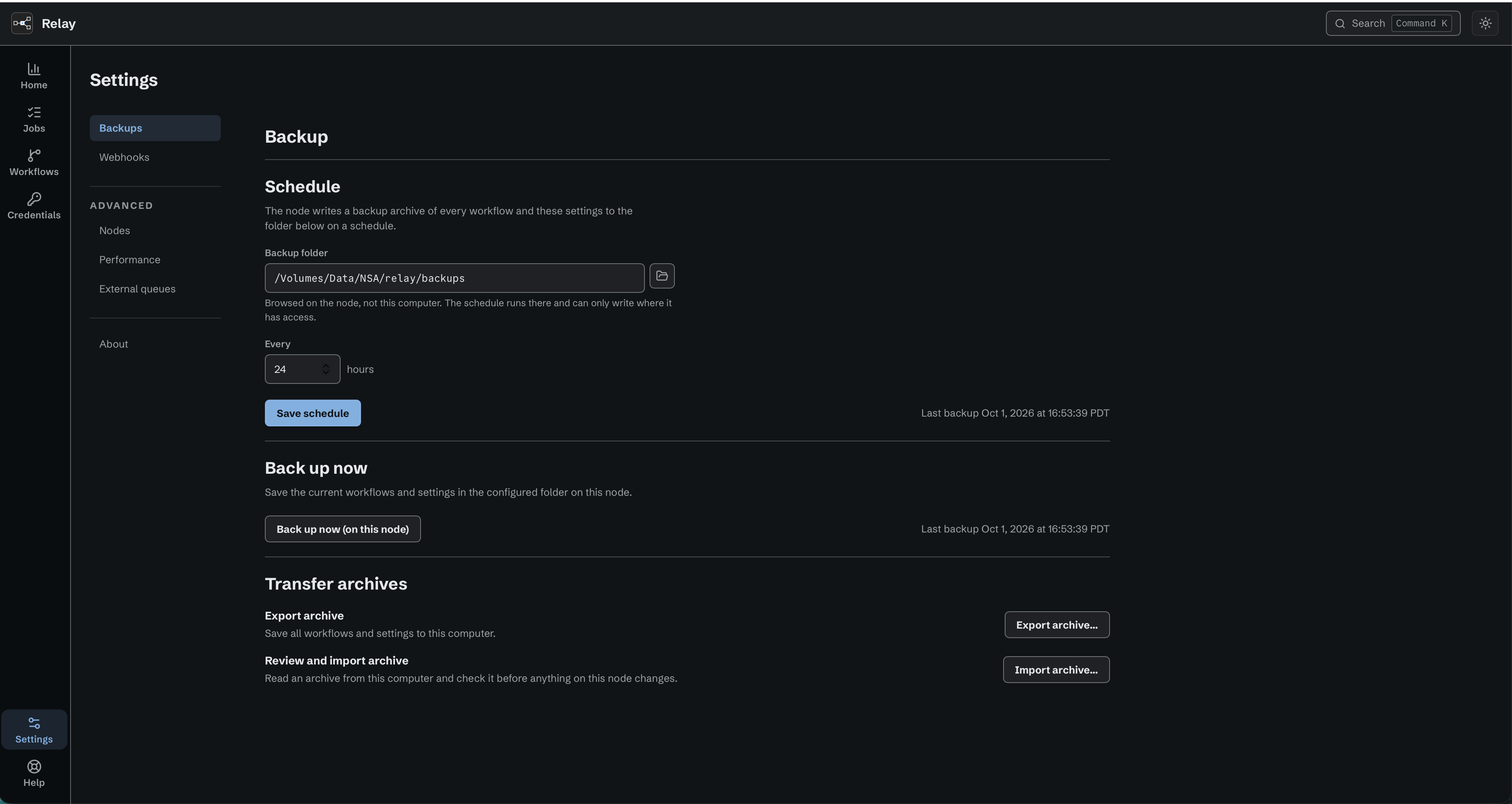
Schedule a backup or export an archive from Backups.
Import archive..., under Review and import archive, opens a file chooser for one archive on this computer; there is no archive-path field to type into. Choosing a file changes nothing on the node. Relay reads the archive and opens a review, and the node is untouched until you approve it.
The review names the node that will receive the archive, then sorts what the archive holds into the workflows Relay can import, the workflows it cannot use, and the workflows whose ID or name already exists on this node. Each of the last two carries its reason. If a workflow refers to a credential this node does not have, the review names that credential and defaults the workflow to Skip. Choose Import, or Copy when the same workflow also conflicts, to store it switched off as a draft with the credential unassigned. Assign the credential in the editor before you enable the workflow. An unreadable, corrupt, empty, or incompatible archive is explained inside the review, cannot be approved, and changes nothing.
Every conflict offers Copy (imports as name (copy)) or Skip, and starts on Skip. An existing workflow is never overwritten, and a conflict you leave alone is skipped.
Below the workflows, Node settings recorded in this archive lists run-history retention, backup folder, backup interval, and usage reporting, each with this node's current value beside the value the archive recorded. The group is excluded by default, and one control opts in to all four together: there is no way to take one and leave the others. The time of the source node's last backup is history and is never written to this node.
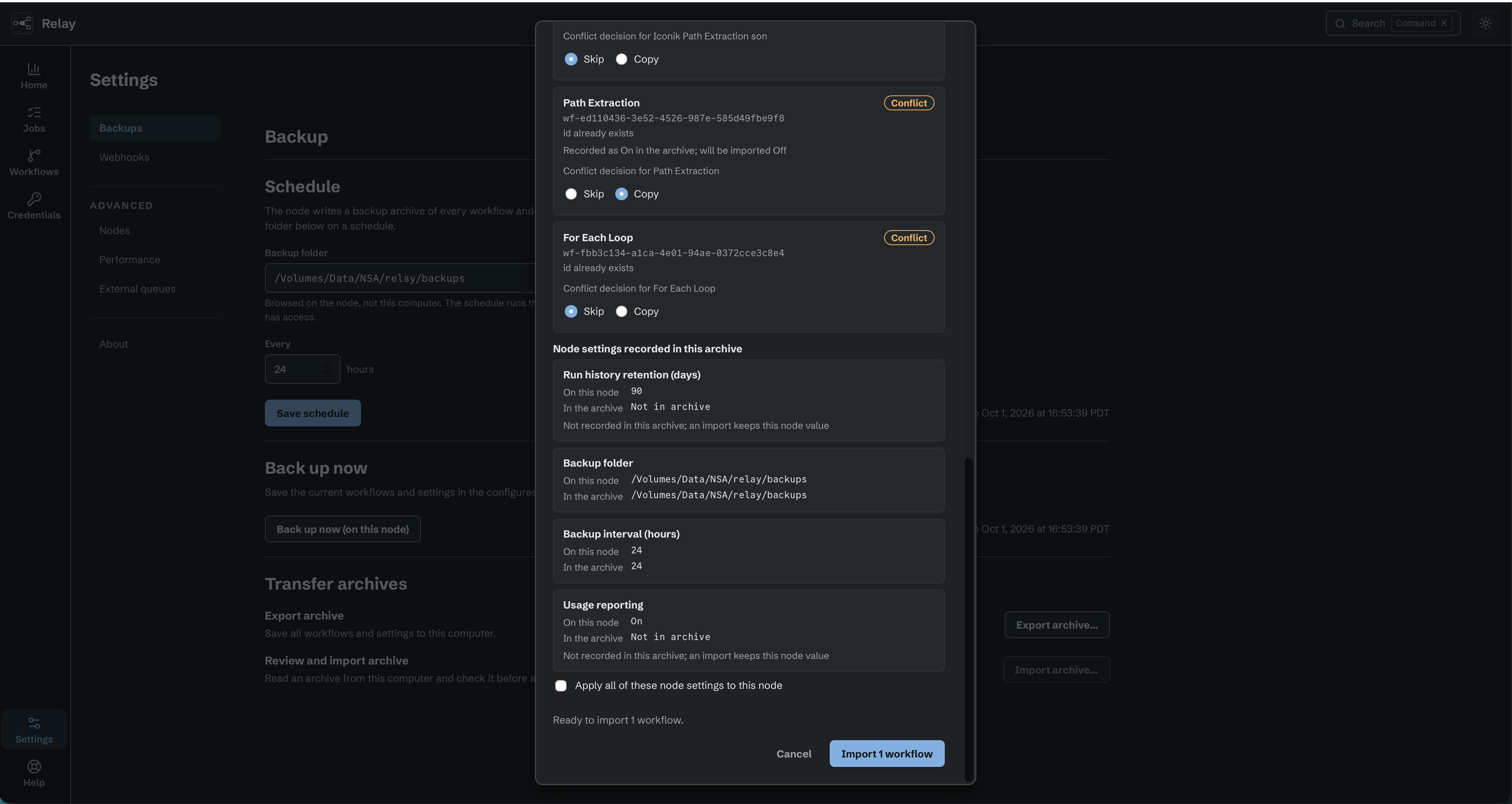
Review workflow conflicts and optional node settings before importing an archive.
Approval stays unavailable until you have chosen something to apply - at least one workflow, or the settings set. Approving applies exactly what the review showed you. If the file changes on disk after the review opens, Relay refuses the whole import, changes nothing, and asks for a fresh review.
Workflows are imported one at a time, then the node settings are written last, all four or none. If the settings cannot be written - most often because the archived backup folder does not exist on this machine - every workflow that was already imported stays imported, and the result says the settings were not applied.
The result accounts for every workflow you approved as imported, copied, skipped, needing attention, or failed. It states whether the node settings were applied, and lists the Credentials the archive needs, by name and type, and the Trigger secrets to re-enter, by workflow and parameter. Imported and copied workflows arrive Disabled. If Relay accepts the import but the editor cannot confirm that it finished, the result says exactly that, claims neither success nor failure, offers no retry, and points you at the Workflows list and the values on this page to see what the node actually holds.
An older node that does not serve reviewed import offers no import action and asks you to update it first.
For workflows only, use Import on the Workflows list, or drop one or more Relay archives there (chapter 4.7). That path reviews an archive the same way and takes several at once, and it never offers node settings: an import started from the Workflows list cannot change this node's settings by any route.
12.3 Performance
Limits on what this node will take on, in three sections: Runs and queue for the four capacity limits, For Each loops for the two loop limits, and Advanced timing for the two intervals. Each row shows its Default, the allowed range, live usage as Usage X of Y where it applies, and a Customized tag when changed. A What this affects disclosure explains each one, and opens by itself for a setting you have customized. Restore defaults returns all eight settings to the values below.
| Setting | Default | Range |
|---|---|---|
| Maximum concurrent runs per workflow | 16 | 1–1024 |
| Maximum concurrent runs node-wide | 64 | 1–1024 |
| Maximum queued runs per workflow | 25,000 | 1–250,000 |
| Maximum queued runs node-wide | 50,000 | 1–250,000 |
| For Each items per loop | 10,000 items | 1–100,000 items |
| For Each outcome storage per loop | 16 MiB | 1–16 MiB |
| Watch folder poll interval | 1000 ms | 100–60,000 ms |
| Workflow-folder reconcile interval | 5000 ms | 1,000–300,000 ms |
Per-workflow limits cannot exceed node-wide limits. Lowering a limit below current usage does not interrupt anything: Existing work will finish as the node drains. Setting node-wide concurrency above four times the CPU count is allowed but warned against.
When a queue limit is reached, new work is refused and Home says so (chapter 11.6).
The For Each item limit is checked before any item action starts. The selected array must also fit Relay's fixed 1 MiB input limit, measured as compact canonical UTF-8 JSON. That fixed input limit is not a setting. Relay accepts an array at exactly 1 MiB and refuses one byte more; it never drops later items to make an array fit.
The outcome setting bounds the compact canonical UTF-8 JSON for the ordered per-item outcome list, including its brackets and commas. A loop that cannot reserve its next outcome stops before starting another item. Relay keeps the outcomes already recorded and reports that processing is incomplete.
Saved loop settings apply when a job or Workflow Test starts. A queued job reads the current values when it leaves the queue. A job or Workflow Test already running keeps the values it started with, so changing a setting does not stop or enlarge that run. These settings do not raise Webhook request limits, Script source or result limits, or any other upstream source limit.
There is no loop-wide timeout. Each action inside For Each keeps its own timeout and failure behavior.
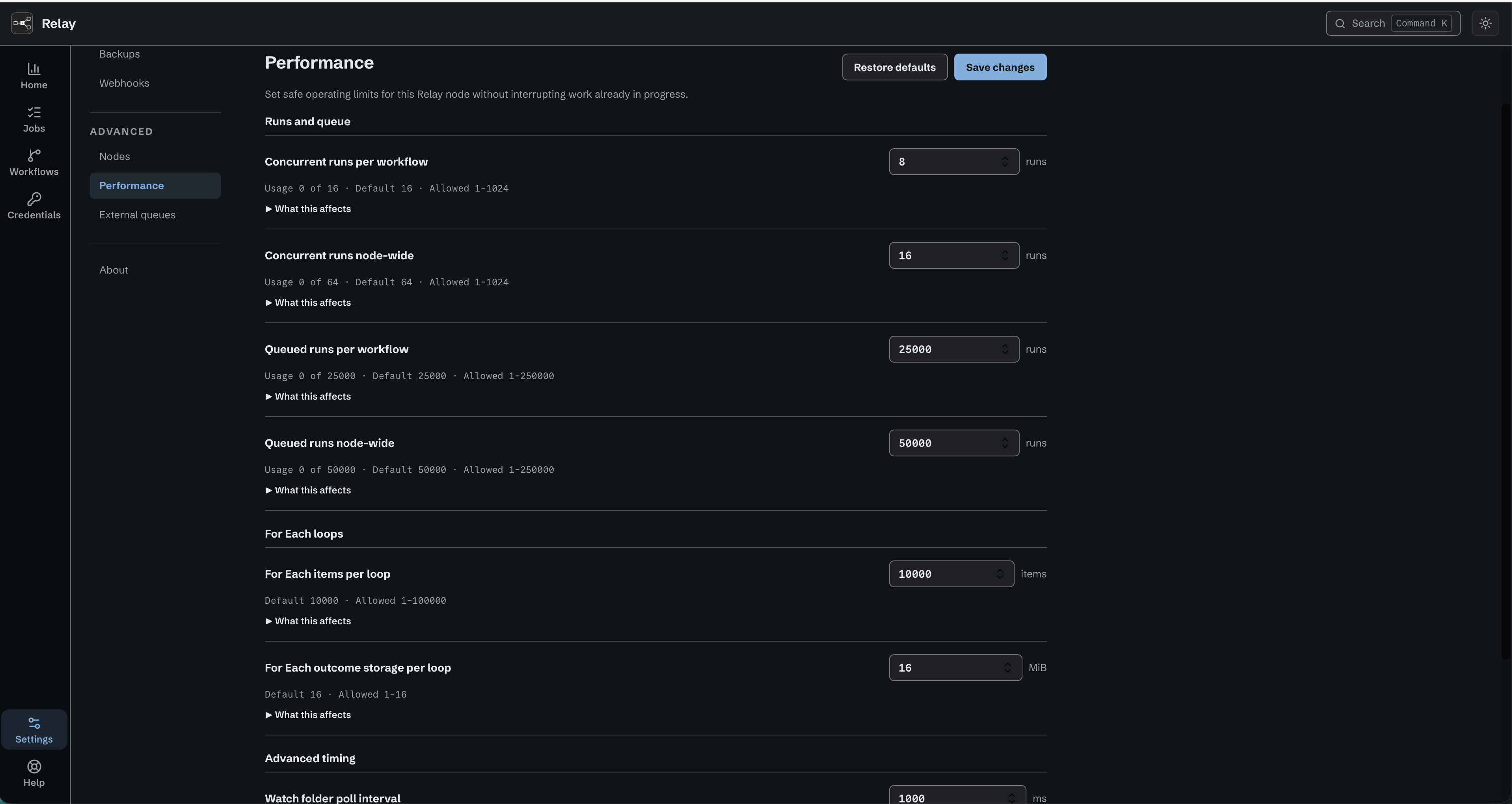
Performance settings show limits, defaults, and allowed ranges. The example concurrency values are below the defaults.
12.4 Webhooks
Listener address is where the webhook listener binds, as host:port. The default 127.0.0.1:8787 accepts requests from this machine only. Set 0.0.0.0:8787 (or a specific interface address) to accept requests from the network; the endpoints are then protected by their secrets alone, so keep Allow unauthenticated requests off on exposed workflows. Save changes applies within about five seconds: Listener address saved. The listener applies it within about 5 seconds. Reset to default restores loopback. Effective listener shows the live binding, or not listening until a webhook workflow is enabled. The same setting is available from the command line: relay webhook addr.
A webhook workflow's own endpoint address and its recent incoming requests are shown on the Webhook trigger in the editor, not here (chapter 5.4).
12.5 External queues
Queue connections are configured on Credentials. Select Add credential and choose Amazon SQS, or select Edit on an existing Amazon SQS credential. The same form holds the keys, queue URL, Iconik System ID, and duplicate message window. See SQS connections.
Old External queues bookmarks open Credentials. A bookmark for one queue opens its credential's form. Settings has no separate queue editor.
12.6 Telemetry
Relay sends a small summary of its own health and use to North Shore Automation, once an hour by default. North Shore Automation can reply asking a node for a different spacing, and the node will take it, within limits built into Relay: never more often than once a minute and never less often than once a day. Switching telemetry off stops it whatever spacing was last asked for. It is counts only: how many workflows exist and how many are enabled, which trigger and action types are used and in what quantity, how many runs started, finished, failed or were cancelled, how long they took as ranges rather than exact times, and the node's Relay version, operating system, processor type and license state. It carries no part of your work - no workflow or node names, no file names or folder paths, no network addresses or host names, no user names, no commands or their output, no credentials, no message content, and none of the wording of any error message. No record of a single run is ever sent, and no failure is ever categorised by reading an error message: failure causes come from a fixed list built into the program. Only your real work is counted: a Workflow Test run in the editor (chapter 4.6) appears in no count at all, because a test is meant to fail while you get a workflow right.
Telemetry is on when Relay is installed. The first time the editor is opened on a node, a notice gives its reporting status, says that Relay sends basic usage statistics hourly when reporting is on, and says that no work content is included. It links to About and its reporting controls. The editor stays usable while the notice is on screen, and once dismissed it does not come back.
Switching it off. Open Settings, then About. The Reporting section has a switch labelled Send usage statistics hourly. An old link to Settings and Telemetry opens About. Off stops the sending and the counting together, so Relay records nothing at all while it is off. Switching it on again carries the running totals on from where they stopped, and the period in between is simply absent from the data. A change applies within a few seconds, needs no restart, and stays as you left it after an upgrade. Any local user of the editor can change it. From a terminal, the same switch is relay telemetry off, relay telemetry on, and relay telemetry to report the current state (chapter 16.1). relay status also reports the state and when a report was last sent successfully.
When the state is not simply on or off. relay status reports telemetry_state as one of four words. stalled means the node is switched on but has no address to send to, so it is sending nothing. It does not say why, because Relay cannot tell a destination that was removed from one that was never issued, and naming the wrong one would send you looking in the wrong place. unknown means Relay cannot say what the state is: the service is stopped, or the node's stored switch could not be read. Neither word is ever reported as off. off describes a choice a customer made, and a fault shown as a choice would tell you there is nothing to look into.
What it costs. One message an hour, and a small one: about 1 KB on an ordinary node. It grows a little as you build more workflows and a little as you run more of them, because the numbers in it get longer, not because it gains new parts. It does not grow at all with the number of files you move: a run that moves a thousand files counts the same as a run that moves one, because it is one run. The guide What a Relay node reports about itself gives the size at the other extreme, on a node using every action type there is. Telemetry is not part of any step, and it never makes a run fail. The counting happens in the daemon's own time, which can be the same moment a step is running. It does share the node's database with your runs, so a run being recorded can wait for one small telemetry write, the same way two runs wait for each other. If a report cannot be sent, the node keeps working, does not retry straight away, and does not fill the log; the next report carries the running totals, so nothing is lost.
Where a report goes. The node gets the destination address, and a ticket that opens the door, from the licensing system while it runs. Relay itself never writes them: they are not in a log, not in the settings, and not in a diagnostic bundle. The licensing system keeps its own record of what it sent, in the Relay data directory. That directory is owned by the Relay service account, and members of that account's group can read it; on most nodes that group holds nobody else. It is not readable by everyone on the machine. A node that cannot get the address sends nothing and keeps running workflows as normal. An evaluation or development build has no licensing system to ask, so it never obtains an address and cannot send anything, whatever the switch says. That is by design, not a fault: those builds are kept out of the data by construction rather than by filtering. North Shore Automation keeps a report for no longer than 90 days. Amazon Web Services carries it and keeps no request log, and Grafana Labs stores it; both are in the United States. Any web service sees the network address a request arrives from, and this one is no different - Relay does not send it and it is not one of the fields, but it is seen, and it is not kept.
The full field list, including every failure cause Relay can name, is the guide What a Relay node reports about itself, published in the Relay guides library. An automatic check refuses to build Relay if the software can send a field that page does not name, or if that page names a field the software cannot send. A difference between the two is a defect in Relay.
12.7 About
Application: Relay Version and the Update channel reported by the node. Shipped builds use production; development builds can use staging. When the desktop editor and the engine are different versions, the page shows Desktop version and Engine version separately with the warning Desktop and engine versions differ. Restart Relay after updating.
License: the license state with its summary, Expiration, Grace deadline when in grace, and the Activation reference. A node installed from the evaluation build reads Evaluation build here instead of a license state, whatever its operating system. Chapter 13.
Reporting: the current reporting state, an explanation of what Relay reports, and the Send usage statistics hourly switch described in chapter 12.6.
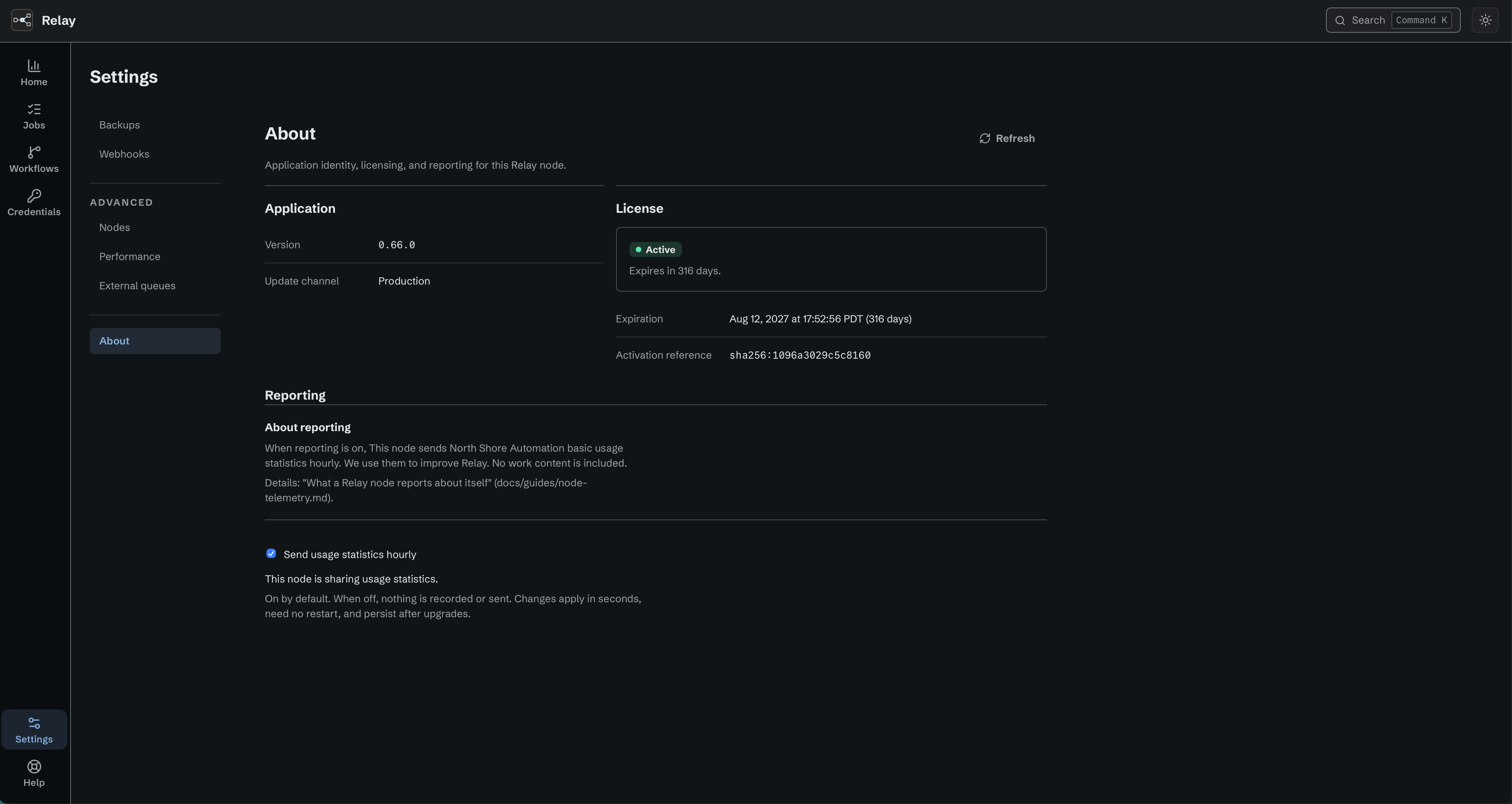
About shows the node's version, license state, and usage reporting choice.
12.8 Help
Help is its own page in the rail, not part of Settings. It holds the support bundle (chapter 15.9) and the exact versions this node reports.
12.9 Iconik destination label
Available in the internal managed Iconik release. Older installers and evaluation builds do not offer this feature.
Each Iconik Job (chapter 5.8) appears in Iconik as one custom action for each context, titled with the job name alone: <name>. Set a destination label to add a suffix: <name> [<label>], for example Path extract [Studio B]. Use it when several Relay nodes serve the same Iconik, so people can tell them apart. The label is one setting for the node, 0 to 40 characters after trimming, and empty by default. A longer label is refused with destination label must be 0 to 40 characters. Relay asks for it once, when you save the first Iconik Job that you add (12.10). To change or remove it later, open Settings > Iconik. Below the Iconik Jobs list, Destination label shows the label, or None. Select Edit label, then Save a new label, or select Remove label. Relay never uses the computer's host name or hardware identity in the title.
When the label changes, Relay retitles every custom action that it manages on this node, for every Iconik Job. A cleared label leaves the job name alone. An explicitly chosen label is preserved, including Relay. After an upgrade, actions with the old automatic [Relay] suffix change to the plain job name when no label is set. Relay updates these owned actions in place. Their IDs, URLs, and delivery secrets stay the same. Relay checks each new title first. If another custom action in the same context already has that title, Relay's custom action keeps its old title, and its Iconik Job shows Action required (15.16). The cloud registration does not change, so clicks keep working while the titles change. Relay changes the titles at its fixed request pace (16.3), so a node with many Iconik Jobs can take several minutes.
12.10 Iconik
Available in the internal managed Iconik release. Older installers and evaluation builds do not offer this feature.
Iconik links this node to one Iconik tenant and holds the node's Iconik Jobs. It appears in Settings after Webhooks, only on a node that offers the feature. The page shows the selected node. A link to the page, with or without one Iconik Job named in it, keeps working after a reload.
The connection card. The Connection card shows one status: Connected, Action required, Degraded, or Disconnected. The status pill has a dot and a word. Below it, the card says what Relay does now and shows one control when the status allows one. The page reads the status every 2 seconds while it is open.
-
Not linked. The card says Connect this Relay to your Iconik tenant. and offers Connect. It opens the setup dialog and starts the connection.
-
Setup in the dialog. While the setup waits for your approval, or when it stopped, the card offers Show setup. It opens the dialog, where Check again and Start over are. When the card says Relay could not finish the Iconik setup because its own check of Iconik permissions is still running. Restart Relay to try again., the dialog offers no step: restart the Relay service (16.1).
-
After the link. The card shows the Tenant, the Account, and an Iconik Jobs summary. When your Iconik domain has a logo, the card shows the logo of your Iconik domain beside the tenant name. Relay downloads the logo itself (a PNG or JPEG image, over HTTPS, from a public server) and the editor never loads it from the internet; when the domain has no logo, or Relay cannot get it, the card shows the name only. The outbound call is in 16.3. Relay then finishes the setup on its own. The card shows each step in turn:
- Preparing your secure connection (about 3 minutes). It shows while the cloud service makes the connection key ready. It can be short, or not show at all.
- Adding Relay Connection Test to Iconik.
- The request to run the test action in Iconik, with I ran it.
If the cloud setup did not start, or paused, the card offers Try again. If you deleted the test job before the proof, the card offers Add test action.
-
Connected. One test run succeeded through the current cloud connection. The card adds the Queue line, Last click received, Last click started a run, and Last test: with a link to that run. If a later test run fails, the card keeps the successful proof and shows the latest failure separately, with a link to its run when available.
-
Failed connection test. When a test click did not start its workflow, the card shows the run's exact reason when available. When Get Asset fails, it shows that step's error. For a failed run, Open the failed run opens that run directly. If Relay cannot read the error, the card keeps its general message. If it cannot identify the run, Open the test runs opens the test workflow's run list when available.
-
Action required or Degraded. The card says why, and adds the Connection ID and the Reason code for support. For a status this editor does not know, the card shows the Reason code in every state. When Iconik refused Relay's key, the card offers Reconnect Iconik. When Iconik Jobs need action, the card links each one.
-
A read failure with the reason and Retry.
The dialog names the node it connects. It checks the node once a second while it is open. Closing it does not cancel the setup. The Iconik key does not appear in Credentials (10.6).
The Iconik Jobs list. The list is below the card. It shows once Relay is linked. It holds every Iconik Job on the node, the Relay Connection Test job included. Add Iconik Job opens the editor. Each row shows the name, the contexts, the workflow or None, and the status: Enabled, Disabled, or Action required. Each row has a menu with Edit, Enable or Disable, and Delete. Select a job name to open its details. The details show the job type key, the workflow, and the state of each context in Iconik. They also show any problem, waiting note, and fix. A banner above the list names each job that needs action. The list of custom actions left in Iconik shows below the jobs when it has an entry.
Disconnect Iconik. Select Disconnect Iconik on this page to remove the selected node's managed connection. The confirmation names the node and tenant. New Iconik clicks stop. Relay lets accepted work finish, removes its custom actions, and removes this connection's hosted resources. Workflows and run history stay.
Actions left by earlier failed changes can remain in Iconik. Ask an Iconik administrator to remove only actions they confirm belong to this Relay connection.
Choose Keep credential to keep access for native Iconik workflow steps, or Revoke credential to remove that access. Inactive Iconik Job templates stay by default. The current Iconik Jobs list hides those templates. Their workflows remain available on the Workflows page. Select Also remove inactive Iconik Job templates only if you want to remove those templates too. Workflows and run history stay either way. Type exactly DISCONNECT, then select Disconnect Iconik. Opening or canceling the dialog changes nothing.
The page shows progress until removal is confirmed. You can leave this page and return later. After one hour, choose Keep waiting or Force disconnect. If you keep waiting, Relay asks again after another hour. Force disconnect stays available during this extended wait. Force requires you to type DISCONNECT again. Force can interrupt accepted work. Queue counts are estimates. Missing observations or zero counts alone do not prove that work has finished.
After confirmed removal, Connect Iconik starts a new connection. A kept credential requires a fresh check and Confirm account for the same account and tenant. A revoked credential requires normal browser approval for the same tenant. Approval from another tenant stops setup before Relay creates a credential. The completed disconnect stays in place. Retry with the linked tenant. Show setup reopens a waiting setup without starting another request. The new connection needs a fresh test proof.
After browser approval, Relay checks permissions with the new credential. A completed permission check from the revoked connection does not require administrator cleanup. If setup pauses after saving the new credential and offers Check again, select it. Relay resumes with that credential and checks its permissions again.
If you changed the old connection test job, Relay keeps it as an inactive template. It creates a separate test job, with a number such as Relay Connection Test 2 when needed. Existing job names, keys, workflows, and history stay.
If local setup cannot finish after browser approval, Relay retries every 30 seconds for up to 10 minutes. Select Show setup to view progress. If the retry limit is reached, restart the Relay service (16.1), as the dialog instructs. Relay resumes with its saved credential. It does not ask for another browser approval or create another token. If setup stops after retained-account confirmation, select Start over, check the account and tenant again, then select Confirm account. The retained credential and completed disconnect stay until setup succeeds.
Disconnect result is unknown means removal is not confirmed. Relay confirms with the cloud by itself and shows Last checked. It checks at once, then at 10, 30, 60, and 120 seconds, every 5 minutes until 30 minutes, then hourly until 24 hours. Select Check status to check now. Two minutes after the result became unknown, Relay can offer Clear and reconnect. Type DISCONNECT to clear the connection record now. The cloud may need up to 24 hours to finish its removal, and Connect fails until it does. After a clear, Relay checks the cloud hourly and once each time you open this page, and removes the cleared note when the cloud confirms removal. Use Retry disconnect only when Relay offers it. The disconnect procedure explains the choices and expected result.
The steps, what Relay creates in Iconik, the connection card, and the security notes are in the managed Iconik connection guide. Creating, editing, and deleting Iconik Jobs, the destination label prompt, and the fixes are in the Iconik Jobs guide. Problems are in 15.16, 15.19, and 15.21.