
Chapter 2 / Getting started
2. Getting Relay
Relay is installed by Control Room, not downloaded on its own. The sequence is: get a license code, install Control Room, enter the code in Control Room, let it install Relay, open Relay. About fifteen minutes, most of it download time.
2.1 Requirements
| macOS | Windows | |
|---|---|---|
| OS | macOS 14 or later, Apple silicon or Intel | Windows 11 x64 (build 22000+) or Windows Server 2019+ with Desktop Experience |
| Account | An administrator account. You will be asked for its password once during install. | An administrator account. Relay is then managed only from the account that installed it (see 2.7). |
| Network | Internet access during install and update. Relay runs offline afterwards, within its license grace window (chapter 13). | Same |
Ubuntu (24.04) is supported for the Relay service and editor without Control Room: you install the .deb package by hand (sudo apt install ./Relay-<version>-linux-amd64.deb). Control Room cannot install a license on Linux. After installing the package, run sudo relay install --license-code 'YOUR-LICENSE-CODE' on the Linux node, replacing YOUR-LICENSE-CODE with your code. Restart Relay and check activation as shown in chapter 13.3; managing it from another machine's editor is chapter 14.
2.2 Get a license code
Relay needs one license code per computer that runs the Relay service. There are two ways to get one.
Trial. Go to controlroom.media/relay and click Try Relay free. The key is emailed to you. Trial keys start with RELAY-TRIAL-, allow two activations, and run for 30 days from the first activation, so a key requested on Friday and installed on Monday does not lose the weekend. You receive reminder emails 7, 2, and 1 days before expiry. At expiry the license deactivates and Relay stops running workflows; your workflows, history, and credentials stay on the machine, and a full code from your reseller reactivates the same install without reinstalling.
Full license. Full licenses are sold and supported through NSA resellers. Your reseller sends the code. Pricing is not published; contact a reseller or start with a trial and NSA will connect you with one.
Limited license. A reseller can also issue a Limited license. It works like a full license, but it lets the node keep only a set number of workflows switched on at one time. You can still create and edit as many workflows as you like. See chapter 13.8.
Keep the code somewhere safe. Control Room masks it on entry and never writes it to logs, error messages, or diagnostic files. Relay stores it in the node's owner-only relay.json so the service can activate again after a restart, but the application never displays it. Treat the data directory as sensitive and do not use it as a way to share or recover license codes.
2.3 Install Control Room
Download Control Room from the Control Room page. Choose the Mac installer (Apple Silicon and Intel) or the Windows installer (64-bit).
On macOS, open the DMG and drag ControlRoom to Applications. The app is signed and notarized, so Gatekeeper opens it without warnings. On Windows, run the MSI; it installs to C:\Program Files\North Shore Automation\ControlRoom\, adds a Start menu entry, and installs the WebView2 runtime if the machine does not already have it. Control Room does not start automatically at login on either platform.
Control Room needs no account and no sign-in. It opens to the Apps catalog.
2.4 Install Relay
-
In Control Room, open Apps and select Relay. The detail pane shows four facts - LICENSE, INSTALLED VERSION, LATEST VERSION, TARGET - and, before install, reads LICENSE NONE / NOT INSTALLED / THIS MAC.
-
Click Install on This Mac. This is the current label on both supported Control Room platforms.
-
Paste the license code into Relay license code and click Validate and install. If the code is rejected, the message tells you why:
Message Meaning Enter a Relay license code. The field is empty. That license code is not valid. Check the code and try again. Not the shape of a license code - usually a paste error. That license code wasn't accepted. Check it or contact the dealer that supplied it. Well-formed but unknown to the license server. That code isn't a Relay license. Contact the dealer that supplied it. A code for another NSA product. That license has expired. Enter a renewed code or contact your dealer. Expired trial or lapsed subscription. That license is active on another Mac. Deactivate it there or contact your dealer. All activations for this code are in use. Deactivate on the other machine (chapter 13) or ask your reseller. Relay could not validate this license. Check this Mac's internet connection and try again. The license server could not be reached. -
macOS asks for an administrator password. This is the standard macOS authorization dialog; Control Room uses it once, to run the signed Relay installer. Windows shows the standard UAC prompt for the signed MSI; the Relay installer then asks for the password of the account that will run the Relay service. When you select Next, the installer asks Windows to check the password. If Windows rejects it, a message appears and you stay on the screen to type it again. Chapter 15.22 lists the messages.
-
Control Room shows six phases, each marked WAITING, IN PROGRESS, or DONE: Validate license, Download release, Verify installer, Install application, Start Relay, Confirm readiness. Downloads are verified against a signed catalog and the installer's Developer ID before anything runs. If a phase fails, Control Room names the phase, explains what happened, and offers Retry; your license is still accepted and retrying does not create a second installation.
-
When the status reads INSTALLED and LICENSE reads ACTIVE with an expiry date, click Open Relay.
Nothing needs to be rebooted. The Relay service is already running as a background service under the account that performed the install.
If Relay's detail pane says Relay X requires ControlRoom Y or later, download the current Control Room from controlroom.media and reinstall it over the old one; Control Room does not update itself.
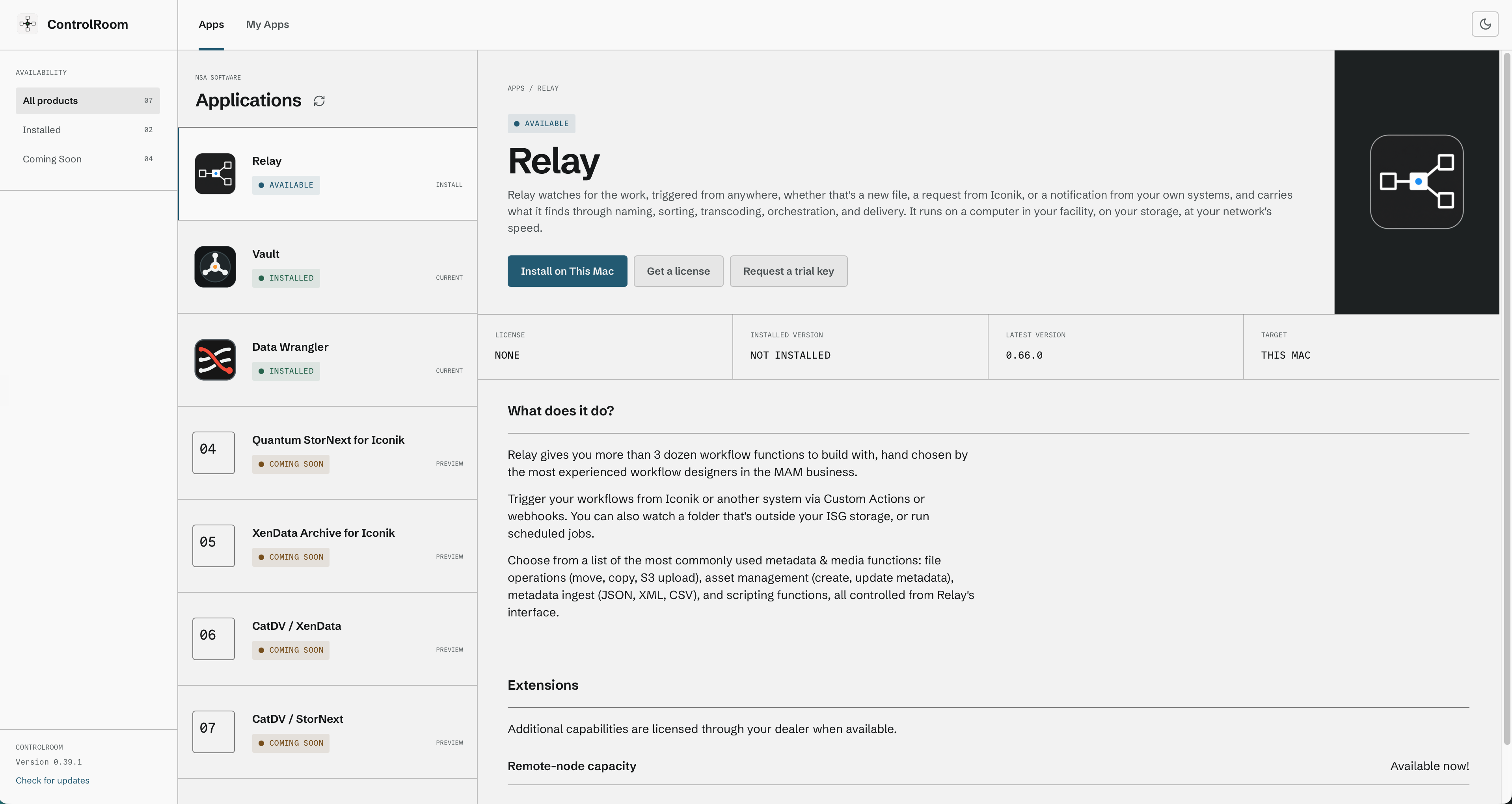
Relay in Control Room before installation.
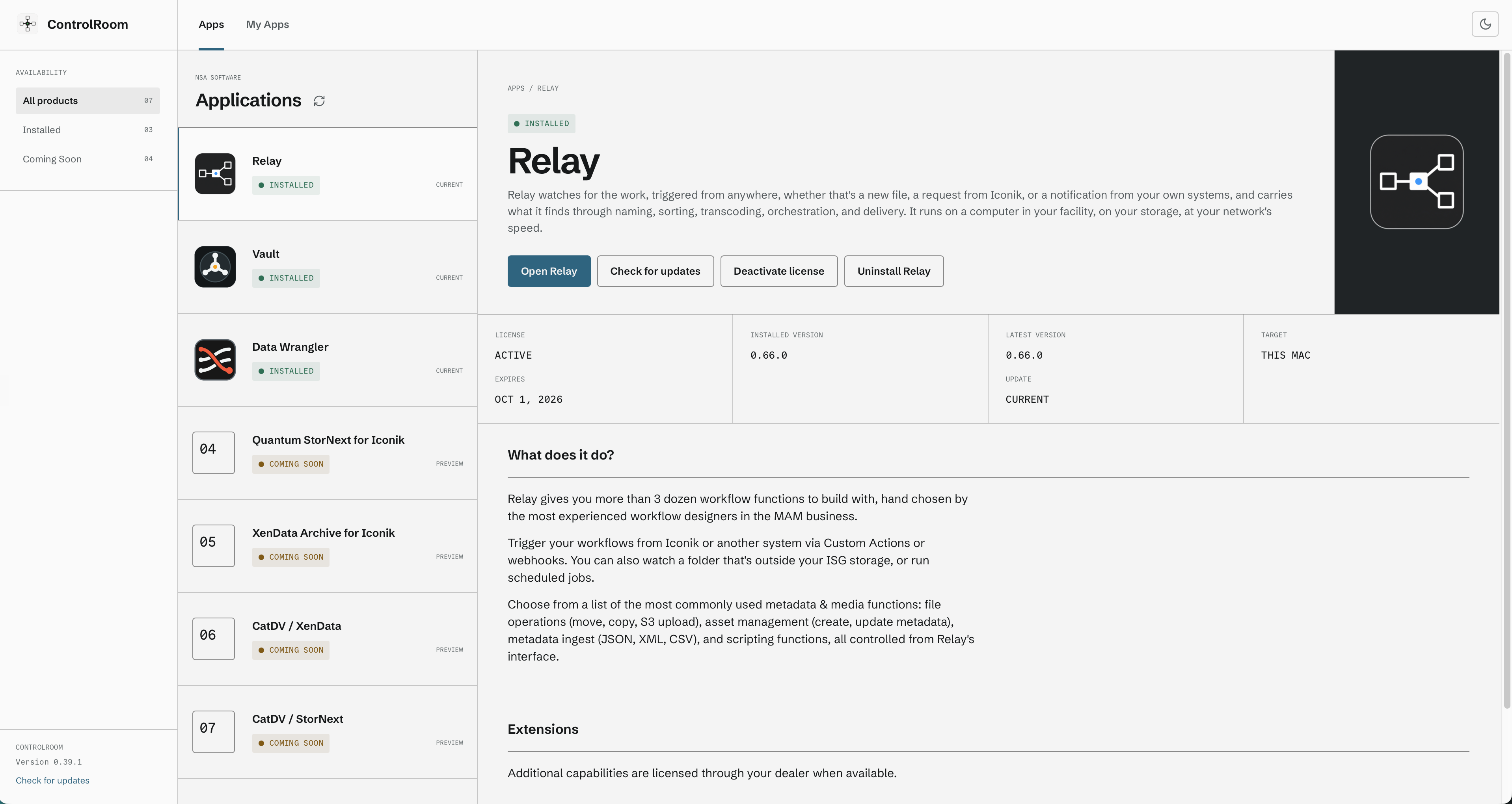
Relay is installed and ready to open.
2.5 Open Relay
Open Relay in Control Room, or open Relay from Applications or Spotlight (Windows: Start menu). If Relay is already open, Control Room brings that window forward rather than launching a second copy.
On first launch Relay opens to Home with the message No workflows yet and an Open Workflows button. Chapter 3 starts there.
If instead you see the banner Relay engine is not available. Start the node service, then retry., the background service has not finished starting. Click Retry. If it persists for more than a minute, see chapter 15.
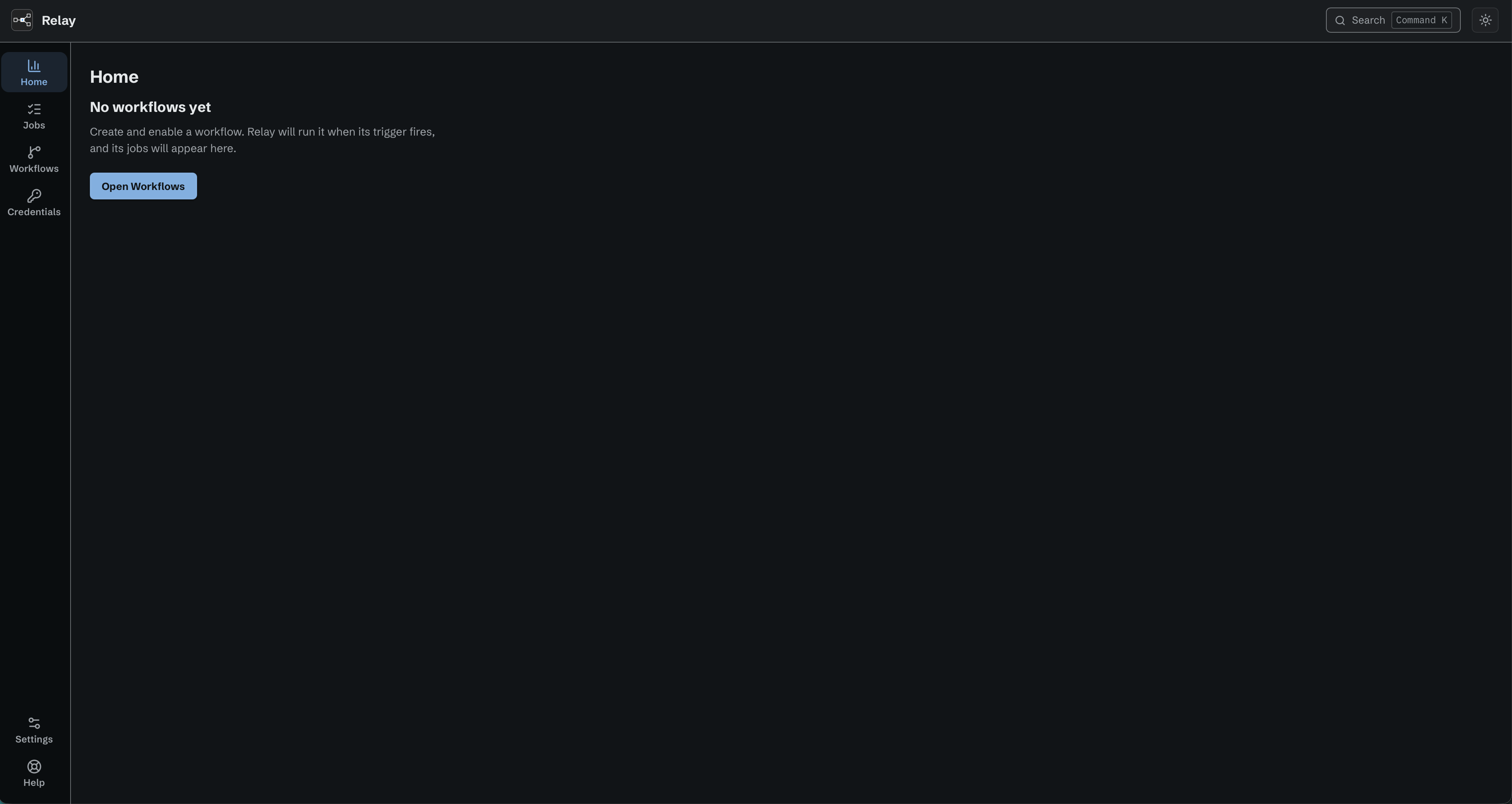
Home before you create your first workflow.
2.6 Before your first watch folder: macOS privacy
macOS treats Desktop, Documents, Downloads, iCloud Drive, and everything under /Volumes (network and removable drives) as privacy-protected, even for background processes belonging to your own account. A Relay watch folder in one of those locations will look fine in Finder but Relay will not see files arriving in it.
Either use folders outside those locations (anywhere directly under your home folder, or a folder you create at the root of a local disk), or grant the Relay service Full Disk Access: System Settings → Privacy & Security → Full Disk Access → + → navigate to /usr/local/bin/relay (press ⌘⇧G and type the path). Network shares have further considerations covered in chapter 5.
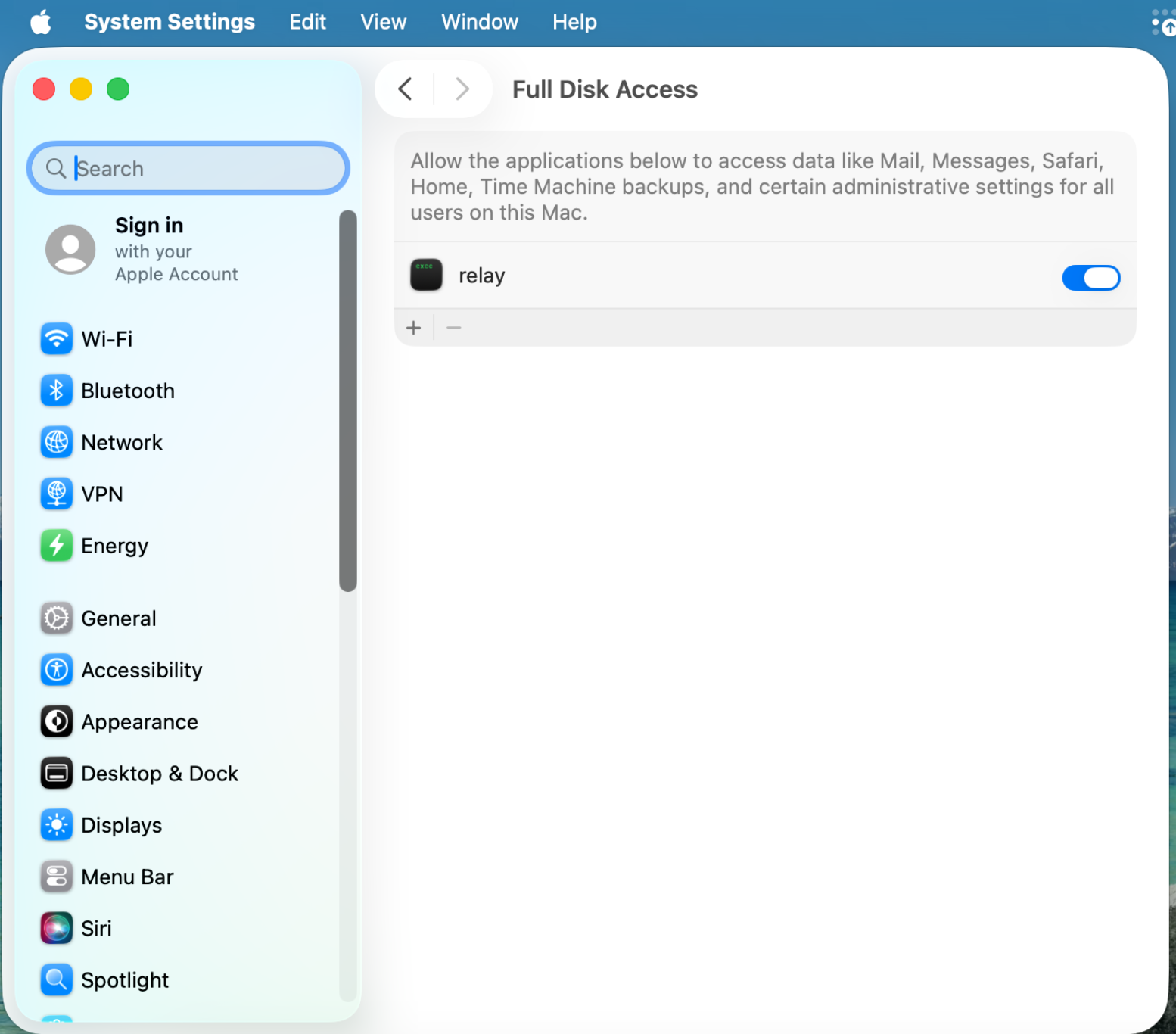
Full Disk Access lets the Relay service read protected folders on macOS.
2.7 Where things live
Relay installs the same three things on every platform: the editor, the service, and one data directory that holds workflows, job history, credentials, settings, and the service log. Control Room is installed on macOS and Windows only. On Ubuntu, install the .deb package with the command in chapter 2.1, activate it as shown in chapter 13.3, and use chapter 14 for remote-node management.
macOS
| Item | Path |
|---|---|
| Relay editor | /Applications/Relay.app |
| Relay service | /usr/local/bin/relay, LaunchDaemon com.northshoreautomation.relay |
| Relay data | /Library/Application Support/Relay/ |
| Service log | /Library/Application Support/Relay/logs/relay.log |
| Control Room | /Applications/ControlRoom.app |
| Control Room state | ~/Library/Application Support/ControlRoom/ |
Windows
| Item | Path |
|---|---|
| Relay editor | C:\Program Files\North Shore Automation\Relay\Relay.exe |
| Relay service | C:\Program Files\North Shore Automation\Relay\relay-daemon.exe, service NorthShoreAutomationRelay |
| Relay data | C:\ProgramData\North Shore Automation\Relay\ |
| Protected credential key | C:\ProgramData\North Shore Automation\Relay\credstore.dpapi |
| Service log | C:\ProgramData\North Shore Automation\Relay\logs\relay.log |
| Control Room | C:\Program Files\North Shore Automation\ControlRoom\ |
| Control Room state | %AppData%\ControlRoom\ |
Ubuntu
| Item | Path |
|---|---|
| Relay editor | /usr/bin/relay-gui, launcher /usr/share/applications/relay.desktop |
| Relay service | /usr/bin/relay, systemd unit relay.service |
| Relay data | /var/lib/relay/ |
| Service log | /var/lib/relay/logs/relay.log |
| Control Room | Not installed on Linux |
The Relay service runs as the ordinary administrator account that installed it - not as root and not as a hidden service account. That account's file permissions are Relay's file permissions, which is what makes the privacy note in 2.6 matter.
Windows only: Relay is bound to the Windows account that installed it. Signed in as a different account, Control Room shows Relay as STATUS UNAVAILABLE with the note Relay is managed by the Windows account that installed Relay, and only Refresh product status is available. Sign in as the installing account to manage, update, or open Relay.
2.8 Removing Relay
Control Room can uninstall any installed app. To remove Relay, open Apps, select Relay, and click Uninstall Relay. Deactivate the license first if you intend to use the code on another machine (chapter 13).
You can also remove Relay without Control Room using the platform-specific steps below.
macOS: Relay ships its own uninstaller inside the app bundle.
-
Deactivate the license first if you intend to use the code on another machine (chapter 13).
-
In Finder, right-click Relay in Applications and choose Show Package Contents.
-
Open Contents → Resources.
-
In Terminal, run:
sudo /Applications/Relay.app/Contents/Resources/uninstall.shThis stops the service and removes the app and the service binary. Workflows, job history, and credentials in
/Library/Application Support/Relayare kept. Add--purgeto delete them too.
Windows: use Add or remove programs to remove Relay. The data directory C:\ProgramData\North Shore Automation\Relay\ is kept; delete it by hand if you want a clean machine.
Ubuntu:
sudo apt remove relay
keeps /var/lib/relay. To remove the data directory and the service unit as well:
sudo apt purge relay