
Chapter 8 / Building workflows
8. Variables and expressions
Almost every text parameter can contain ${…} tokens. In a Switch rule, both the value to check and the comparison expand, but the exit name is taken literally (7.1). Relay replaces each token with a value when the job reaches that step. There is no expression language - only references and a fixed set of transforms.
8.1 Syntax
${reference}
${reference|transform}
${reference|transform:argument|transform}
- The reference names a value (8.2). Whitespace around it is ignored.
- Transforms are applied left to right. Each is
nameorname:argument; only the first colon separates the two, sodate:2006-01-02_15-04-05works. - Tokens do not nest. There is no escape for a literal
${; an opening${without a closing}is a save-blocking problem. - An unknown reference is an error, not an empty string: the step fails with unresolved variable ${vars.missing}. An unknown transform fails with "x" is not a transform Relay can apply.
Insert tokens from Available data in the node bench, or type them.
8.2 References
The carried file - item
| Reference | Meaning | Example |
|---|---|---|
item.path |
Full path of the file the job is carrying | /Volumes/media/in/EP01.mov |
item.basename |
Name without extension | EP01 |
item.ext |
Extension with dot | .mov |
item.size |
Size in bytes | 1048576 |
Available data lists these under Current file. A Watch Folder trigger delivers a file. Copy, Move, Rename, S3 download, and SCP download change the current file to the file they made. Below a Watch Folder or one of these steps, the group shows. A step that failed made no file, so its Error output does not count as one of these steps. A step reached only through that output keeps the group only if a Watch Folder or an earlier file step reaches it. On a step that only other triggers reach, with none of these steps before it, the group is hidden. There, a Source file box starts empty instead of reading the current file, and the workflow cannot be enabled until you choose a file.
The job - run
| Reference | Meaning |
|---|---|
run.id |
Job ID |
run.workflow_id |
Workflow ID |
run.started_at |
Start time, RFC 3339 UTC |
run.now |
Same instant as run.started_at; the fixed timestamp for date formatting |
run.clock |
Now (UTC): the clock read when the step runs, RFC 3339 UTC |
run.now and run.clock answer two different questions. run.now is when the job started, and it stays the same in every step, so a whole job can share one timestamp in file names. run.clock is the time of day the step itself reached. Use it to record when something finished: a Log message step after a long upload writes the time the upload ended, not the time the job began. Every reference to run.clock inside one step gives the same time, so two fields written by that step always agree.
An End with error step reads the clock itself, so a failure message written with run.clock reports the time the job gave up, not the time the step before it began. A step that waits for an answer and continues later keeps the time it first reached. A job you replay in the bench, or a step you open in a saved job record, also shows the time that step really ran, not the time you opened it.
When you test a Script step against a recording that stopped before that step, there is no time to report, so run.clock is listed as missing rather than filled with the time you pressed Evaluate. Run the workflow far enough to reach the step to get a real value.
The trigger - trigger
Always: trigger.type, trigger.label, trigger.fired_at, trigger.node_id. Per trigger type, see chapter 5: trigger.path, trigger.name, trigger.basename, trigger.ext, trigger.folder.path (Watch folder); trigger.scheduled_at (Schedule); trigger.invoked_at (Manual); trigger.payload and trigger.payload.… (Webhook); trigger.queue.… (SQS Queue); trigger.start.… (Start Workflow). In a workflow with several triggers, this namespace contains values from the trigger that started the current job; trigger.node_id identifies it. For Watch folder jobs, trigger.ext omits the dot while item.ext includes it.
Watch folder also offers trigger.folder.+N and trigger.folder.-N: the Nth subfolder from the start or from the end of the relative path, 1-based; a missing segment is empty.
Earlier steps - steps.<slug>.<key>
The slug is the step's name in slug form, shown in the bench as steps.<slug>. Keys per action are in chapter 6: steps.copy_file.path, steps.copy_file.checksum, steps.http_request.status, steps.http_request.body, steps.run_shell.stdout, steps.run_shell.exit_code, steps.s3_transfer.etag, and so on. A declared JSON-bearing output stays available as one collection. After a recorded run reveals a JSON object or array, Available data also offers its nested fields. Set variables and Extract JSON values publish to vars, not steps.
A disabled action creates no outputs or variable assignments. Available
data does not offer its values, including fields found in earlier Tests.
Values that existed before the action still pass through unchanged.
A disabled Copy, Move, Rename, S3 download, or SCP download does not change
the current file. Replace references to values a disabled action would have
created, or enable it again. An enabled step with such a dependency blocks
Test and workflow activation. For Script, this check covers strict static
input reads. Optional input.get(...), aliased reads, and computed reads
remain runtime checks.
After a For Each step follows Done, it publishes steps.<slug>.total, steps.<slug>.succeeded, steps.<slug>.failed, and the ordered structured value steps.<slug>.outcomes. See chapter 7.2.
Variables - vars.<name>
Set by Set variables, Extract JSON values, and Extract file metadata (vars.file.base, vars.file.stem, vars.file.ext, vars.file.size, vars.file.created, vars.file.modified, vars.file.type).
The current For Each item - loop.item
${loop.item} is available only inside the repeated path of its owning For Each. It is replaced for every iteration and is not available after Done. The reference means the complete item and preserves its JSON type. Text, number, and true or false values can be used as single values or combined with surrounding text in Set variables. Objects, null, and nested arrays remain complete JSON values and can fill only a field that accepts structured JSON. Relay does not flatten them or split text into more items. Add a path to read one field of the item, such as ${loop.item.address.city} or ${loop.item.tags[0]}. Keys that are not plain names use quotes, such as ${loop.item["first name"]}. When the For Each walks the list of a Script result or a JSON output, Available data lists the fields of one item under Current item. See chapter 7.2.
Errors - error.* (only on an error path; chapter 9)
error.message, error.action_name, error.action_id, error.action_type, error.failed_at, error.kind; plus error.http.kind|status|body, error.shell.kind|stdout|stderr|exit_code, error.s3.direction|bucket|key|source|destination|endpoint, and error.catdv.kind|outcome. A recorded JSON error body can expose nested fields under error.http.body.
8.3 Transforms
Worked on /Volumes/media/2026/09/show/ep01.mov.
| Transform | Result | Notes |
|---|---|---|
lower / upper |
ep01.mov / EP01.MOV |
|
trim |
Removes surrounding whitespace | |
pad:N |
5 → 05 with pad:2 |
Left-pads with zeros to N characters |
filename |
ep01.mov |
Name with extension |
stem |
ep01 |
Name without extension |
ext |
.mov |
|
dir |
/Volumes/media/2026/09/show |
Containing folder |
date:LAYOUT |
`${run.now | date:iso}→2026-09-03` |
json |
"ep01.mov" |
Stringify. Writes the value as JSON text. See below |
raw |
Shell command only, must be last: insert without shell quoting | |
aspath:file / aspath:folder |
/Volumes/media/2026/09/show/ep01.mov |
Treat as path. Must be first. Returns the value unchanged and marks it a file or folder path for path extraction. See below |
folder:… |
Path extraction, must be first, or second after aspath. See below |
|
regex:["EXPRESSION"] |
SHOW123_delivery → SHOW123 with ^SHOW[0-9]+ |
Regex. A pattern or substitution, entered in the chip menu |
asfilename |
Value unchanged | Treat as filename. Makes filename-part extraction portable across platforms |
Dates. The value must be an RFC 3339 timestamp (run.now, run.clock, run.started_at, trigger.fired_at, vars.file.modified, …). The layout is a Go layout written against the reference time Mon Jan 2 15:04:05 MST 2006 - 2006 is the year, 01 the month, 02 the day, 15 the hour, 04 the minute, 05 the second. Three named layouts: iso → 2006-01-02, compact → 20060102, stamp → 2006-01-02_15-04-05. A layout like YYYY-MM-DD is not an error; it is emitted literally. In the editor, choosing Date from a chip's Text formatting section lists example results for the current time, such as 2026-09-30, 20260930, and 2026-09-30_14-05-09, which store iso, compact, and stamp. Custom opens a Pattern box for your own layout, with the key 2006 year, 01 month, 02 day, 15 hour, 04 minute, 05 second under it. A Result: line shows the chosen layout applied to the current local time. A run formats the value in the value's own time offset, so the preview is an illustration. If a pattern contains YYYY, YY, MM, DD, HH, or mm, the editor warns Use 2006, 01, 02 instead of YYYY, MM, DD. Letters are written as typed. You can still apply it. A chip names a date stage by its example result, such as Date (2026-09-30).
Stringify. json follows JavaScript's JSON.stringify:
| Value | Stringify gives |
|---|---|
Text ep01.mov |
"ep01.mov", with the quotes |
| A number or true or false from a Script result, a JSON output, the current For Each item, or an Iconik value | 3, true |
| An object or array | Compact JSON, for example {"id":7,"tags":["a","b"]} |
| null | null |
Stringify is the one way to put a whole object, array, or null into a text field, such as a log message or a file write. Without it such a value fails the step with is a structured value; return text or select a nested text field. For an object, array, or null, Stringify must be the first transform: ${trigger.payload|json|upper} works, ${trigger.payload|lower|json} fails with Stringify (json) must be the first transform. A number or true or false is written as its literal only when Stringify is the first transform; after another transform the value is text and becomes a quoted string. Every transform after Stringify works on the JSON text. Numbers keep all their digits. Inside a JSON template, write "name": ${x|json}, not "name": "${x|json}". In a shell command the JSON text is quoted like any other value.
Path extraction. Works on references that are paths (item.path, trigger.path, step outputs that are paths). For any other value that holds a path, such as a webhook field, put aspath:file or aspath:folder first: ${trigger.payload.location|aspath:file|folder:back:1}. In the bench this is Treat as path. When the value's own step already says it is a file or a folder, that kind is used, and validation warns if Treat as path chose the other one. For a file path the file name is dropped first, so the folders are Volumes / media / 2026 / 09 / show:
| Transform | Result |
|---|---|
folder:all |
/Volumes/media/2026/09/show |
folder:from:3 |
2026 - the 3rd folder from the root |
folder:back:1 |
show - the 1st folder from the end |
folder:skip:2 |
2026/09/show - drop the first 2 |
folder:last:2 |
09/show - keep the last 2 |
A position beyond the path fails the step: folder position 9 is unavailable (path has 5 folders). In the bench these appear as Path Extraction with Full path, One folder, and Part of path.
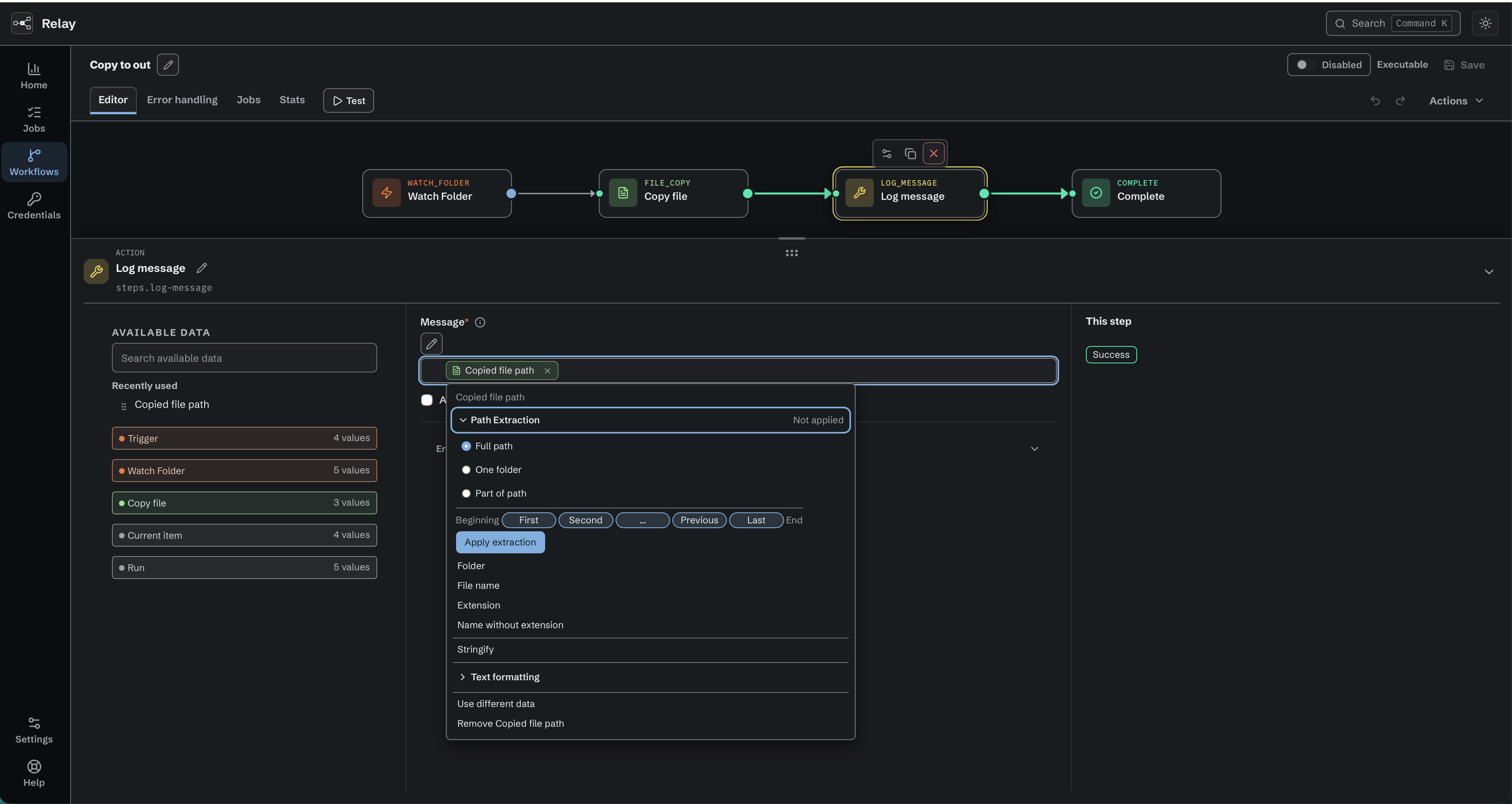
A path chip offers path extraction and text formatting controls.
Regex
Open a variable chip and expand Regex. Enter one pattern or substitution. The rule processes that use of the variable only. It does not change the original value. You can extract a folder first, apply Regex, then format the result. Objects, arrays, and null need Stringify before Regex.
Inline changes update the chip as you type. Saving includes the current rule. The tester keeps its own draft until you select Use regex.
| Regex field | Input | Output |
|---|---|---|
^SHOW[0-9]+ |
SHOW123_delivery |
SHOW123 |
s/_delivery$// |
SHOW123_delivery |
SHOW123 |
s/-/_/ |
a-b-c |
a_b-c |
s/-/_/g |
a-b-c |
a_b_c |
s,^([0-9]{2})([0-9]{2})([0-9]{2})([a-zA-Z]{2})([a-zA-Z]{3})$,$2, |
101426ABRAW |
14 |
A bare pattern returns the first whole match. Use substitution to keep a
capture group, such as s/^clip_([0-9]+).*$/shot_${1}/. Slash or comma
delimiters work. Escape a delimiter inside the command with a backslash.
Without g, only the first match changes. With g, all matches change.
An empty replacement deletes matched text. Clear the field to remove Regex.
Relay uses Go regex syntax. Inline flags such as (?i) work. Lookaround and
pattern backreferences are unsupported. Replacement text accepts $1,
${1}, named captures, and $$ for a literal dollar sign. Use ${1} when
letters follow the capture. Unknown capture names or numbers are errors.
A bare pattern with no match fails the step through its normal error path. A substitution with no match returns its input unchanged. A pattern can return empty text. An optional capture that did not participate expands to empty text in a substitution.
The editor handles source escaping. In source view, regex stores a
one-element JSON array. Pipe, closing brace, and dollar characters in its
argument are encoded as \u007c, \u007d, and \u0024. Use the chip controls
to enter patterns and capture references without changing other tokens.
Workflows using Regex require an updated Relay node.
Test a regex. Select the flask below the field, beside Syntax and examples. Its tooltip is Test regex. Paste Test input in the modal, edit Regex, and press Test. The selected node uses the same regex engine as real workflows. This test never executes workflow actions.
An available authoring example can seed the input. It is an example, not the next job's value. Without an example, paste a value yourself. Input reaches this rule after earlier processing, so paste a folder name when the preceding stage already extracts the folder.
Read Output for the result, including empty text or a test error. Editing after a test marks its result as Previous output until you press Test again. Use regex applies only the rule. Cancel, Close, and Escape discard modal edits. Test input is temporary and is not saved in the workflow or job history. A missing example or a failed sample match does not stop you from editing the rule.
Tester limits are 64 KiB (65,536 bytes) of input, 16 KiB (16,384 bytes) of
regex, and 256 KiB (262,144 bytes) of output, counted as UTF-8 bytes. An
oversized value produces an error instead of truncated output. If the node is
disconnected or too old to provide the tester, reconnect or update it.
If a test reports a work limit, shorten the sample or simplify the pattern,
then test again. The tester bounds compilation, matching, and intermediate
data. Global replacements with + or * can need much shorter samples than
the input byte limit. This limit does not prevent applying a valid workflow rule.
Filename parts from text
Choose Treat as filename to expose File name, Name without extension, and Extension on text. This reads text only. It does not look for a file, rename anything, or change the source variable's type. You can use it after Regex, folder extraction, or other processing. Path variables also offer this option. Existing upstream path extraction stays editable.
| Input | File name | Name without extension | Extension |
|---|---|---|---|
clip.mov |
clip.mov |
clip |
.mov |
archive.tar.gz |
archive.tar.gz |
archive.tar |
.gz |
README |
README |
README |
empty |
.env |
.env |
empty | .env |
clip. |
clip. |
clip |
. |
C:\media\clip.mov |
clip.mov |
clip |
.mov |
The final dot starts the extension, including its leading dot. Both slash and
backslash path separators work on every supported platform. An empty name or
trailing separator fails when requesting a part. In source view, write
${vars.name|asfilename|stem}. Filename transforms without Treat as filename
keep their previous behavior.
8.4 Webhook payloads
The request body and query string are flattened under trigger.payload:
| Body | Reference | Value |
|---|---|---|
{"job":{"id":7}} |
${trigger.payload.job.id} |
7 |
{"ids":[5,6]} |
${trigger.payload.ids.1} |
6 |
{"ok":true} |
${trigger.payload.ok} |
true |
{"note":null} |
${trigger.payload.note} |
explicit null, structured |
?src=mam |
${trigger.payload.src} |
mam |
The body wins when a query parameter and a body key collide. ${trigger.payload} represents the complete JSON body. An object, array, or null root requires an input that accepts complete JSON, or Stringify (${trigger.payload|json}) in a text input. Otherwise select a nested scalar for a text input. A JSON string, number, or Boolean root resolves as that scalar. Headers are never available. After a Test, Available data lists the fields of the request that Test received, so you can pick ${trigger.payload.job.id} from the tree. Without a Test, use Advanced mode to enter an exact nested path. ${trigger.start.payload}, ${trigger.start.body}, SQS payloads, and forwarded SQS headers follow the same structured-value rules.
JSON-bearing outputs
Some action outputs contain either ordinary text or one complete JSON value. Relay marks these outputs as JSON-bearing. HTTP response bodies and the DLR Lookup JSON outputs are current examples.
Available data keeps the whole output as a JSON-bearing value. After Relay records an object or array, it adds the observed object fields and array positions. A JSON object, array, or null root is structured in an ordinary text field. Relay refuses that root there unless Stringify is its first transform. Select a scalar nested field instead, apply Stringify, or use an input that accepts complete JSON values. JSON string, number, and Boolean roots keep their native scalar value.
An input that accepts complete JSON values can receive the whole JSON-bearing
root. It can also receive that root unquoted at a value position in an authored
JSON template. For example, write {"payload":${steps.http_request.body}},
not {"payload":"${steps.http_request.body}"}. Start Workflow's Body is
one such input. Its expanded result must still be one valid JSON value.
To pass the complete JSON payload into an ordinary text parameter (such as a log
message, file write, or shell command), apply Stringify:
${steps.http_request.body|json}. When you insert a whole object or array from
Available data into an ordinary text field, the editor applies Stringify for
you. Relay also records and displays the complete structured payload in
Run Details and Workflow Test Evidence automatically, without requiring a
separate logging step.
Empty, invalid, or ordinary text remains one text value. If no run has revealed
an object or array shape, Available data says: Run this node to discover the nested fields this output makes available. A later shape change does not
rewrite an existing reference. Relay applies its current evidence protection
before any nested key becomes available.
8.5 Script results
The Script action publishes one Relay-safe value as ${steps.<slug>.result}. After a Test records its shape, later steps can use nested paths such as ${steps.prepare_metadata.result.clip.id}. The editor offers those nested paths from the runs the node recorded: it reads the twenty most recent runs, newest first, and counts a run only while its saved script fingerprint and profile still match the script on screen. Change the script and the old paths stop being offered until a new Test records the new shape.
A credential used elsewhere in a Workflow Test does not hide ordinary Script paths. A recorded path that contains a stored credential is omitted; it is never renamed into a different reference. Paths omitted by an older Test cannot be recovered. Run a new Test to record them.
Inside Script source, use input for workflow data and connections.<name>
for a saved Script connection. Connections are not ${...} references. Their
public parts are ordinary JavaScript values; protected credential parts can be
used only in the Script HTTP request that needs them. An API response or
upstream action can contain a token-like value that remains usable by the
running workflow, while recorded evidence still applies Relay's normal masking.
A declared JSON-bearing output arrives in input as its native JSON value.
Objects become JavaScript objects, arrays become arrays, and JSON scalar roots
keep their matching type. Do not call JSON.parse on these values. Invalid,
empty, or ordinary text remains text.
Set variables is the exception. A Set variables row can copy ${steps.<script_slug>.result}, or one scalar field of it, with no recorded run at all, provided every path that reaches the Set variables step passes through that Script step's success. The copied text, number, or boolean keeps its type in Available data and in the run details. A route that bypasses the Script step, or a structured list or object rather than a single value, stays unavailable and the workflow does not save as executable.
Inside the script source, reads use their own read-only JavaScript form, such as input.steps.prepare_metadata.result, never ${...} interpolation.
8.6 Iconik and CatDV named values
Find Asset, Get Asset, and DLR Lookup publish named values rather than a JSON blob (Named Iconik values). Insert them from Available data by clicking or dragging; the editor writes the reference and the chip names its source. Do not type these references by hand. A file or folder path accepts the chip's path controls; a URL does not.
Available data offers only what the source node will retrieve. Find Asset and Get Asset offer Asset and Metadata, and add Files and Other details only when Include additional asset details is on. A DLR Lookup's Matched DLR offers Asset and Metadata only, so it never carries file or extended-detail values. A reference into a group the node no longer offers stays visible and invalid, and the workflow does not activate until you turn the details back on or replace the reference.
At run time the reference resolves against the current job. A value that is absent fails the receiving step with Iconik value "…" is missing, and one that could mean more than one thing fails with Iconik value "…" is ambiguous; more than one file or record matches. The step fails before it does any work. A saved sample is never substituted.
References to the retired oasis_json output or any oasis.* path stop with an obsolete-reference message and are not migrated; replace them with the equivalent named value.
CatDV clip values. CatDV Get Clip publishes the clip the same way. Available data shows two groups under the step: Built-in fields, the properties every clip has, and User-defined fields, the custom metadata your CatDV install adds. The two stay apart, so you can tell a built-in name from a custom one without knowing which names your server happens to use. A field name may contain a dot, a space, a brace, or a pipe, so insert these references from Available data and do not type them by hand.
An empty text, a false, a zero, and an empty list are all values, and they are offered like any other. A field CatDV did not return for this clip is not offered. If a reference to it survives from an earlier clip, the receiving step fails with CatDV clip value "…" is missing before it does any work. A saved Test sample is never substituted for the live clip.
8.7 JSON paths (Extract JSON values)
Paths are exact: customer.name, items[0].id, ["key with spaces"].total. Identifiers are letters, digits, and underscore; other keys use the bracketed quoted form; array indexes are non-negative decimals without leading zeros. Not supported: wildcards, slices, filters, functions, a leading $ or .. The path must land on a text, number, or boolean; landing on an object, an array, null, or nothing fails the step, and the failure names the path and the reason.
8.8 Rename patterns
New name in Rename file also accepts {ref} and {ref|transform} placeholders with the same references and transforms. The difference: ${…} tokens are expanded before the step starts, {…} placeholders are expanded by the step against the carried file - so {item.basename} is always the job's file even if Source file points elsewhere. The result must be a name, not a path.
8.9 Limits
Webhook body 1 MiB. HTTP response body captured to 64 KiB. Shell output 32 KiB per stream. Failure detail values 64 KiB each.
8.10 Iconik Job values
Available in the internal managed Iconik release. Older installers and evaluation builds do not offer this feature.
A job started by the Iconik Job trigger (chapter 5.8) has exactly four trigger values:
| Reference | Label | Meaning |
|---|---|---|
trigger.iconik.job_type |
Job type key | The Iconik Job's key at the moment of the click, for example path-extract. A later key change does not alter it. |
trigger.iconik.context |
Context | ASSET or BULK: where in Iconik the person clicked. |
trigger.iconik.payload |
Payload | The request body exactly as Iconik sent it, byte for byte. Relay never rewrites or filters it. |
trigger.iconik.user_name |
Started by | The name of the Iconik user who clicked, for example Jane Smith, or that user's Iconik user ID when the name is not available. Empty when the click names no user. |
The payload is a JSON-bearing value (8.4). Pass it whole to an input that accepts complete JSON. In a text field, such as a Log message or a file write, use ${trigger.iconik.payload|json}. Stringify writes compact JSON, so spacing and line breaks can differ from the original bytes; only the trigger value itself is byte for byte. To read one field, use Extract JSON values with a path such as asset_ids[0] (8.7).
Started by. Relay reads the name in Iconik after it records the click: the first name and the last name, never the email. A run waits for the name for at most 2 seconds after it can start. Then the value is fixed for the run: the name if it arrived, else the user ID. A name that arrives later, within 5 seconds, goes only into the job record and the job log. A failed read never fails the run. Relay keeps a found name in memory for 10 minutes. A name is personal data: a step that writes this value into a file or an Iconik field puts the name there. Support bundles keep names; backups and workflow exports carry no names. In a backup, a saved Sample input keeps the user ID in place of the name.
Request headers are never available. When the body has a top-level field that Relay does not know, the job still runs with the payload unchanged; the service log records only the count of such fields and a short fingerprint of each name (chapter 15.15).