
Chapter 13 / Operating Relay
13. Licensing and updates
13.1 How licensing works
One license code activates the Relay service on one machine (a trial code allows two). On macOS and Windows, Control Room hands the code to Relay during install. On Linux, install the code manually (13.3). From then on Relay checks its own license about once an hour and keeps working without Control Room open - or installed.
The hourly check reads the license on the machine. Relay contacts the license server once a day, and each time the Relay service starts. When the daily check-in cannot reach the server, Relay shows the offline grace period and tries again every hour. The grace period ends 72 hours after the last time Relay reached the license server, so an offline node shows Grace period for about the last 48 of those hours. A restart does not reset it: Relay remembers the last successful contact. When the 72 hours run out, jobs stop at once and the license shows Expired; Relay does not wait for the next hourly check. When the machine's clock moves back by more than a few minutes, Relay stops jobs with the reason this machine's clock appears to have changed; correct the system clock and reconnect to revalidate, and contacts the license server at once. A clock correction on a connected machine, for example a time-server correction after drift, therefore recovers within seconds. On an offline machine, jobs stay stopped until Relay next reaches the license server, so setting the clock back never extends the grace period. When the connection returns, the next hourly check reaches the server and restores Active with no action from you. The same hourly retry clears a suspension that has been lifted. A node that must stay offline needs a connection to the license server at least once every 72 hours.
Licensing gates execution only. With no valid license you can still open Relay, build, save, import, and export workflows. What is refused is running them: workflow execution blocked - license state is "expired" (authoring remains available; re-activate to run).
13.2 License states
Settings → About shows the state under License. When the selected node's license blocks execution, Relay keeps a banner below the top bar. The banner names the node, explains the fault, and links to that node's license details. In the fleet view, each license problem stays attached to its own node.
| Displayed license status | Home banner | Jobs run? | What to do |
|---|---|---|---|
| Active | none | Yes | Nothing. Expiration shows the date. |
| Expiring | License expires in N days | Yes | Shown in the last 7 days. Renew through your reseller; a renewed code re-activates the same install. |
| Grace period | Offline grace ends in N hours | Yes | The license server is unreachable. The daily check-in could not reach the license server. Relay keeps running until 72 hours after the last time it reached the server. Restore internet access. |
| Expiration passed | Workflow execution is blocked on <node> | Until revalidation | The recorded expiry has passed. This label is worked out from the dates, so jobs can still run until Relay next revalidates, usually within the hour, and finds the state has changed. Enter a renewed code. |
| Expired | Workflow execution is blocked on <node> | No | Trial ended, subscription lapsed, or grace ran out. If grace ran out, restore internet access; Relay resumes at the next hourly check. Otherwise enter a renewed code. |
| Inactive | Workflow execution is blocked on <node> | No | No license on this node, the seat was deactivated, the license was revoked or suspended, or its workflow limit is invalid (13.8). Enter a code, or contact support about a revoked or suspended license. Ask your reseller to correct an invalid workflow limit. |
| Unknown | Workflow execution is blocked on <node> | No | The status is not yet validated or is indeterminate. Retry, then inspect the displayed reason if it persists. |
Relay reports the underlying license state as active, grace, expired, inactive, or unknown. Expiring is an active license in its last 7 days. Expiration passed is a derived display status for a recorded expiry that has passed.
Reasons Relay may show beside the state: this license's seat is active on another machine; deactivate it there, or contact support@northshoreautomation.com if that machine is gone; this license has been revoked; this license has been suspended; contact support@northshoreautomation.com to resume it; offline grace period has ended; reconnect to revalidate, or re-activate with a renewed code; this machine's clock appears to have changed; correct the system clock and reconnect to revalidate; could not reach the license authority; check network and retry; The license has an invalid workflow limit. Contact your reseller. (13.8).
A Limited license caps how many workflows can be on at one time. When more workflows are on than the cap, Home shows a blocking banner and no run starts until you turn off enough of them (13.8).
Evaluation builds. Relay also has an evaluation build, used for demonstrations and for internal qualification. It carries no real license, so About shows Evaluation build in place of a license state and Relay raises no license alert for that node.
Which build a node runs is a property of the installer it came from, not of its operating system. Every node states its own build, so a licensed Windows or Ubuntu node shows its real license state, expiry and activation reference, and raises the same license alerts as a Mac.
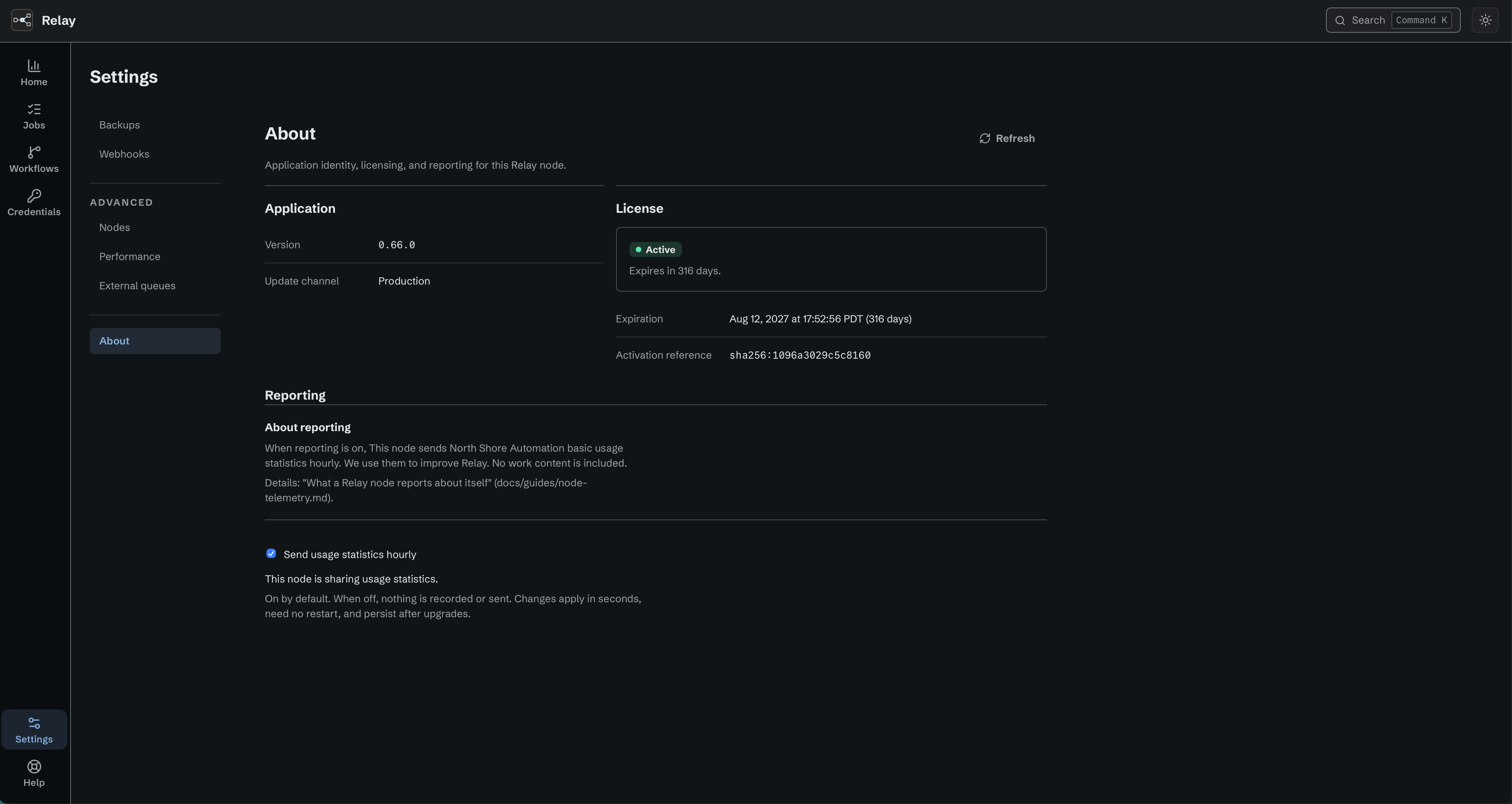
About shows the node's version, license state, and usage reporting choice.
13.3 Entering or renewing a code
Through Control Room (macOS, Windows): open Relay in Control Room. A LICENSE of ACTION NEEDED offers Resolve license; enter the new code and Validate and activate. Workflows, history, and credentials are untouched.
From the command line on macOS. Relay reads the key from the RELAY_LICENSE_CODE environment variable, saves it in the protected node configuration, and activates it when the service starts. The block below prompts for the key without showing or recording it, and holds it only inside a temporary shell function.
macOS:
relay_install_license() {
  sudo -v || return
  local RELAY_LICENSE_CODE
  printf 'Relay license key: '
  read -r -s RELAY_LICENSE_CODE
  printf '\n'
  export RELAY_LICENSE_CODE
  sudo -E /usr/local/bin/relay install \
    --data-dir "/Library/Application Support/Relay"
}

relay_install_license &&
  sudo /usr/local/bin/relay service-restart &&
  sudo /usr/local/bin/relay status \
    --data-dir "/Library/Application Support/Relay"

unset -f relay_install_license
Manual license installation on Linux only. Control Room cannot install or renew a license on Linux. After installing the Relay package, open a terminal on the Linux node. You need an administrator account, internet access to the license server, and a valid Relay license code.
Replace YOUR-LICENSE-CODE with your code and run:
sudo relay install --license-code 'YOUR-LICENSE-CODE'
This stores the code. Restart Relay to activate it, then check the status:
sudo relay service-restart &&
  sudo relay status
The commands use the standard Linux data directory, /var/lib/relay. If your node uses a different directory, add --data-dir /path/to/relay-data to the install and status commands. Repeat these steps with the new code when renewing a license.
The first command may ask for your administrator password. Success shows "license_state":"active". See the licensing guide for troubleshooting and a Linux prompt that keeps the code out of shell history and process listings.
13.4 Moving a license to another machine
A code whose seat is taken is refused on the new machine, and Relay says the seat is active on another machine (13.2). Release the seat first:
- Control Room → Relay → Deactivate license. This frees the seat for another machine and leaves your workflows, run history, and stored credentials where they are.
- Or
sudo relay deactivateon the node. Success: license seat released (service + data preserved).
Then activate the code on the new machine. Deactivate before you uninstall. Removing the Ubuntu package or the Windows installation does not release the seat: it stops and removes the service and leaves the activation held, so the code is then refused on the next machine and support has to release it for you. If the old machine is gone and cannot deactivate, contact support@northshoreautomation.com or your reseller to release the seat.
Deactivation needs network access; offline it reports seat not released (license authority unreachable); retry when online.
13.5 Trials
A trial code runs 30 days from first activation and allows two activations. Reminder emails arrive 7, 2, and 1 days before expiry, and Relay shows Expiring for the last 7 days. At expiry the state becomes Expired: jobs stop, everything else stays. A full code from your reseller re-activates the same install.
13.6 Updates
Relay releases are published to a signed catalog. Shipped builds are pinned to production; staging is for development builds. About shows the channel. Nothing updates on its own.
Through Control Room. Relay's detail shows INSTALLED VERSION and LATEST VERSION; Check for updates refreshes, Install update runs the same six-phase flow as an install (chapter 2.4), with an administrator prompt. Relay is restarted once. Your workflows, credentials and production history are carried over, with the one exception described below under Upgrading your data.
From the command line. sudo relay update reports up to date or update available: X (run with --apply); sudo relay update --apply installs it. On Windows the command-line apply is disabled; use Control Room or the next MSI.
The command needs to be told where the catalog is, either in the environment as CATALOG_BASE_URL=https://releases.northshoreautomation.com or with --catalog-url. Without one it stops with no catalog configured; nothing to do and changes nothing.
Ubuntu is not in the update catalog at all. An Ubuntu node is updated by downloading and installing the new .deb by hand (2.1); relay update cannot find a release for it.
What happens to running jobs. Before swapping binaries Relay stops admitting new work and waits up to 30 seconds for running jobs to finish. Non-resumable jobs still active after that are marked Interrupted. A job already Waiting to retry keeps its eligible saved request, completed progress, attempt count, and original recovery deadline; it can resume after Relay starts if time remains. Queued jobs are held and re-dispatched after the update completes. During this window Run Now reports maintenance in progress, retry shortly and webhooks receive 503 with Retry-After. Plan updates for a quiet moment.
Preparing faster history reads. The first start with the Jobs performance update prepares additional lookup data for job counts, statistics, and status-filtered pages. This uses extra disk space and can lengthen startup on a node with a large history. The time and space depend on the amount of history and the disk. The lookup data stays on disk, so later starts do not rebuild it when it is already present. This preparation does not delete jobs or change the history retention setting. While startup is in progress, Settings can show the service as Running while the connection is Stale. Allow startup to finish, then retry the page. If the connection stays unavailable, check the service log (chapter 15.10).
Upgrading your data. A new Relay may need to bring the run journal and the sealed credential store up to a newer shape before it can serve. It does that on its own, in order, and safely:
- Before touching either file it writes a consistent owner-only snapshot beside it, named after the versions it is moving between. It never overwrites an existing snapshot, and it takes none when nothing is about to change.
- The journal moves one version at a time, each step a single transaction that is verified before it commits and stamped only on success, so an interrupted upgrade picks up at the last completed version.
- Your work is kept: workflows and their enabled state, destinations, production run history and run steps, queued work, external queue connections, saved Test inputs, credentials, and settings. Credential references stored by name are rewritten to the credential's permanent
cred_ID.
On Windows, the first start with protected key custody also moves the existing credstore.key into credstore.dpapi. Relay keeps the same key and removes the old plaintext file only after it verifies the protected copy and opens stored credentials. If startup reports a key error, keep both files and use chapter 15.12. Keep the same Windows service account through this update.
-
The 11-to-12 journal step clears recorded Workflow Test runs and their step evidence made under the older rules. Saved Test inputs survive, and production history is untouched. The later 12-to-13 step keeps current Tests and retires private Watch folder intake records. If an older Test result matters to you, read it or copy it out before an 11-to-12 upgrade.
-
The 18-to-19 journal step adds empty tables for Iconik Jobs, a feature offered in the internal managed Iconik release (chapter 5.8). It changes no existing workflow, job, or setting. After it, an older Relay refuses this data as written by a newer Relay (see the table below).
-
The 19-to-20 journal step adds saved transfer measurements for Copy, S3, and SCP (11.4). Existing history and Iconik Job records stay in place. Older jobs have no transfer measurements. An older Relay refuses data upgraded to version 20.
-
The 20-to-21 journal step prepares space for each job's primary file, asset, or batch (chapter 11.3). It preserves existing history, workflows, and settings. Older jobs keep their recorded trigger description. Relay versions limited to journal version 20 or earlier refuse the upgraded data (see the table below).
-
The 21-to-22 journal step adds two empty tables for clicks from the managed Iconik queue, a feature offered in the internal managed Iconik release (chapter 5.8). One recognizes a repeated click; the other records whether Relay has removed a saved click from the cloud queue. It preserves existing history, Iconik Jobs, workflows, and settings. Backups, workflow exports, and support bundles leave both tables out. Relay versions limited to journal version 21 or earlier refuse the upgraded data (see the table below).
-
The 22-to-23 journal step adds the Started by record (the Iconik user who clicked) to the Iconik link of each job, for Iconik Jobs, a feature offered in the internal managed Iconik release (chapter 5.8). Older jobs keep their link and show no Started by. It preserves existing history, Iconik Jobs, workflows, and settings. Relay versions limited to journal version 22 or earlier refuse the upgraded data (see the table below).
-
A previous Relay version may have left an
intake/folder in the data directory. Current Relay no longer reads or creates it and never deletes it automatically. After you confirm that it is no longer needed, you may delete that old folder yourself.
Two cases are refused rather than guessed at, and in both the files are left exactly as they were:
| Situation | What to do |
|---|---|
| The data is older than this Relay can upgrade (written by a Relay before 0.54.0) | Install Relay 0.54.0, start it once so it carries the data forward, then install the current release again. Or contact NSA support with the data directory left in place. |
| The data was written by a newer Relay than the one you just installed | Run that newer Relay against this data directory. |
In both cases the message says what happened. Do not delete the data directory: it holds your workflows, credentials, and history, and support can recover from it.
If an update goes wrong. An update run through Control Room keeps the previous binary and a snapshot of the data directory first, and sudo relay recover restores them: previous binary restored. Downgrading through relay update --to <older> is refused; recover is the way back.
If that snapshot has sealed credentials without their master key, recovery stops before it changes live data. Keep the data directory and snapshot for support. Recovery also keeps the prior Windows key form in its local recovery copy when it restores credentials from before a key migration.
An update applied from the command line with relay update --apply does not record either of those, so there is nothing for relay recover to restore afterwards and it reports that no previous binary was recorded. Use Control Room for an update you may want to undo, or take your own copy of the binary and the data directory first.
A Relay release may require a newer Control Room. Control Room then says Relay X requires ControlRoom Y or later and withholds Install; download the current Control Room from controlroom.media.
13.7 Licensing for the managed Iconik connection
Available in the internal managed Iconik release. Older installers and evaluation builds do not offer this feature.
The managed Iconik connection links one Relay to North Shore Automation's cloud service, which receives Iconik custom action clicks for it. Your Relay license decides whether a node may set up this connection.
- Any active subscription license may connect. No separate add-on or license option is needed.
- Trial codes, demo codes, and evaluation builds cannot use managed Iconik Jobs for now. An evaluation build has no license to prove, so Relay stops setup on the node before it contacts the cloud service. Relay cannot tell a trial code or a fixed-term demo code from a paid license on the node, so it sends the setup request and the cloud service refuses it. In each case Relay reports that the license cannot use the managed connection.
- One installation per license activation. A license activation can connect one Relay installation. If another installation already connected with the same activation, for example a restored or cloned copy of this machine, setup stops and Relay says this license is in use on another Relay; use machine replacement. Setup does not retry this on its own. Machine replacement comes with a later release; until then, contact support@northshoreautomation.com.
- The license is checked only during setup. Relay proves its license to the cloud service when it sets up the connection, not while it runs, so a connected node does not add license traffic. The usual hourly license check and the 72-hour offline grace (13.1) still apply to the node itself.
- A license that stops being valid pauses the job queue. If the node's license stops being valid after setup, Relay stops taking managed Iconik jobs but keeps the connection and its hold on the job queue. Clicks wait in the cloud service's queue. Relay resumes within 30 seconds after the license is valid again, with no new setup (15.14).
Relay never shows, logs, or stores the license proof it sends. If the cloud service refuses the license, see chapter 15.13.
13.8 Limited licenses
A Limited license lets a node keep only a set number of workflows switched on at one time. Your reseller sets that number on the license. A license without a limit has no cap, and every license issued before Limited licenses is unchanged.
What counts. Every workflow that is switched on counts toward the limit. This includes workflows that another workflow starts with Start Workflow, and workflows with a Manual trigger. A workflow that is off does not count. Deleting a workflow that is on frees its place.
What is never limited. You can create, edit, import, and save as many workflows as you like, as long as you save them off. Saving changes to a workflow that is already on is never refused. Switching a workflow off is never refused.
See the limit. On a node with a Limited license, the Workflows page shows one line above the list, for example Limited license: 2 of 3 active workflows. With a limit of 1 it reads Limited license: 1 of 1 active workflow. The count changes as soon as you switch a workflow on or off. When more workflows are on than the limit, the line keeps the numbers, for example Limited license: 5 of 3 active workflows, and shows in the warning color. If Relay cannot count the workflows that are on, the line shows only the limit, for example Limited license: 3 active workflows allowed. A license without a limit shows no line. A license that blocks runs (13.1) also shows no line, because its own message applies.
At the limit. When the number of workflows that are on equals the limit, Relay refuses to switch on another one, from the toggle or from a save. The editor shows the node's message, for example: This license allows 3 active workflows. Turn off another workflow before you turn this one on. Turn off a workflow you do not need, then switch on the new one.
Over the limit. A node can have more workflows on than its limit, for example after you restore a backup, or after the license changes to a lower limit. Relay does not turn any workflow off for you. The workflows stay on, but no run starts on that node until you turn off enough of them. Relay refuses each run with a message such as This license allows 1 active workflow. 3 are on. Turn off 2 to resume runs. A job that was waiting in the queue does not start when its turn comes: it ends as Blocked with the same license message. Home shows a banner that names the node, for example Runs are paused on <node>: this license allows 1 active workflow and 3 are on. Turn off 2 to resume., with a link to Open Workflows. On the All nodes dashboard, the same text appears in Needs attention for that node. Runs start again as soon as the number of workflows on is at or below the limit.
When Relay cannot count. If Relay cannot count the workflows that are on, it pauses every run on a node with a Limited license, because it cannot prove that the node is within its limit. Runs are refused with This license limits active workflows, and Relay could not count them. Runs are paused until it can. The Home banner reads Runs are paused on <node>: Relay could not count the active workflows. Restart the Relay service, or contact support if this continues. See chapter 15.6.
Workflow Test. A Test runs on every workflow under a Limited license, also when the node is over its limit. A Test does not count as a switched-on workflow. With no valid license, Tests stay blocked, as for every other run (13.1).
An invalid limit. If the limit on the license is not a whole number of 1 or more, Relay does not read it as "no limit". The license shows Inactive with the reason The license has an invalid workflow limit. Contact your reseller., and runs stop until your reseller corrects the license. Relay checks again every hour, so runs resume after the correction with no action from you.
Offline and after a restart. Relay remembers the last limit it read from the license. The limit stays in force through the 72-hour offline grace period (13.1) and when the Relay service restarts, also when the node cannot reach the license server. Only a new license reading changes or removes the limit. Relay reads the license on each license check, on this node or with the license server.