
Chapter 11 / Operating Relay
11. Jobs and observation
A job is one run of a workflow. Relay records every job durably - trigger, each step's input and output, timing, outcome - and keeps it after the workflow is edited or deleted. This chapter covers where to look and what the words mean.
11.1 Job statuses
| Status | Meaning |
|---|---|
| Queued | Admitted and waiting for capacity. No steps have run. Can be cancelled. |
| Running | Executing. Use Cancel on the Jobs row or Cancel job in job detail to stop an active job. Both ask you to click again to confirm. An active Workflow Test can also be cancelled from its workflow header. |
| Waiting to retry | An eligible request is waiting for its next recovery attempt. The job keeps its completed progress but does not occupy an active processing slot. Job details show the next attempt when recorded. A production job can be cancelled from Jobs, Home, or its job detail. A Workflow Test waiting to retry must be stopped from the workflow header. |
| Succeeded | Reached Complete. May carry the badge Succeeded after handled error (chapter 9). |
| Completed with warnings | Reached Complete, but a For Each loop had both succeeded and failed items. This is amber and is neither Succeeded nor Failed. |
| Failed | Reached Error, an action failed, every item in a non-empty For Each loop failed, or loop outcome evidence reached its size limit. Open the job to see the Failing step; the badge says whether Error handling completed or failed. A job that Relay itself could not continue, for example because a workflow connection could not be resolved, is also Failed. It records Relay's error and can have no Failing step. Before, such a job stayed Running until Relay restarted and could not be cancelled. |
| Cancelled | An operator cancelled it while queued, running, or waiting to retry, or cancelled an active Workflow Test. A cancelled For Each job keeps completed item progress and does not follow Done. |
| Interrupted | Non-resumable work was active when the Relay service restarted. The job records relay restarted while this run was in progress. A job already Waiting to retry is different: after start, Relay checks its saved request, resumes it only when eligible before its original recovery deadline, and otherwise follows error handling without a fresh attempt budget or replay of completed steps. |
| Blocked | Refused before dispatch because it could not be admitted safely - a duplicate SQS message inside the duplicate window, or a repeated Iconik click (11.7), for example. |
| Indeterminate | A step started but Relay could not verify how it finished. Check the target system by hand and decide whether to run the work again. The job keeps this status; nothing clears it. |
11.2 Home
Home is the first screen. With one machine it answers one question: is anything wrong right now?
A Window filter in the page header sets the period the whole page reports over: Last 24 hours (the default), Last 7 days, or Last 30 days. Jobs has a separate Time picker with finer recent periods and custom ranges. One change moves the chart, the Workflow queues table and the windowed tiles together, and a line under the tiles names the period they cover.
A Jobs band groups five instruments together: Live jobs, Queued, Errors to review, Error rate, and Files. Live jobs includes active jobs and jobs Waiting to retry. The first three are counts of the machine right now. Error rate and Files cover the window, and Error rate names the fraction it came from, for example 12 of 1,284 succeeded or failed jobs. Jobs that completed with warnings have their own count and do not change this rate.
A Failed jobs chart for the window follows. The chart is careful about the difference between nothing failed and we do not know. When readings are missing it says Bucket readings are unavailable, and draws no bars. When it measured zero it says Zero errors were measured across N reported buckets. View hourly details lists every bucket's exact local time and failed count, with the timezone it used; over a longer window the same disclosure reads View time buckets. When the statistics read itself fails, the panel says so in place of the chart and offers Retry statistics. When it is drawing the last reading that arrived, it says so above the chart.
An Activity list follows, errors first: Errors to review, then Live jobs, up to four rows. A delayed job keeps the Waiting to retry badge rather than reading as Running. Each error carries Mark as reviewed with a few seconds of Undo. Mark all reviewed marks them together and offers the same Undo. The jobs themselves stay in history. When the list is shorter than the number of errors it says so and links to Jobs.
When there is nothing to show, Home says No errors to review and no live jobs. When it could not read the machine, it says Current live-job and error activity is unavailable rather than reporting an all-clear. A known error stays visible even while the machine is disconnected.
A Workflow queues section comes last, with the node's queue controls (11.6). Home reads in one order: how much failed, then what failed, then which queue to act on. The chart is outside this section, so collapsing the queues does not hide the trend.
Outcome not known is about a machine, not a job. It appears when the console asked this machine to do something, such as start, stop or restart its service, and never learned the result. The console cannot close that on your behalf, so once you have checked the machine, tick I verified this machine's current state and choose Mark outcome verified. An Indeterminate job is a separate thing and this does not clear it (11.1).
Machine details is a disclosure holding the machine's name, kind, platform, address, application version, and service state, with Manage... leading to Settings, Advanced, then Nodes. A license fault that blocks work shows as a banner across the app. A license that still works but needs attention, such as an offline grace period or a near expiry, shows as a notice on Home. Paused dispatch and a full queue are reported on Jobs (11.6).
With more than one node, Home becomes the fleet dashboard (chapter 14), which does offer a Show more control on its activity list.
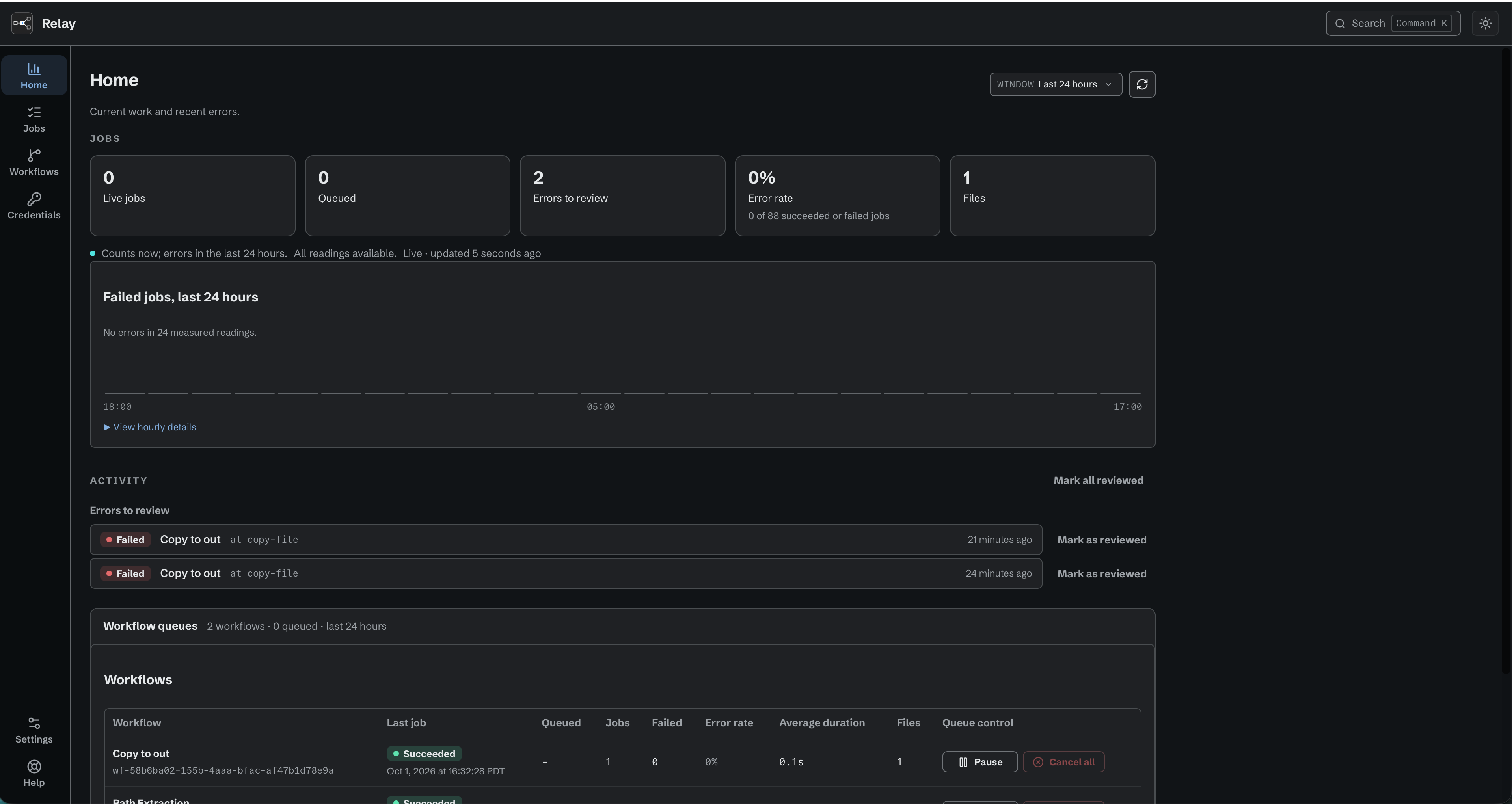
Home brings job activity and errors that need review together.
11.3 Jobs
Jobs in the rail shows jobs on the node within the chosen Time period. A workflow's Jobs tab shows only its own jobs within that period. The list starts directly under the filters. The node-wide queue table and the failed-jobs chart are on Home (11.2).
The Jobs title sits above one toolbar. Filters sit on the left. The node controls sit on the right, aligned with the filters: a pause-details toggle, Pause node / Resume node, History settings, and an icon-only Refresh jobs. These controls share one height. A narrow window lets the toolbar wrap without horizontal page scrolling. A read that fails offers a named retry - Retry jobs, Retry job counts, Retry queue status, Retry history retention - so you know what you are retrying.
Filters use compact menus. Status offers All, Running, Queued, Failed, Warnings, Succeeded, and Cancelled, with a count beside each choice in the menu. The closed control names the selected status. Running includes jobs Waiting to retry. Workflow narrows the list to one workflow.
Time combines recent periods and custom ranges in one picker. Choose Last 15 minutes, Last hour, Last 4 hours, Last 24 hours, Last 7 days, or Last 30 days. First use starts at Last hour. Relay remembers your preset choice in this console. Recent periods roll forward as jobs arrive.
Relay uses the node's time to keep recent periods aligned when that reading is available. This keeps new jobs visible when the console and node clocks differ.
No jobs in the last hour means no jobs match that period and your other filters. Choose a wider period in Time, or change the other filters. A custom range with no matches says No jobs in this period.
Choose Custom range… inside Time to enter Started at or after and Started before, including dates and times. The picker names the local time zone. Choose Apply to use the range, or Cancel to keep the current filter. A custom range stays fixed. Its dates and times appear on the closed Time control; point at it to read a long range in full. Choose a recent period to return to live updates. Custom dates are kept for the current visit; the next visit uses your last preset. Clear filters restores All statuses, All workflows, and Last hour. A workflow's own Jobs tab stays scoped to that workflow.
Counts on a busy node. The status counts cover all jobs in the selected Time range and Workflow, including jobs on other pages. They are exact counts from the last successful read. The Jobs page requests these totals separately from the charts and workflow summaries on Home, so it has less work to wait for as history grows. Counts can still take longer for a window with more jobs. Custom ranges also show counts. The list and its counts use the same exact start and end times. An older node that cannot count the exact range shows Update Relay to count jobs for the selected time range. Update the node to restore counts; the job list remains available. If a count read fails, Relay says Job counts are unavailable and offers Retry job counts. A failed count read does not remove job rows that the page can still load.
N queued on this node is the node's current queue total. It can include jobs outside Time or the selected Workflow.
Matching count requests that arrive together share one calculation. Once it finishes, a later refresh calculates a new result; the node does not keep a completed result for reuse. The node runs one statistics request at a time to reduce competition with job browsing. Each calculation has a 10-second limit, including time spent waiting for another statistics request. While counts are pending or unavailable, you can still use the job list and filters. If the node has too many different statistics requests waiting, retry after the other reads finish.
The limit starts when the first matching request arrives. A later request that joins that calculation shares its remaining time; it does not start a new 10-second limit. For example, joining after nine seconds leaves one second. If the calculation times out, all pages still waiting for it report that statistics are unavailable. A retry after it ends starts a new calculation with a new budget.
Columns: a selection box, Workflow (replaced by Subject when you are inside one workflow), Status, Queued / Started, Completed, Duration, and a last column without a heading, which carries a Cancel button on a queued, running, or production waiting-to-retry row. A waiting-to-retry row shows its next attempt, marked Retry, under Completed. The job detail shows what triggered the job, its full recorded subject, the failing step, the retry reason, and For Each item counts. A long workflow name is cut short with an ellipsis; point at it to see the full name. The table scrolls in its own area.
What the job processes. A small subject line appears beneath the workflow
name, for example File · interview.mov or Asset · Interview selects. A
watch-folder job shows the original filename as soon as Relay accepts it.
A recognized Iconik request shows its selected asset identifier, or
Assets · 12 selected for a multiple-asset selection. A collection uses
Collection · collection-id or Collections · 3 selected. When a workflow
retrieves the same asset, its title can replace the identifier in the line.
A manual, scheduled, or webhook job may start with only its trigger description. Its first supported file or asset action supplies a subject when that information becomes available. A subject names intended work: it remains visible if the action fails. Later copies, renames, or unrelated asset lookups do not replace it. Open the job to read its full recorded filename, location, or asset identifier.
File subjects come from Copy file, Move file, Rename file, Delete file, Extract file metadata, SCP transfer, and S3 Transfer. Asset subjects come from Iconik Find Asset, Get Asset, Create Asset, Update Asset, Delete Asset, Add Asset to Collection, Remove Asset from Collection, and Iconik DLR Lookup.
A For Each with no established subject shows Batch · 120 items. The number
is the input size of the first loop entered. It is not a count of distinct
files or assets, and separate loops are not added together. An existing file
or asset subject stays visible when the job enters a loop. Item progress and
outcomes remain in job detail.
Subjects need no workflow configuration and make no extra Iconik requests. Older history or a node without subject support shows its recorded trigger description. Relay does not reconstruct missing subjects from old steps. Protected values remain subject to the same output protection as other job details. Filenames and identifiers derived from Script results or mixed protected data do not supply a subject. A validated loop can still supply its input count.
Click a column heading to sort by it. Click it again to reverse the order. Status sorts by urgency: Failed first, then Indeterminate, Interrupted, Blocked, Completed with warnings, Waiting to retry, Running, Queued, Succeeded, and Cancelled. Sorting reorders the jobs already loaded on the page; use More jobs or Time > Custom range… to bring older jobs in. Jobs without a value in that column, such as a running job under Completed, stay at the end.
Job history. History settings opens a compact Keep job history for [days] days row with Save beside it. Enter a whole number of days, at least 1. The default is 90 days. This control does not accept zero or fractions. Running, queued, and waiting-to-retry jobs are never pruned. A manual delete also keeps those jobs. Automatic retention is separate from deleting jobs by hand. Deleting jobs does not change the saved retention period. Relay removes older history in small groups so other node work can continue. If a later group fails, earlier groups stay removed. The Relay log reports how many jobs were removed before the failure.
Selecting jobs. The checkbox in the table heading selects all selectable loaded jobs. It appears when you point at the table or focus the checkbox. It stays visible while jobs are selected. Touch screens show it without hover. Finished, queued, and waiting-to-retry rows have their own checkboxes. Running rows have none. A queued or waiting Workflow Test has none either. Row checkboxes appear when you point at a row or focus it. They stay visible during a selection and on touch screens. Shift-click selects a range. Cmd-click (Ctrl-click on Windows and Linux) toggles one row. Cmd+A (Ctrl+A) selects the loaded rows. Escape, or Clear selection, clears the selection. Selection actions replace the summary text in a fixed-height row above the table. Selecting or clearing rows does not move the table. Filters stay visible. Cancel and Delete share one selection. Each acts only on its own rows: Cancel N cancels the queued and waiting-to-retry rows, and Delete N finished deletes the finished rows. Ticked rows of the other kind stay selected.
Deleting jobs. You can delete finished jobs in four ways:
- Open a job and choose Delete job (11.4).
- Tick finished rows, then choose Delete N finished.
- Select every loaded row, for example with Cmd+A (Ctrl+A). When more finished jobs match than are loaded, open the N selected menu and choose Select all N that match your filters. The selection count then includes all matching finished jobs. Choose Delete N finished to delete every finished job that matches the current status, Workflow, Iconik Job, and Time filters, including jobs on other pages.
- Open History settings and choose Delete all finished jobs.... This applies to every finished job on the node, for all workflows, even when you are on a workflow's Jobs tab.
Every delete opens a box that states the exact count, for example Delete 12 jobs?. Relay reads that count from the node when you choose a filter or node-wide delete. The box says This cannot be undone. There is no undo. Delete removes each job's record, its logs and steps, its evidence, any authoring evidence Relay captured for it, and its contribution to Statistics. Running, queued, and waiting-to-retry jobs are never deleted. A filter delete removes only jobs that had finished before the box opened, so a job that finishes while the box is open is kept. Jobs that finished in the last minute are also kept. While a matching job is still running, queued, or waiting, a filter delete keeps jobs that finished after that job started, and the box count already reflects this. The box then says Some recent jobs are kept because a matching job is still running, queued, or waiting. The delete never removes more jobs than the box names.
Relay then shows the Deleted and Not deleted counts. A job counts as not deleted when it became active again or was already gone. A very large delete can stop early. Relay then says Deleted X of N. Try again. Choose the delete again to remove the rest. If Relay could not remove some captured evidence, it says so below the counts; the next history cleanup removes it. After a delete from job detail, this note shows on the Jobs page. If Relay lost the answer, it says Outcome unknown. Choose Refresh jobs to see what the node holds.
An older remote node cannot delete jobs. Relay says This node must be updated before jobs can be deleted. and keeps Delete off. Cancel still works. Update the node (chapter 13) to enable Delete.
Deleting a Relay job does not change anything in Iconik. Iconik assets, collections, and custom actions stay as they are.
Cancelling queued or waiting-to-retry jobs. Cancel one from its row, or tick several and choose Cancel N. The confirmation's button is Cancel selected jobs. Eligibility is re-checked at the moment of cancellation, so active running work is skipped. Saved production retries can be cancelled. A Workflow Test waiting to retry has no cancellation control in Jobs; stop it from the workflow header. A cancelled watch-folder job's file stays on disk and may be picked up again on a later scan.
Cancelling a running job. Use Cancel on its row or Cancel job in job detail. The first click changes the button to Confirm cancel; click again within four seconds to cancel. After four seconds the button returns to its first label. An older remote node that does not advertise running-job cancellation hides this control; update that node to enable it. Relay stops starting new For Each items, asks the active action to stop, retains progress already recorded, and does not follow the loop's Done path. The job becomes Cancelled. A service stop or unexpected restart is different: the unfinished job becomes Interrupted after recovery and Relay does not replay its loop items.
Test jobs. Accepted Workflow Tests appear here with a Test badge and are included in this page's counts. They are still kept out of Stats, files processed, error rate, and node activity summaries (11.5).
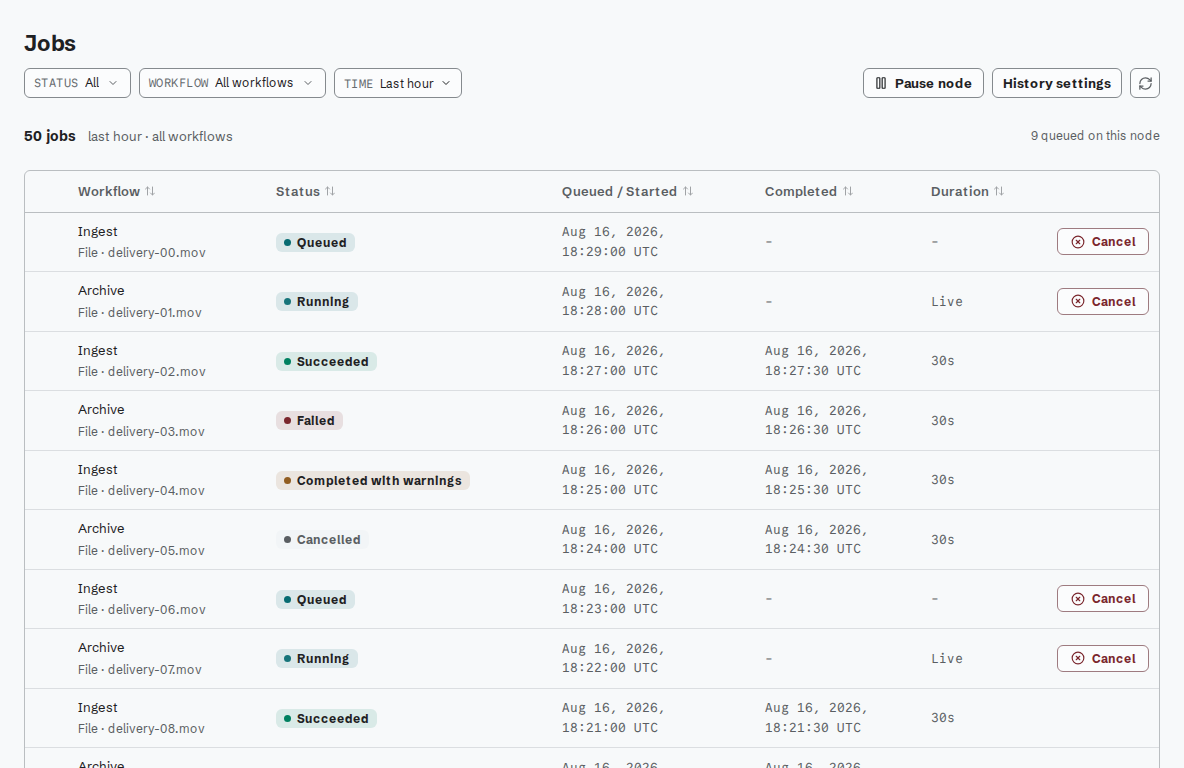
Filter Jobs to find a run and open its recorded details.
11.4 Job detail
Click a job. The first header line gives the workflow name, the status, and the outcome badge. The status uses the same words as the Jobs list. A Workflow Test also shows a Test badge, which reads Test of unsaved changes when it ran an unsaved draft. The second line gives what triggered the job, when it started, how long it ran, and a short Job ID. The short ID shows the last characters of the ID; the copy button next to it copies the full ID. A job that has not started says Not started yet.
A job with a recorded subject adds a block below these lines, for example
File · interview.mov. Location gives the full recorded file location.
Asset ID or Collection ID gives the recorded Iconik identifier.
Other recorded identifiers use Identifier. Older jobs without a recorded
subject show no subject block.
The header buttons are Cancel job (on a queued, running, or production waiting-to-retry job), Open workflow, Delete job (on a finished job), and Download log. On a failed job, Open workflow reads Open failing step. A running job asks you to confirm the cancel (11.3). Delete job opens the same confirmation box as the Jobs list (11.3). When the job is deleted, the detail closes and you return to the list. If the job became active again or was already gone, the detail stays open and says This job was not deleted. A queued or waiting-to-retry job cancels on one click; if the job started in the meantime, the page says so and the job is not cancelled.
A failed job shows a red box above the tabs. It names the failing step, for example Failed at Copy to archive and 1 more step, and gives the start of the error. Show in Steps opens the Steps tab at that step. When Error handling ran, the same box says Error handling failed, or Error handling completed. The original workflow run remains Failed.
File transfer progress. Copy file, S3 upload and download, and SCP upload and download show the current transfer above the tabs. The strip names the file and action. It shows bytes transferred, the expected size when known, and recent transfer speed. The percentage describes this transfer, not the whole workflow. The strip stays visible while you inspect another step. View step opens the exact transfer execution in Steps, including a repeated action inside For Each.
Preparing means Relay is opening the source or connection. Finishing means the file bytes have been processed, but Relay still needs to finish saving or publishing the destination. Reaching 100% does not mean the step succeeded. S3 multipart progress combines the concurrent parts. Resending a part does not count its bytes twice toward the percentage. Speed measures recent file data processed, including resends. It is not a measurement of all network traffic. Size and speed use binary units: one mebibyte (MiB) is 1,048,576 bytes.
When the connection fails, the strip says Last known progress and hides live speed until the next successful refresh. The speed estimate falls during a pause and reaches zero after five seconds without byte activity. This does not mean the connection failed. An unknown file size has no percentage. An empty file still has a normal completed or failed result.
After the job finishes, Transfers completed summarizes successful transfers. A job with failed, cancelled, or incomplete transfer evidence shows Transfer summary instead. The byte total includes successful transfer operations: copying the same file twice counts twice. Each selected transfer step retains its bytes, elapsed time, and average speed on success. Failed and cancelled steps retain measured partial progress without claiming completion. The raw and downloaded job logs include the recorded transfer facts. Saved results remain after Relay restarts. Live measurements from a transfer interrupted by a crash can be unavailable. Older jobs and older nodes have no transfer measurements.
Disabled transfer actions add no transfer counts or bytes and do not make transfer evidence incomplete. A job or Test with only skipped transfers has no transfer summary.
The Steps tab and downloaded job log load the first 500 recorded action executions. This keeps a large repeated job responsive. The current transfer remains available beyond this limit, and the transfer summary covers all recorded transfers. When a downloaded log omits later steps, it says that its step history is truncated. The job header and For Each counts still report the final outcome.
A job that entered For Each shows one closed For Each line above the tabs, with the succeeded, failed, and total counts. Open it to see each loop. The loop list scrolls in its own area, so a large loop does not push the tabs down. Each loop names its succeeded, failed, and processed counts. Failed items list their original array position, failed action, exact repeated step number, and bounded error. Job detail loads at most 1,000 item results across all loops, showing failed results before successful results and saying when more remain; the counts still cover every processed item. An active loop shows In progress. A cancelled loop says Cancelled and confirms that completed item progress was retained. Another terminal loop that stopped early shows Incomplete, its recorded reason, and the saved item, action, and step where available. If Relay cannot read the saved loop evidence, it shows For Each evidence unavailable. The job outcome and Steps tab stay available, but item-level loop results are not shown. This progress remains available after cancellation, interruption, or an outcome-size failure. The terminal detail records Terminal path separately, so reaching Complete does not hide a warning or failed loop result.
Loop error messages use the same protection rules as the action that failed, including Script errors. These rules also apply to errors shown for incomplete loops.
A retrying job also shows a line under the header with its next attempt and why it is waiting. This Iconik connection is cooling down. means another job using the same connection established a shared rate-limit pause. Relay is waiting before the next recovery attempt. is the request's own backoff.
When a job waited, a timing line under the header shows each wait that took time: Admission queue, Retry wait, or Recovery capacity wait, plus Active processing. A job that did not wait shows no timing line. Recovery capacity wait starts after backoff ends while the request waits for a processing slot. Older jobs have no timing line. A restart can leave a newer breakdown incomplete rather than assigning unmeasured downtime to a bucket; the line then says A restart left part of this job's timing unmeasured.
Three tabs:
- Workflow replays the graph with each step colored by outcome. For a Test, this is the protected snapshot of the tested draft, even if the saved workflow later changes or is deleted.
- Steps lists the trigger, every action, and the terminal. Each step shows Status (Started, Finished, State, Execution role: Main path, Error branch, or Error handling), Input (the resolved parameters; for a shell step, the interpreter and command), Output (the values it published; Set variables shows Name, Type, Resolved value), and Error with the message. A declared JSON-bearing output that contains valid JSON keeps its JSON type. Objects and lists are expandable, with their fields and items readable without escaped quotes. Invalid JSON and ordinary text keep their text display. A recovered request also shows Attempt history with the attempt number, request identifier, times, result, safe HTTP details, and diagnostic category. The record is bounded; Older attempts were omitted from this job record. appears when needed. Test steps instead show protected Received and Produced evidence, with the same typed display for declared JSON-bearing produced values and one line for each group of values Relay hid, giving the count and the reason (chapter 4.6). A queue-triggered job shows the Incoming Queue Message: Queue, Job type, SQS message ID, Sent, Receive count, System domain ID, Action ID, Payload, and Forwarded headers. The terminal shows the Outcome, the Source step, and any Error context.
- Raw log is the step log as text. Copy raw log copies the complete log to the system clipboard. If copying fails, the log stays visible so you can select its text.
Disabled actions in job history. A reached disabled action shows
Skipped: disabled. It passed its input unchanged through Success and
created no action outputs. It performed no work and has no retry attempts.
An action on a path the job did not visit has no skipped step record.
For a production job, Output can show {"reason":"disabled"}. This is
the recorded skip reason, not a value that another action can use.
A Test has no Produced values for the skipped action.
The Test graph shows the captured draft and action states, including unsaved changes. Later edits do not change that Test snapshot. A production job's graph uses the current saved workflow and its current action states. Later edits can change that graph. The recorded step history keeps each job's original execution results.
A CatDV step in the job record. The step names the CatDV action, the clip ID it used, and the result. A CatDV Update Clip step also gives the number of fields it wrote, their names, and their identifiers, so you can see exactly which fields it touched. It does not keep the values it wrote. The CatDV password, the session, and the server address appear nowhere in a job, a downloaded log, an export, or a support bundle, and every CatDV message in the record is written by Relay rather than copied from CatDV (How a CatDV step fails).
For a Workflow Test, job details and downloaded logs use the same output protection as the editor. Ordinary Script output remains visible after credential use. Matching stored credentials are removed, and older omission notices remain. Run a new Test if an earlier version did not record the output you need.
When Error handling ran, the box above the tabs says so (see above), and Error handling details opens to show the original failure and the handler's failure beside each other. The error-handler path stays visually separate from the main workflow without changing the saved editor layout.
From a failed job to the step that failed. Open failing step opens the current workflow with the failing step selected, so you can fix it where it lives. Nothing from the recorded job is copied into the draft: you are editing the workflow as it is now. Back to job returns you to the same recorded job, and the editor names which workflow and which job you came from. If that step has since been removed the editor says The step from this job is no longer in this workflow, and if the job has aged out it says This Job is no longer available. Leaving unsaved work still prompts as usual. Moving from the list into a job, into the editor, and back keeps your place and filters in the list.
Accepted Workflow Tests are durable Test Jobs. Their protected input can appear in the workflow header under Replay. The five newest inputs are retained per workflow and node, subject to the shared evidence budget.
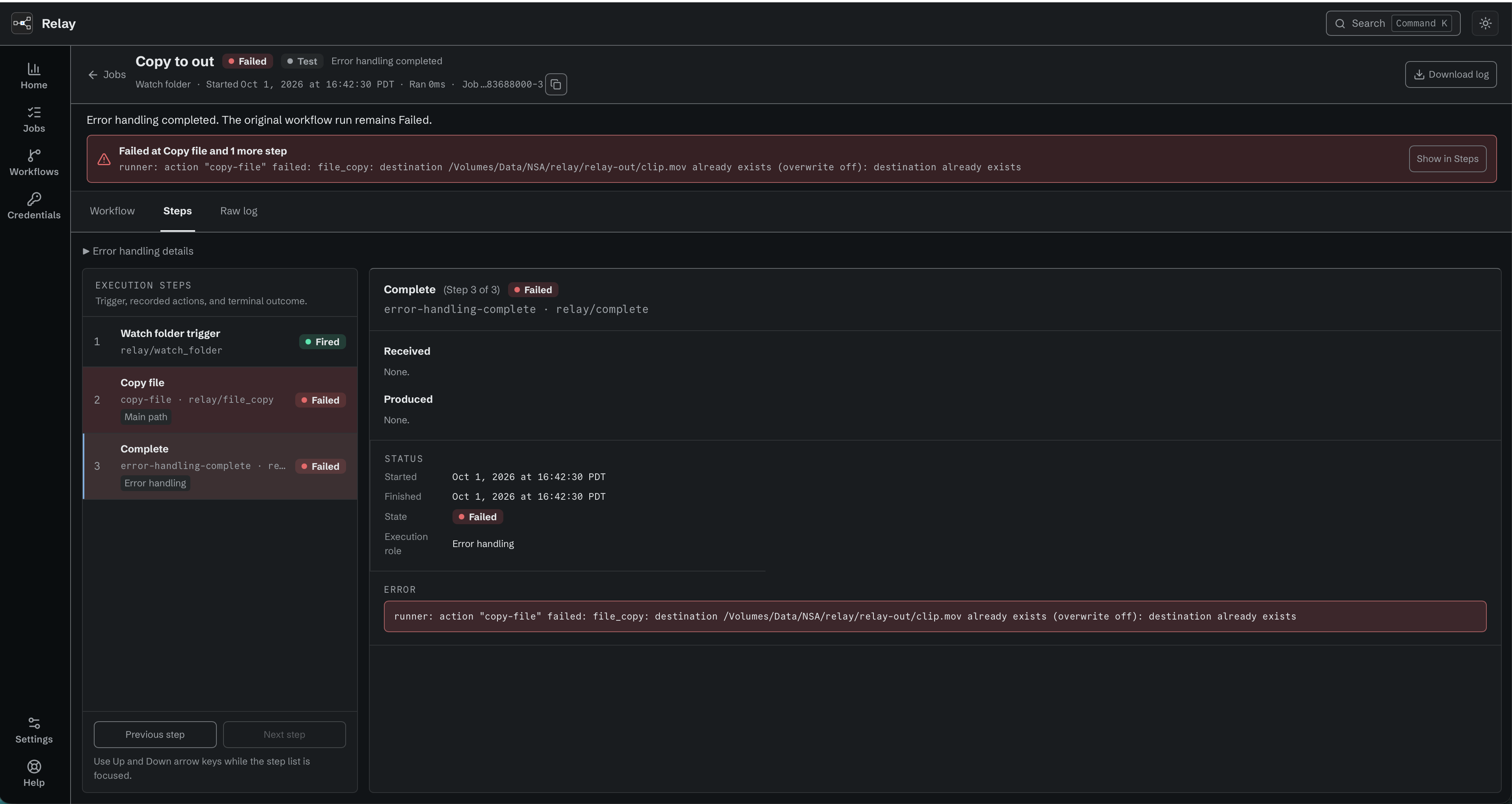
In this example, Copy file failed because the destination file already exists. Error handling completed, but the job remains Failed.
11.5 Stats
A workflow's Stats tab gives that workflow's numbers over a 24 h / 7 d / 30 d window: a Workflow details panel with Last job, Queued for this workflow, and Average duration, plus Error rate, Jobs, Files, and the Failed jobs chart. It does not repeat the node-wide controls.
The node-wide numbers are on Home. For the period its Window filter names, Home shows Running, Queued, Errors to review, Error rate and Files, the Failed jobs chart, a short Activity list where each error has Mark as reviewed and a few seconds of Undo, and the Workflow queues table last. Mark all reviewed marks them together. When the list is shorter than the number of errors it says so and links to Jobs. A license in an offline grace period or close to expiry says so on Home.
Stats counts production work only. Completed with warnings is reported separately from Succeeded and Failed. It does not change the error-rate denominator. Accepted Workflow Tests are excluded from the windowed totals, the error rate, files processed, and node activity summaries, even though they are counted on the Jobs page (11.3).
On the fleet dashboard, Completed with warnings has its own count and amber activity group. It is not included in Unreviewed errors. Live jobs remain ahead of warning rows, so work in progress does not get hidden by completed warnings. Mark all reviewed covers the visible errors and warnings. A reviewed warning leaves the warning count and Activity list, but remains in job history. During a mixed-version fleet, a node that cannot report this status does not contribute to the warning count. Relay shows the count as At least N until every visible node reports it. Update older nodes to restore complete warning coverage.
Relay updates the exact figures in the background as jobs change. An unusually large burst can temporarily fill the pending accounting work faster than the node can apply it. Relay then protects the results of work it has already accepted: running and queued jobs can still finish or be cancelled, while new jobs wait or are refused according to their trigger. Watch folders try the file again, schedules defer the occurrence, and webhooks receive a temporary service response. Admission resumes automatically after the pending figures catch up. The Jobs list, counts, and Stats remain available during that recovery.
11.6 Queue control
Dispatch can be paused for the whole node (Pause node on Jobs) or per workflow (Pause and Resume in the Workflow queues section on Home). Pause holds dispatch only: new jobs are still admitted and queue up, running jobs finish, and the pause survives a restart. While a pause is in effect Relay says so, and adds that new jobs can still queue until the limit is reached. Cancel all clears a workflow's queued and production waiting-to-retry jobs. It does not cancel a Workflow Test waiting to retry; stop that Test from the workflow header.
Relay distinguishes a queue that is actually full from refusals it has recorded. Queue at capacity names the limit that was reached - the payload, the per-workflow queue, or the node-wide queue (chapter 12.3). Queue refusals recorded reports how many were refused and which workflow was refused last. Watch folders retry; webhooks receive 429; schedules skip the occurrence and log it.
A Waiting to retry job releases its slot. When its backoff ends, the saved request waits for capacity beside ordinary admitted work. Relay gives recovery and new work turns so a continuously arriving workflow cannot prevent recovery, and recovery cannot consume every turn. Other workflows and other Iconik connections can continue while one connection is cooling down.
The Workflow queues section on Home lists every workflow with its Last job, Queued, Jobs, Failed, Error rate, Average duration, Files and Queue control. A workflow marked Deleted no longer exists but its history does. The section follows the Window filter at the top of Home, opens by default, and can be collapsed - its heading states how many queues are paused and how much work is waiting, so a closed section still tells you the state.
11.7 Iconik Job clicks
Available in the internal managed Iconik release. Older installers and evaluation builds do not offer this feature.
Each click on an Iconik Job action (chapter 5.8) becomes one job. Its trigger label is the Iconik Job name at the moment of the click, so history stays readable after a rename or delete.
Find the jobs of one Iconik Job. On a node with Iconik Jobs, the Jobs page adds an Iconik Job filter beside Workflow. Choose one Iconik Job to list only its jobs, or All Iconik Jobs to list every job. The filter is not on a workflow's own Jobs tab. The status counts cover workflows, not one Iconik Job, so while one Iconik Job is chosen the count line says Job counts are unavailable with Counts do not cover one Iconik Job. Choose All Iconik Jobs to see counts. The job list still loads. If Relay cannot read the Iconik Jobs, the filter keeps your choice and the page says Relay could not read the Iconik Jobs and tries again by itself. with the reason. Relay reads them again on the next refresh.
Started by. Each job from an Iconik Job shows who clicked, below its subject line in the list and in job detail:
Started by <name>when Relay read the Iconik user's name.Started by <user ID> (name not available)when Relay could not read the name. The user ID is the Iconik user ID.- Nothing while Relay still reads the name, or when the click carried no user.
Iconik click in job detail. Job detail adds an Iconik click section with Iconik Job (the name at the click), Context, Click recorded (when Relay recorded the click), Workflow (None when no workflow was attached), Started by, and Not started with the exact NOT_STARTED (...) error when the click did not start. The section never shows the payload.
A click that did not start. The job is Failed with a NOT_STARTED (...) error (chapter 9.7). It keeps the Iconik Job name, the context, the Iconik action ID, the reason, and the time. It can also keep a short summary of a recognized selection: an asset or collection ID and any supplied title, or the number of selected items. It has no steps and no payload. When no workflow was attached, the job shows the workflow as None.
Clicks from the managed Iconik connection. A click can also end as one of these jobs. Each has no steps and no payload. Chapter 15.15 gives the fix for each.
| Job | Error, exact | When |
|---|---|---|
| Failed, named Unknown Iconik Job | NOT_STARTED (Unknown Iconik Job) |
No Iconik Job on this node has the click's route, for example a click that arrives after its Iconik Job was deleted. |
| Failed | NOT_STARTED (Request rejected): <reason> |
The request does not match this node's Iconik account, or the custom action, or its body is damaged. <reason> is one fixed text. The job is named Unknown Iconik Job when Relay does not know the Iconik Job. |
| Blocked | SKIPPED (Duplicate click): same click as job <first job> |
The same click queued a job less than 5 minutes earlier. <first job> is that job's ID. Open it to see the work. |
| Failed | NOT_STARTED (Relay busy) |
The workflow's waiting line stayed full for about one hour (15.18). |
| Failed | NOT_STARTED (Click not confirmed in time) |
Relay saved the click as Queued but could not confirm it with the cloud queue within 8 days. The workflow never ran. |
Relay saves each click before it asks the cloud queue to remove it, and starts the workflow only after that removal request has returned. A refused request or one that timed out also counts as returned; a copy of the click that comes back later is recognized and does not run again. So every accepted click shows as Queued for a moment. The Iconik Jobs guide (sections 17 to 19) explains the full path of a click.
A click that waits. When the workflow cannot start the click at once, for example because its queue is paused, the click waits as Queued like any other job. When the workflow's waiting line is full, the click gets no job yet: it waits in the cloud queue (15.18). When its turn comes, Relay checks the Iconik Job and the workflow again:
- If the workflow is still eligible and ready, the click runs the workflow as it is saved now. A save made while the click waited is used. The trigger values stay as they were at the click.
- If something changed so that it cannot run, the click ends as a Failed job that never started, with the exact reason. For example, a workflow saved as a draft gives
NOT_STARTED (Workflow not runnable): workflow is a draft; save it as executable. - If the Iconik Job was moved to another workflow, the click does not follow it. It ends with
NOT_STARTED (Workflow not runnable): workflow is no longer attached to this Iconik Job. Clicks that arrive after the change run the new workflow.
Other queued jobs keep the usual rule for a workflow that changed while they waited.