
CatDV actions / Action reference
CatDV Update Clip
Write the picked custom metadata fields to one CatDV clip.
Read Shared action rules for disabling this action, outputs, error routing, and recovery. Configure the CatDV connection before using this action.
Configuration and behavior
| Parameter | Notes |
|---|---|
| Clip ID * | The CatDV clip to update, as a whole positive number. Static or from earlier workflow data. |
| Fields to write * | The custom metadata fields this step writes, each with the value to write. Pick them from the CatDV field list; see below. |
| Retry window | 2m by default; accepts 1 second through 1 hour. |
Ports: Updated and Error.
This step writes only the fields you pick. Every other field on the clip is left as it is. Only custom metadata can be written. No built-in clip property can be changed by this action.
Picking the fields. Add a CatDV field lists the custom clip fields the selected server reports, with each field's type beside its identifier, and a search box for field names. Give each picked field a value: fixed text, a value from an earlier step, or both. The list is read from the live CatDV server the first time you open the picker in an editing session and is then kept, so opening the picker ten times is one sign-in, not ten. Two things make it read the list again: Refresh, and saving that credential in Settings. Saving a credential is how it comes to point at a different CatDV server, so the list the editor holds is dropped rather than shown against the new server. A failed read keeps nothing, and a credential that has been deleted says That CatDV credential is no longer stored on this node. Choose another credential. instead of showing a list. Before a credential is chosen the picker says Choose a CatDV credential first., and a server with no custom clip fields says This CatDV server reports no custom clip fields.
Relay saves the field's identifier as the write key, plus the name and type you saw when you picked it. An administrator who renames a field in CatDV changes what the editor displays, never where Relay writes. Press Refresh to take up the new names. Three notices can appear above the list:
- CatDV no longer reports <names>. Relay still writes the field, because CatDV makes the key again when it is given one.
- These fields were picked under another CatDV connection. Refresh the list before you activate the workflow.
- The CatDV fields saved on this step could not be read, so they are left exactly as they were. Pick the fields again to replace them.
A field CatDV shows as a text area gets one here too. A picked field whose type is multiline or html is given a taller value box that you can drag to resize. Enter starts a new line in it instead of leaving the field, and the line breaks are written to CatDV exactly as you typed them. Every other field type keeps the single-line box, so a one-line value stays easy to check at a glance.
One update, all fields. Relay sends every picked field in one CatDV request per attempt, so they land together or not at all.
Outputs: action, clip_id, result, field_count, field_names, field_identifiers. For example, ${steps.update_clip.field_names} is Air date, Notes and ${steps.update_clip.field_identifiers} is U12, example.notes. Relay publishes which fields were written, never the values it wrote.
In a Workflow Test this step changes nothing. It confirms the credential, the clip, and the picked fields, and reports checked instead of updated.
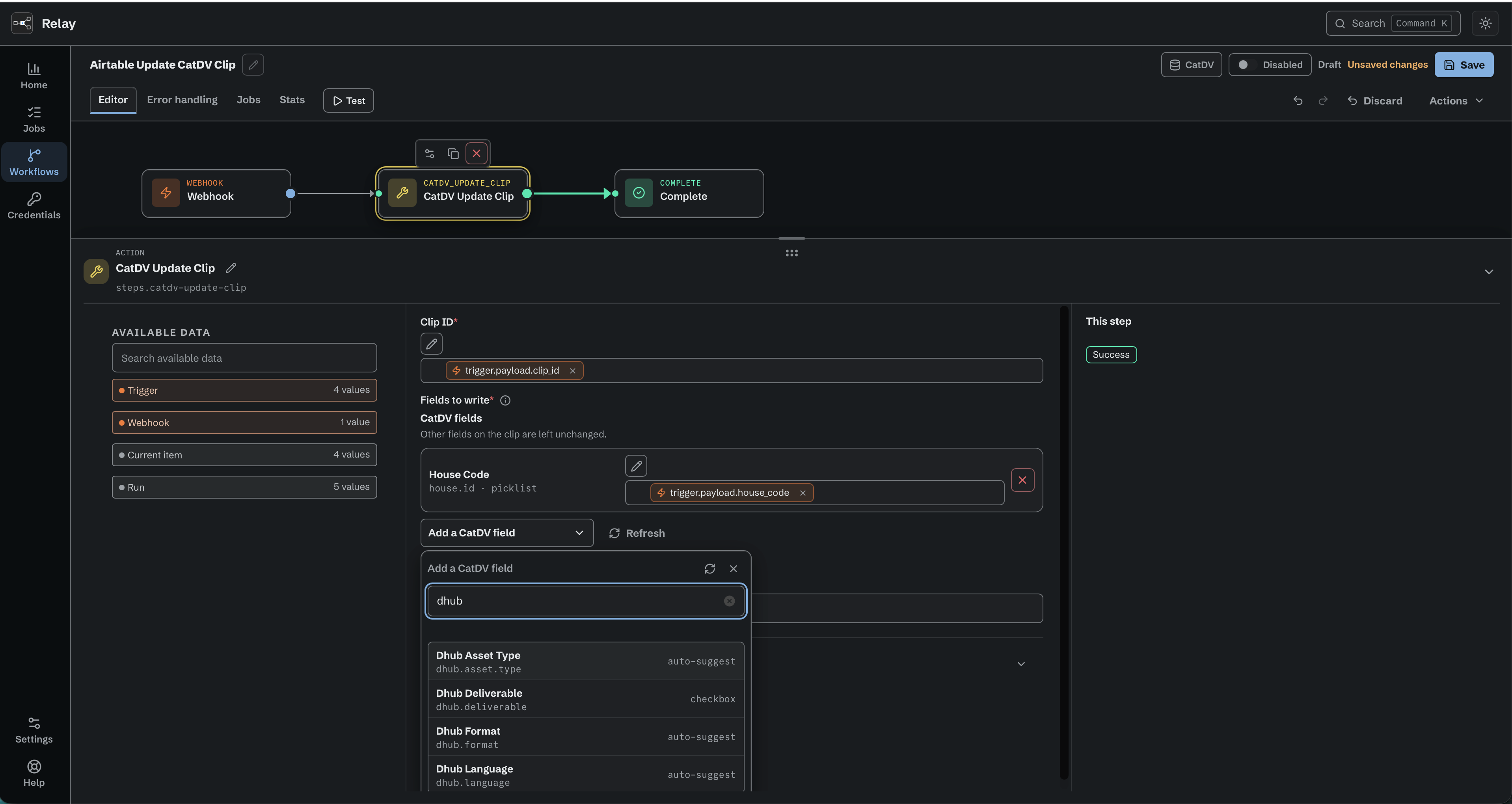
CatDV Update Clip writes only the custom fields you select.