
Actions / Action reference
Iconik actions
Find and change assets, manage collection membership, and look up DLR records.
Actions
| Action | Use it to |
|---|---|
| Iconik Find Asset | Find exactly one active asset that matches your search fields. |
| Iconik Get Asset | Read one active asset by its asset ID. |
| Iconik Create Asset | Create an asset record in Iconik. |
| Iconik Update Asset | Change selected fields on one active asset. |
| Iconik Delete Asset | Move an asset to Iconik's Recycle Bin. |
| Add Asset to Collection | Add one asset to an Iconik collection. |
| Remove Asset from Collection | Remove one asset from an Iconik collection. |
| Iconik DLR Lookup | Find a Data Lookup Record and optionally copy its fields onto a target clip. |
Read Shared action rules for disabling steps, outputs, error routing, and automatic recovery.
Connection and shared behavior
All native Iconik actions use one Iconik connection selected for the workflow. The connection is shown in the workflow header and selects only one Iconik credential. That credential owns the Base URL, App ID, and Auth token. Native Iconik actions have no separate credential or Host field. A workflow cannot be enabled if its Iconik actions have no connection.
With the managed Iconik connection. Available in the internal managed Iconik release. Older installers and evaluation builds do not offer this feature. The workflow has no Iconik connection to select. Every native Iconik action, every Iconik picker, and Workflow Test use the node's managed connection (12.10). A stored per-workflow connection is ignored. While the node is not connected, the pickers are not available, and an Iconik action fails before it sends a request. Each selection records the connection it was made with. After a new connection, or in an imported workflow, refresh the selections before you enable the workflow. A reconnect to the same tenant keeps the selections. HTTP Request and Script do not change (10.10). Problems are in 15.20.
Find Asset, Get Asset, and DLR Lookup publish named, browsable values; Named Iconik values explains how later steps use them. The editor loads fixed fields, custom metadata fields, allowed values, and collections from the selected Iconik system while you author or explicitly refresh the workflow. Execution uses the field definitions saved with the workflow and does not read the live field catalog. Each field value is a Fixed value or comes From a step (data from an earlier step). A fixed value for a field with allowed values, such as a drop-down, is chosen from Iconik's list; you cannot type a value outside it. A fixed number accepts only a number, and a fixed date or date and time uses a date picker. Searchable pickers keep the fixed or custom identity of each field. If Iconik later changes a field incompatibly, the action reports the failure. Refresh the fields, correct the workflow, and save it. Relay does not repair the selection during a job. A missing field or collection remains visible as Unavailable, and a selection the target cannot support appears as Incompatible; either state blocks activation until you replace or remove it. An older Find Asset action saved with Match any asks you to review its criteria and Confirm AND before activation. Iconik requests have a 30-second request limit, a two-minute Retry window by default, and do not retry an uncertain write.
The editor does not send an Iconik field or collection request while that connection is cooling down. It shows The Iconik connection is waiting to retry. Next eligible time: <time>. Wait until the displayed time, then refresh the picker again. Do not keep retrying while the connection is cooling down.
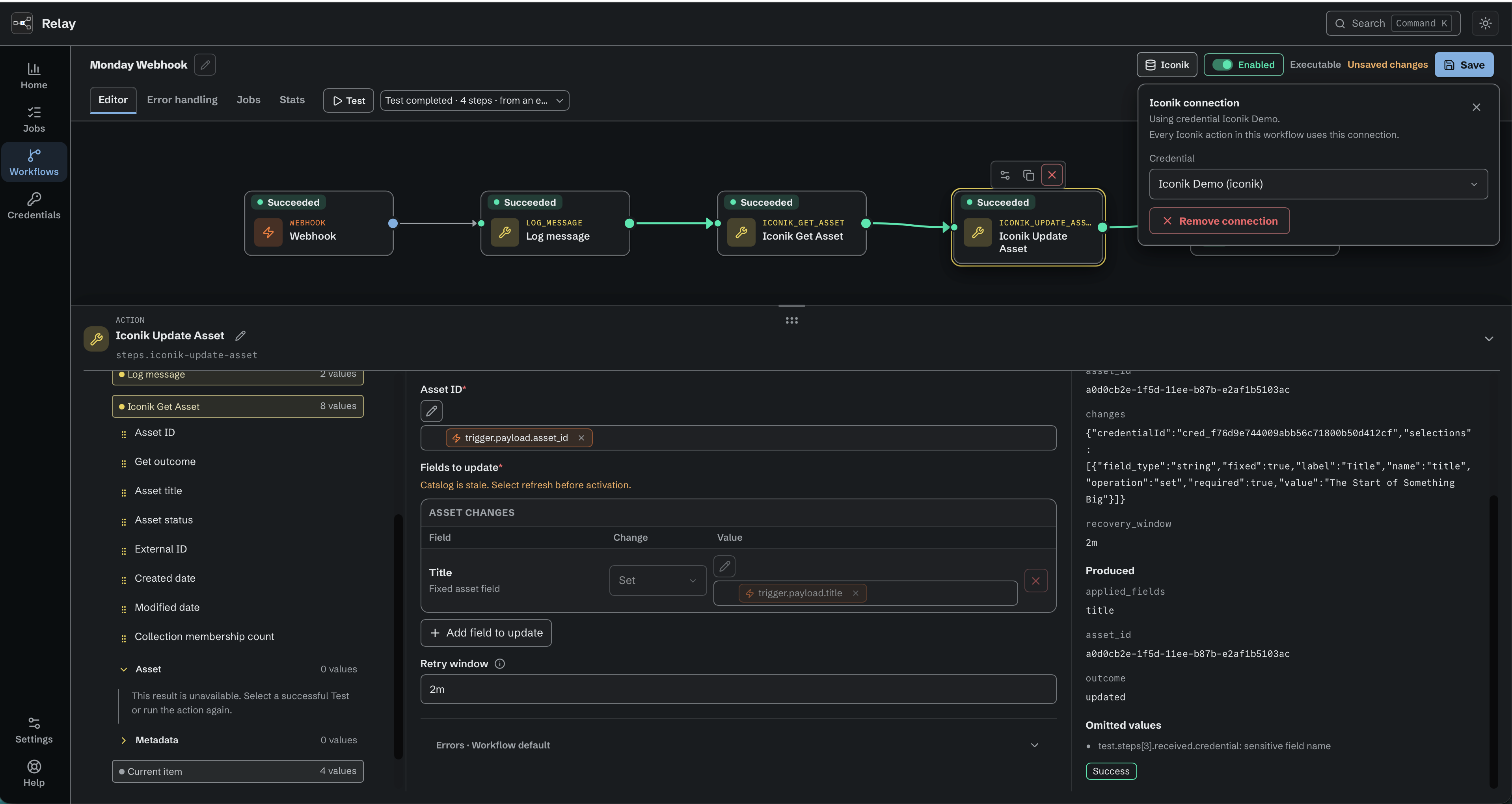
Native Iconik actions share the workflow's selected Iconik credential.
Named Iconik values
Find Asset, Get Asset, and DLR Lookup publish a browsable result made of named values rather than one JSON blob. A later step reaches them through Available data: find the source step, expand its groups, then click or drag the value you need into the field. The editor writes the reference for you; you do not type these paths by hand. The inserted chip names both the source step and the value.
Find Asset and Get Asset group their values four ways:
| Group | Holds |
|---|---|
| Asset | Every core asset field: id, title, status, dates, external ID, and the rest, one entry each. |
| Metadata | One sub-group per custom metadata field, under its Iconik name. A single-value field is a scalar; a multi-value field keeps its members and their order. |
| Files | One sub-group per file location, with its storage, reported path, and filename. Locations stay separate even when filenames match. Present only when Include additional asset details is on. |
| Other details | Collections, formats, file sets, versions, relationships, segments, and proxy download URLs, exactly as Iconik returned them. Present only when Include additional asset details is on. |
The Asset and Metadata groups are present for the basic result. Files and Other details are not offered in Available data when the source node will not retrieve them. Changing the option invalidates older discovery data; run a new Test before selecting downstream values. DLR Lookup is different: its Matched DLR group always holds core values and custom metadata only, whatever a Get Asset or Find Asset node elsewhere in the workflow is set to (Iconik DLR Lookup).
Empty text, null, and an empty collection stay distinct. A whole collection fills a field that accepts structured JSON, such as Extract JSON values' Source. In an ordinary text field it arrives with Stringify applied, so the field receives its JSON text (8.3); pick a scalar member instead when you want one value. Set variables accepts scalar values and keeps their text, number, boolean, and path types. A file or folder path gets the chip's path controls (8.3), which work on the reported path and need no local mount; a URL stays a URL and gets no path controls.
Discovering the values. The available fields come from a Workflow Test you have run with representative input, and searching matches field names and sample values. Changing the source action's configuration or the workflow's Iconik connection makes earlier discovery data unavailable; run a new Test to discover the current fields. Missing, failed, incomplete, or expired evidence never borrows samples from a different run. A Script step elsewhere in the workflow does not remove this discovery: safe field names found during the Test stay available, including when the source action uses a credential and Script output. Actual stored credential values remain protected. Samples are only for authoring: at run time a reference always resolves against the current job's values.
When a value is not there at run time. If the referenced value is missing, the receiving step fails with Iconik value "…" is missing. If the reference could mean more than one thing, it fails with Iconik value "…" is ambiguous; more than one file or record matches. Either way the step fails before it does any work and follows the workflow's normal error routing. Relay never falls back to a saved sample.
OASIS outputs are gone. The old oasis_json output and its oasis.* paths were removed in 0.59.0 and are not migrated. A workflow still holding one stops with an obsolete-reference message. To fix it: run a Test, find the equivalent named value in Available data, remove the old reference, insert the new value, reapply any path extraction, save, and confirm the receiving step in another Test. The task guide is Use Iconik asset values.